
腾讯云AI代码助手编程挑战赛-蛇年外出旅行专用随机拍照图片生成项目
在蛇年这个充满生机与变化的年份,外出旅行成为了人们放松心情、探索未知的首选方式。然而,在旅途中,除了享受美景和美食,记录下这些美好瞬间也同样重要。为了满足旅行者在拍照时的创意需求,我们完全使"腾讯云AI代码助手"来开发了这款“蛇年外出旅行专用随机拍照图片生成器”项目。该项目结合蛇年的特色元素与旅行拍照的趣味性,为用户提供一种全新的、随机化的拍照图片生成体验。
作品简介
在蛇年这个充满生机与变化的年份,外出旅行成为了人们放松心情、探索未知的首选方式。然而,在旅途中,除了享受美景和美食,记录下这些美好瞬间也同样重要。为了满足旅行者在拍照时的创意需求,我们完全使"腾讯云AI代码助手"来开发了这款“蛇年外出旅行专用随机拍照图片生成器”项目。该项目结合蛇年的特色元素与旅行拍照的趣味性,为用户提供一种全新的、随机化的拍照图片生成体验。
技术架构
使用Java语言的JFrame来完成图形化页面的样式,使用Java语言来操作对应的逻辑代码
实现过程
1、准备数据集
2、创建窗体:用java写一个语言写一个800px*500px的窗口
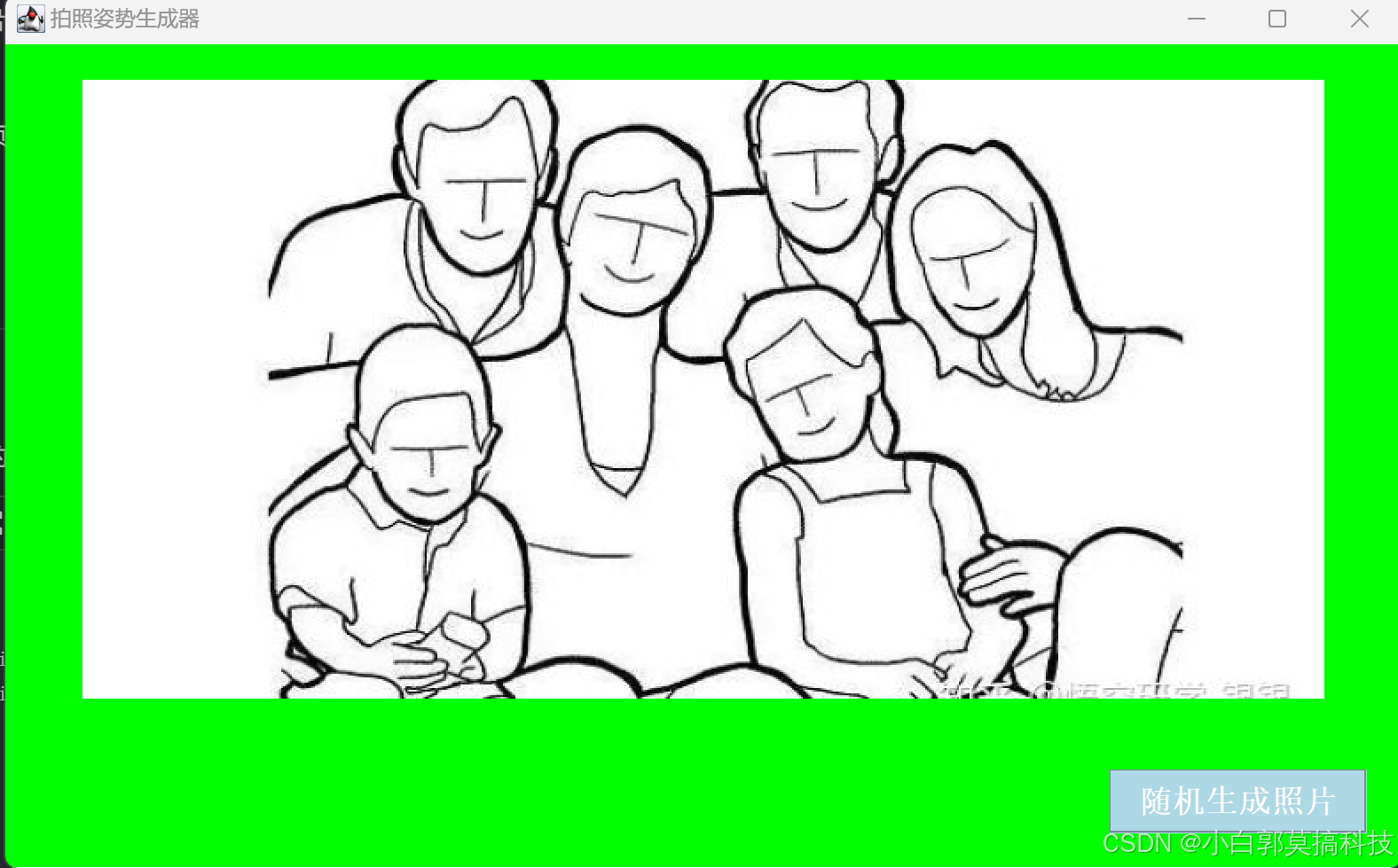
3、添加按钮与功能:要在java窗口中生成一个按钮,点击后随机展示该路径(C:\Users\G123\Desktop\项目)文件夹中的一张照片
4、页面显示优化:
美化界面:1.图片没显示的时候提示"快来生成一张美美的拍照照片吧!" 2.将上面这段话居中显示,照片也居中显示3.窗口背景改成绿色4.按钮颜色变成天蓝色,位于页面有下角5.窗口名为拍照姿势生成器
开发环境、开发流程
系统环境:Win11系统
开发工具:VSCode
开发插件:腾讯云AI代码助手
关键技术解析
过程中的异常解决,如提示代码异常,换行没有保证代码通顺的问题等。
腾讯云AI代码助手在上述过程中的助力
从初始到完成的代码开发,开发过程完全依赖于腾讯云AI助手。
使用说明
点击按钮即可生成蛇年祝福。
效果展示
代码展示
import javax.swing.*;
import java.awt.*;
import java.awt.event.ActionEvent;
import java.awt.event.ActionListener;
import java.io.File;
import java.util.Random;

public class main {
  private static JLabel imageLabel; // 用于显示图片的标签
  private static File[] listOfFiles; // 存储图片文件列表

  public static void main(String[] args) {
    // 创建一个新的JFrame实例
    JFrame frame = new JFrame("拍照姿势生成器");

    // 设置窗口的大小
    frame.setSize(800, 500);

    // 设置窗口背景颜色为绿色
    frame.getContentPane().setBackground(Color.GREEN);

    // 设置窗口关闭操作
    frame.setDefaultCloseOperation(JFrame.EXIT_ON_CLOSE);

    // 创建一个面板用于放置按钮和图片
    JPanel panel = new JPanel(new GridBagLayout()) {
      @Override
      protected void paintComponent(Graphics g) {
        super.paintComponent(g);
        g.setColor(Color.GREEN);
        g.fillRect(0, 0, getWidth(), getHeight());
      }
    };

    // 创建标签用于显示提示信息或图片,并居中
    imageLabel = new JLabel("快来生成一张美美的拍照姿势照片吧!", SwingConstants.CENTER);
    imageLabel.setFont(new Font("Serif", Font.BOLD, 24));
    panel.add(imageLabel, new GridBagConstraints(0, 0, 1, 1, 1.0, 1.0,
        GridBagConstraints.CENTER, GridBagConstraints.BOTH, new Insets(20, 20, 20, 20), 0, 0));

    // 创建按钮并设置样式
    JButton button = new JButton("随机生成照片");
    button.setBackground(new Color(173, 216, 230)); // 天蓝色背景
    button.setForeground(Color.WHITE); // 白色文字
    button.setFont(new Font("Serif", Font.BOLD, 18));
    panel.add(button, new GridBagConstraints(0, 1, 1, 1, 0.0, 0.0,
        GridBagConstraints.SOUTHEAST, GridBagConstraints.NONE, new Insets(20, 20, 20, 20), 0, 0));

    // 添加按钮点击事件监听器
    button.addActionListener(new ActionListener() {
      @Override
      public void actionPerformed(ActionEvent e) {
        showRandomImage();
      }
    });

    // 将面板添加到窗口
    frame.getContentPane().add(panel);

    // 设置窗口可见
    frame.setLocationRelativeTo(null); // 窗口居中显示
    frame.setVisible(true);
  }

  // 显示随机图片的方法
  private static void showRandomImage() {
    String folderPath = "C:\\Users\\G123\\Desktop\\项目";
    File folder = new File(folderPath);
    listOfFiles = folder
        .listFiles((dir, name) -> name.endsWith(".jpg") || name.endsWith(".png") || name.endsWith(".jpeg"));

    if (listOfFiles != null && listOfFiles.length > 0) {
      Random rand = new Random();
      int randomIndex = rand.nextInt(listOfFiles.length);
      File selectedFile = listOfFiles[randomIndex];
      ImageIcon imageIcon = new ImageIcon(selectedFile.getAbsolutePath());
      Image image = imageIcon.getImage().getScaledInstance(700, 400, Image.SCALE_SMOOTH);
      imageLabel.setIcon(new ImageIcon(image));
      imageLabel.setText(""); // 清空提示信息
    } else {
      JOptionPane.showMessageDialog(null, "没有找到图片。");
    }
  }
}
汇聚全球AI编程工具,助力开发者即刻编程。
更多推荐

 6
6 0
0- 0


 已为社区贡献1条内容

所有评论(0)