
无线传感器作业
无线传感器作业编译环境:Mind+硬件:掌控板实验1光控灯图形化实现代码/*!* MindPlus* mpython**/#include <MPython.h>// 主程序开始void setup() {mPython.begin();}void loop() {if (((light.read())<500)) {display.setCursor(42, 22);displ
·
无线传感器作业
编译环境:Mind+
硬件:掌控板
实验1光控灯
图形化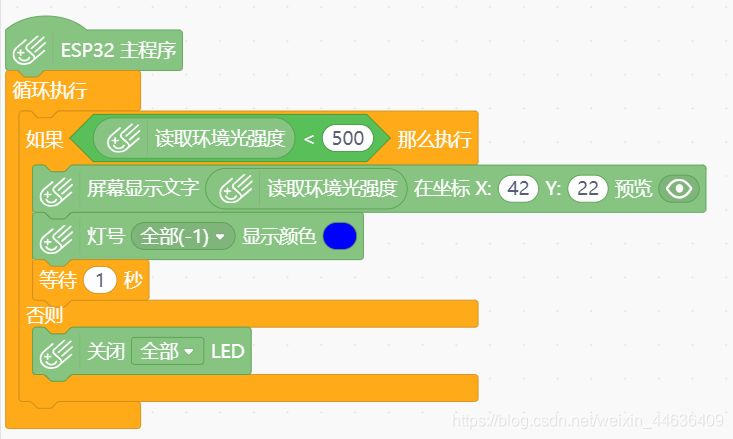
实现代码
/*!
 * MindPlus
 * mpython
 *
 */
#include <MPython.h>


// 主程序开始
void setup() {
	mPython.begin();
}
void loop() {
	if (((light.read())<500)) {
		display.setCursor(42, 22);
		display.print((light.read()));
		rgb.write(-1, 0x0000FF);
		delay(1000);
	}
	else {
		rgb.write(-1, 0x000000);
	}
}
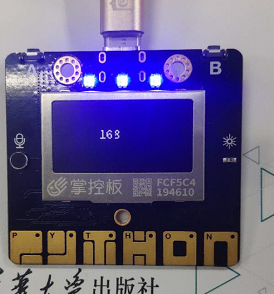
``
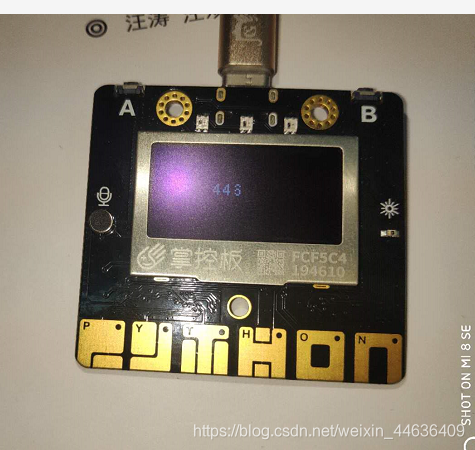
实验2声控灯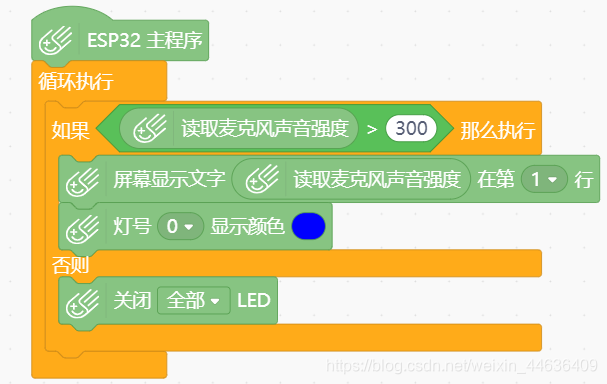
实现代码
/*!
 * MindPlus
 * mpython
 *
 */
#include <MPython.h>


// 主程序开始
void setup() {
	mPython.begin();
}
void loop() {
	if (((sound.read())>300)) {
		display.setCursorLine(1);
		display.printLine((sound.read()));
		rgb.write(0, 0x0000FF);
	}
	else {
		rgb.write(-1, 0x000000);
	}
}
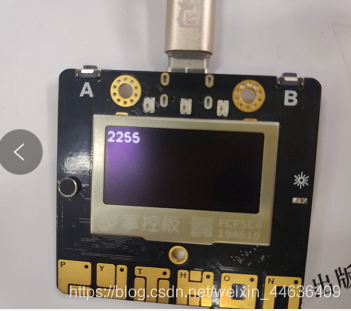
效果图: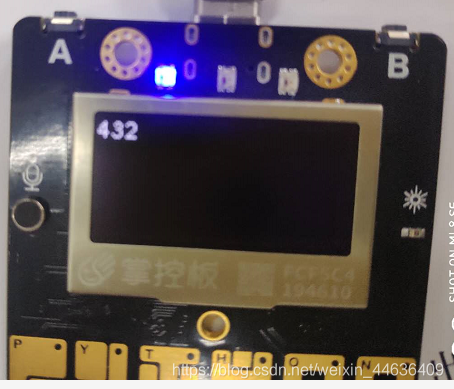
实验3语音识别控制灯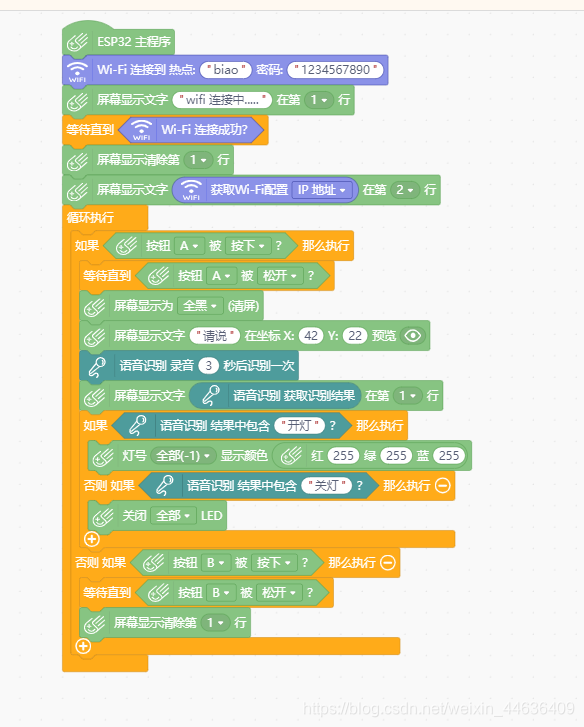
代码:
/*!
 * MindPlus
 * mpython
 *
 */
#include <MPython.h>
#include <DFRobot_Iot.h>
#include <MPython_ASR.h>
// 函数声明
uint32_t rgbToColor(uint8_t r, uint8_t g, uint8_t b);
// 创建对象
DFRobot_Iot myIot;
MPython_ASR mpythonAsr;
String      str_mpythonAsr_result;


// 主程序开始
void setup() {
	mPython.begin();
	myIot.wifiConnect("biao", "1234567890");
	display.setCursorLine(1);
	display.printLine("wifi 连接中.....");
	while (!myIot.wifiStatus()) {yield();}
	display.fillInLine(1, 0);
	display.setCursorLine(2);
	display.printLine(myIot.getWiFiLocalIP());
}
void loop() {
	if ((buttonA.isPressed())) {
		while (!(!buttonA.isPressed())) {yield();}
		display.fillScreen(0);
		display.setCursor(42, 22);
		display.print("请说");
		str_mpythonAsr_result=mpythonAsr.getAsrResult(3);
		display.setCursorLine(1);
		display.printLine((str_mpythonAsr_result));
		if (((String(str_mpythonAsr_result).indexOf(String("开灯")) != -1))) {
			rgb.write(-1, rgbToColor(round(255), round(255), round(255)));
		}
		else if (((String(str_mpythonAsr_result).indexOf(String("关灯")) != -1))) {
			rgb.write(-1, 0x000000);
		}
	}
	else if ((buttonB.isPressed())) {
		while (!(!buttonB.isPressed())) {yield();}
		display.fillInLine(1, 0);
	}
}


// 静态函数
uint32_t rgbToColor(uint8_t r, uint8_t g, uint8_t b)
{
  return (uint32_t)((((uint32_t)r<<16) | ((uint32_t)g<<8)) | (uint32_t)b);
}
效果图: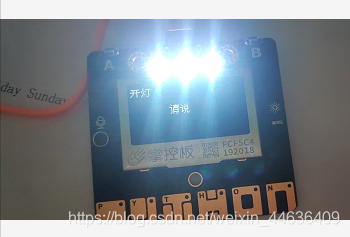
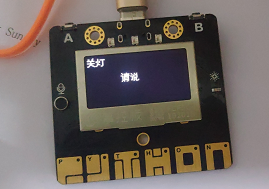
实验4实现Easy IoT上mqtt消息的通讯
图形化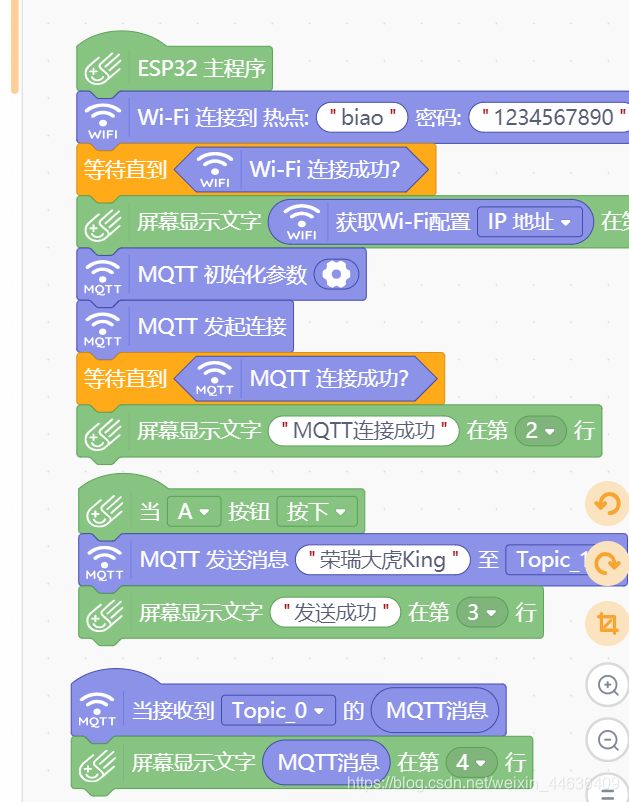
代码图:
/*!
 * MindPlus
 * mpython
 *
 */
#include <MPython.h>
#include <DFRobot_Iot.h>
// 函数声明
void onButtonAPressed();
void obloqMqttEventT0(String& message);
// 静态常量
const String topics[5] = {"VeCisCdMR","wRcH8COMR","","",""};
const MsgHandleCb msgHandles[5] = {obloqMqttEventT0,NULL,NULL,NULL,NULL};
// 创建对象
DFRobot_Iot myIot;


// 主程序开始
void setup() {
	mPython.begin();
	myIot.setMqttCallback(msgHandles);
	buttonA.setPressedCallback(onButtonAPressed);
	myIot.wifiConnect("biao", "1234567890");
	while (!myIot.wifiStatus()) {yield();}
	display.setCursorLine(1);
	display.printLine(myIot.getWiFiLocalIP());
	myIot.init("iot.dfrobot.com.cn","Rf4tCjCWg","","RB4tjCCWRz",topics,1883);
	myIot.connect();
	while (!myIot.connected()) {yield();}
	display.setCursorLine(2);
	display.printLine("MQTT连接成功");
}
void loop() {

}

// 事件回调函数
void onButtonAPressed() {
	myIot.publish(topic_1, "荣瑞大虎King");
	display.setCursorLine(3);
	display.printLine("发送成功");
}
void obloqMqttEventT0(String& message) {
	display.setCursorLine(4);
	display.printLine(message);
}
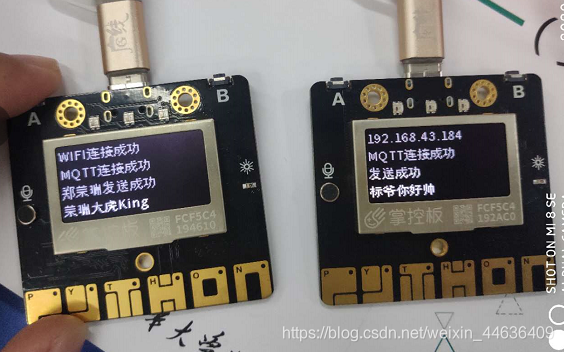
效果图: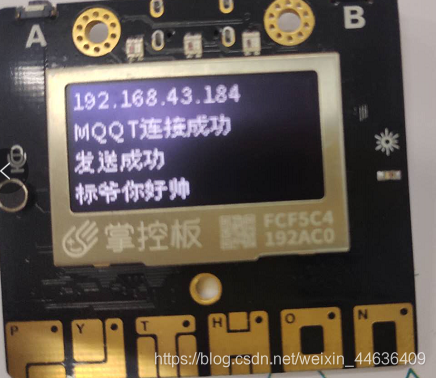

汇聚全球AI编程工具,助力开发者即刻编程。
更多推荐

 0
0 0
0- 0


 已为社区贡献1条内容

所有评论(0)