
运维老手私藏:Linux 文件操作极简命令合集
Linux命令行管理文件
文件系统层次结构
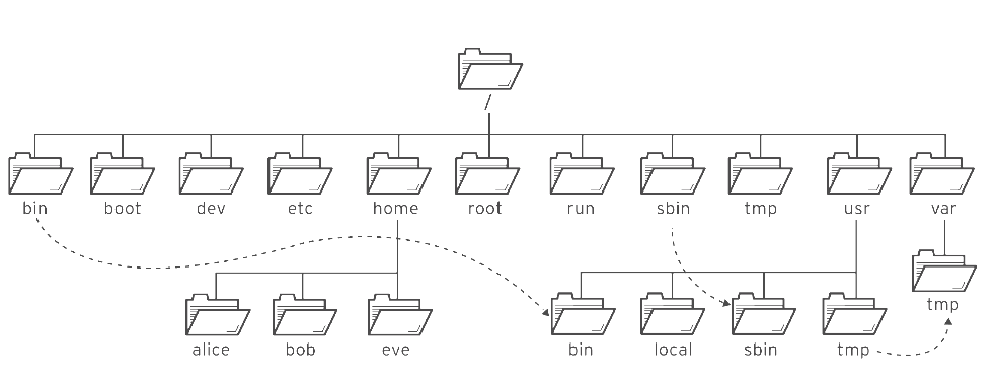
Linux遵循开源协议,所以任何人都可以根据Linux的核心代码制作和发行版本。如果每个人都按自己的喜好,在/目录下创建目录、存放文件,将导致其他人无法快速使用他人的linux系统。为避免这样的情况,FHS就应运而生,对linux文件系统目录结构进行规范化。
FHS(Filesystem Hierarchy Standard)采用树形结构组织文件,定义了系统中每个区域的用途、所需要的最小构成的文件和目录,同时还给出了例外处理与矛盾处理。
FHS定义了两层规范:
- **定义了 / 下面的各个目录应该要放什么文件数据。**例如/etc应该要放置设置文件,/bin与/sbin则应该要放置可执行文件等等。
- **针对/usr及/var这两个目录的子目录来定义。**例如/var/log放置系统登录文件、/usr/share放置共享数据等等。
USR,Unix System Resource
| 位置 | 用途 |
|---|---|
| /usr | 系统安装的软件、共享的库。重要的子目录有:/usr/bin: 用户命令。/usr/sbin: 系统管理命令。 /usr/lib、/usr/lib64:应用程序可调用的通用库文件。 /usr/local: 本地自定义软件。 |
| /etc | 系统配置文件。 |
| /var | variable,系统可变数据,在系统启动之间保持永久性,如数据库、 缓存目录、日志文件、打印机后台处理文档和网站内容。 |
| /run | 自本次系统启动以来运行中的进程的运行数据,包括进程ID文件和锁定文件,等等。此目录中的内容在重启时重新创建。此目录合并了早期版本的Linux 中的/var/run和/var/lock。 |
| /home | 主目录是普通用户存储其个人数据和配置文件的位置。 每个用户有自己的位置,例如 /home/laoma。 |
| /root | 管理员root的主目录。 |
| /tmp | 供临时文件使用的全局可写空间。 10天内未访问、未更改或未修改的文件将自动从该目录中删除。 还有一个临时目录/var/tmp,该目录中的文件如果在30天内未曾访问、更改或修改过, 将被自动删除。 |
| /boot | 开机启动过程所需的文件。 |
| /dev | device,包含特殊的设备文件,供系统用于访问硬件。 |
文件路径导航
导航路径 cd 和 pwd
常见路径说明:
- 绝对路径:以根(/)开头的路径,用于指定文件的确切位置。
- 当前工作路径:当前所处的位置。
- 相对路径:不是以根(/)开头的路径,相对当前工作目录的路径。
#显示当前目录
[chenxin@centos7 ~ 20:33:46]$ pwd
/home/chenxin

#切换路径
[chenxin@centos7 ~ 20:33:50]$ cd /usr/bin
[chenxin@centos7 bin 20:34:01]$ pwd
/usr/bin
[chenxin@centos7 bin 20:34:02]$ ls
[                                    gvfs-copy                    pyinotify
a2p                                  gvfs-info                    python
abrt-action-analyze-backtrace        gvfs-less                    python2
abrt-action-analyze-c                gvfs-ls                      python2.7
...

#切换到其他目录
[chenxin@centos7 bin 20:34:38]$ cd /usr/share/doc
[chenxin@centos7 doc 20:37:59]$ pwd
/usr/share/doc

# 切换上一次所在目录
[chenxin@centos7 doc 20:38:09]$ cd -
/usr/bin
[chenxin@centos7 bin 20:38:28]$ pwd
/usr/bin

#切换到家目录
[chenxin@centos7 bin 20:38:37]$ cd
# 或者
[chenxin@centos7 ~ 20:39:28]$ cd ~
[chenxin@centos7 ~ 20:39:34]$ pwd
/home/chenxin

# 上一级目录(父目录),用..表示
[chenxin@centos7 ~ 20:39:50]$ pwd
/home/chenxin
[chenxin@centos7 ~ 20:40:32]$ ls /home
chenxin  xiaohua
[chenxin@centos7 ~ 20:40:41]$ cd ..
[chenxin@centos7 home 20:40:51]$ pwd
/home

# 当前目录用.表示,通常不写
[chenxin@centos7 ~ 20:43:36]$ file ./.bash_history
./.bash_history: UTF-8 Unicode text
[chenxin@centos7 ~ 20:47:16]$ file .bash_history
.bash_history: UTF-8 Unicode text

[chenxin@centos7 ~ 20:47:26]$ cd /usr/share/doc/at-spi2-core-2.28.0/
# 使用相对路径切换到/usr/share/
[chenxin@centos7 at-spi2-core-2.28.0 20:47:34]$ cd ../../
[chenxin@centos7 share 20:47:43]$ pwd
/usr/share

[chenxin@centos7 ~ 20:55:18]$ cd /usr/share/doc/at-spi2-core-2.28.0/
# 使用相对路径切换到  /etc/yum
[chenxin@centos7 share 21:03:26]$ cd ../ ../ ../ ../etc/yum
[chenxin@centos7 yum 21:03:59]$ pwd
/etc/yum
ls 命令补充
# -1(数字1)选项以单列格式展示
# 图形化界面,并且用户登录系统后才会有这些文件。
[chenxin@centos7 ~ 21:13:08]$ ls -1
公共
模板
视频
图片
文档
下载
音乐
桌面

# -R 选项递归查看子目录中文件
[chenxin@centos7 ~ 21:13:20]$  ls /etc/yum
fssnap.d  pluginconf.d  protected.d  vars  version-groups.conf
[chenxin@centos7 ~ 21:13:32]$  ls -R /etc/yum
/etc/yum:
fssnap.d  pluginconf.d  protected.d  vars  version-groups.conf

/etc/yum/fssnap.d:

/etc/yum/pluginconf.d:
fastestmirror.conf  langpacks.conf

/etc/yum/protected.d:
systemd.conf

/etc/yum/vars:
contentdir  infra

# -l选项 长列表格式查看文件详细信息
[chenxin@centos7 ~ 21:13:47]$  ls /etc/hosts
/etc/hosts
[chenxin@centos7 ~ 21:16:13]$ ls -l /etc/hosts
-rw-r--r--. 1 root root 158 6月   7 2013 /etc/hosts

# ls 命令默认按文件名先后顺序正向排序
[chenxin@centos7 ~ 21:16:46]$ ls -l
总用量 0
drwxr-xr-x. 2 chenxin chenxin 6 7月  14 10:39 公共
drwxr-xr-x. 2 chenxin chenxin 6 7月  14 10:39 模板
drwxr-xr-x. 2 chenxin chenxin 6 7月  14 10:39 视频
drwxr-xr-x. 2 chenxin chenxin 6 7月  14 10:39 图片
drwxr-xr-x. 2 chenxin chenxin 6 7月  14 10:39 文档
drwxr-xr-x. 2 chenxin chenxin 6 7月  14 10:39 下载
drwxr-xr-x. 2 chenxin chenxin 6 7月  14 10:39 音乐
drwxr-xr-x. 2 chenxin chenxin 6 7月  14 10:39 桌面
......

# 使用 -r 选项反向排序
[chenxin@centos7 ~ 21:17:06]$ ls -rl
总用量 0
drwxr-xr-x. 2 chenxin chenxin 6 7月  14 10:39 桌面
drwxr-xr-x. 2 chenxin chenxin 6 7月  14 10:39 音乐
drwxr-xr-x. 2 chenxin chenxin 6 7月  14 10:39 下载
drwxr-xr-x. 2 chenxin chenxin 6 7月  14 10:39 文档
drwxr-xr-x. 2 chenxin chenxin 6 7月  14 10:39 图片
drwxr-xr-x. 2 chenxin chenxin 6 7月  14 10:39 视频
drwxr-xr-x. 2 chenxin chenxin 6 7月  14 10:39 模板
drwxr-xr-x. 2 chenxin chenxin 6 7月  14 10:39 公共

# 使用 -t 选项按时间排序
[chenxin@centos7 ~ 21:21:29]$ ls -tl
总用量 0
drwxr-xr-x. 2 chenxin chenxin 6 7月  14 10:39 公共
drwxr-xr-x. 2 chenxin chenxin 6 7月  14 10:39 模板
drwxr-xr-x. 2 chenxin chenxin 6 7月  14 10:39 视频
drwxr-xr-x. 2 chenxin chenxin 6 7月  14 10:39 图片
drwxr-xr-x. 2 chenxin chenxin 6 7月  14 10:39 文档
drwxr-xr-x. 2 chenxin chenxin 6 7月  14 10:39 下载
drwxr-xr-x. 2 chenxin chenxin 6 7月  14 10:39 音乐
drwxr-xr-x. 2 chenxin chenxin 6 7月  14 10:39 桌面

# 使用 -d 选项只查看对象本身
[chenxin@centos7 ~ 21:22:27]$ ls -ld /etc/yum
drwxr-xr-x. 6 root root 100 7月  14 10:28 /etc/yum
[chenxin@centos7 ~ 21:22:36]$ ls -l /etc/yum
总用量 4
drwxr-xr-x. 2 root root   6 10月  2 2020 fssnap.d
drwxr-xr-x. 2 root root  54 7月  14 10:29 pluginconf.d
drwxr-xr-x. 2 root root  26 7月  14 10:28 protected.d
drwxr-xr-x. 2 root root  37 10月  2 2020 vars
-rw-r--r--. 1 root root 444 10月  2 2020 version-groups.conf
tree命令
以树形格式查看目录结构
# 配置仓库
[root@centos7 ~ 21:26:46]# curl -s -o /etc/yum.repos.d/CentOS-Base.repo http://mirrors.aliyun.com/repo/Centos-7.repo
[root@centos7 ~ 21:26:50]# curl -s -o /etc/yum.repos.d/epel.repo http://mirrors.aliyun.com/repo/epel-7.repo[root@centos7 ~ 21:26:57]#

# 安装tree工具
[root@centos7 ~ 21:27:03]# yum install -y tree

[root@centos7 ~ 21:28:16]#  tree /etc/yum
/etc/yum
├── fssnap.d
├── pluginconf.d
│   ├── fastestmirror.conf
│   └── langpacks.conf
├── protected.d
│   └── systemd.conf
├── vars
│   ├── contentdir
│   └── infra
└── version-groups.conf

4 directories, 6 files
stat 命令
查看文件的元数据属性(状态)。
[chenxin@centos7 ~ 21:32:20]$ stat /etc/fstab
  文件:"/etc/fstab"
  大小:541       	块:8          IO 块:4096   普通文件
设备:fd00h/64768d	Inode:67160130    硬链接:1
权限:(0644/-rw-r--r--)  Uid:(    0/    root)   Gid:(    0/    root)
环境:system_u:object_r:etc_t:s0
最近访问:2026-07-15 10:38:01.782264454 +0800
最近更改:2026-07-14 10:25:56.208175178 +0800
最近改动:2026-07-14 10:32:40.635645992 +0800
创建时间:-
touch 命令
[chenxin@centos7 ~ 21:32:25]$ touch --help
用法:touch [选项]... 文件...
Update the access and modification times of each FILE to the current time.

A FILE argument that does not exist is created empty, unless -c or -h
is supplied.

A FILE argument string of - is handled specially and causes touch to
change the times of the file associated with standard output.

Mandatory arguments to long options are mandatory for short options too.
  -a			只更改访问时间
  -c, --no-create	不创建任何文件
  -d, --date=字符串	使用指定字符串表示时间而非当前时间
  -f			(忽略)
  -h, --no-dereference		会影响符号链接本身,而非符号链接所指示的目的地
				(当系统支持更改符号链接的所有者时,此选项才有用)
  -m			只更改修改时间
  -r, --reference=FILE   use this file's times instead of current time
  -t STAMP               use [[CC]YY]MMDDhhmm[.ss] instead of current time
      --time=WORD        change the specified time:
                           WORD is access, atime, or use: equivalent to -a
                           WORD is modify or mtime: equivalent to -m
      --help		显示此帮助信息并退出
      --version		显示版本信息并退出

请注意,-d 和-t 选项可接受不同的时间/日期格式。


# 更新现有文件时间戳:包括访问时间,更改时间和修改时间。
[chenxin@centos7 ~ 21:36:31]$ touch zhang.txt
[chenxin@centos7 ~ 21:36:48]$ ls -l zhang.txt
-rw-rw-r--. 1 chenxin chenxin 0 7月  15 21:36 zhang.txt
[chenxin@centos7 ~ 21:36:53]$ date
2026年 07月 15日 星期三 21:36:59 CST
[chenxin@centos7 ~ 21:36:59]$ stat zhang.txt
  文件:"zhang.txt"
  大小:0         	块:0          IO 块:4096   普通空文件
设备:fd02h/64770d	Inode:107         硬链接:1
权限:(0664/-rw-rw-r--)  Uid:( 1000/ chenxin)   Gid:( 1000/ chenxin)
环境:unconfined_u:object_r:user_home_t:s0
最近访问:2026-07-15 21:36:48.130928337 +0800
最近更改:2026-07-15 21:36:48.130928337 +0800
最近改动:2026-07-15 21:36:48.130928337 +0800
创建时间:-


# 如果文件不存在,则创建文件
[chenxin@centos7 ~ 21:37:14]$ ls zhang-f1.txt
ls: 无法访问zhang-f1.txt: 没有那个文件或目录
[chenxin@centos7 ~ 21:38:08]$ touch zhang-f1.txt
[chenxin@centos7 ~ 21:38:13]$ ls zhang-f1.txt
zhang-f1.txt

# 使用-c选项时候,如果文件不存在,则不会创建文件。
[chenxin@centos7 ~ 21:38:23]$ ls zhang-f2.txt
ls: 无法访问zhang-f2.txt: 没有那个文件或目录
[chenxin@centos7 ~ 21:38:42]$ ls zhang-f2.txt
[chenxin@centos7 ~ 21:39:17]$ ls zhang-f2.txt
ls: 无法访问zhang-f2.txt: 没有那个文件或目录
命令行管理文件
| 操作 | 单一来源 | 多来源 |
|---|---|---|
| 复制文件 | cp file1 file2 | cp file1 file2 file3 dir |
| 移动文件 | mv file1 file2 | mv file1 file2 file3 dir |
| 删除文件 | rm file1 | rm file1 file2 file3 |
| 创建目录 | mkdir dir | mkdir -p dir1/dir2/dir3 |
| 复制目录 | cp -r dir1 dir2 | cp -r dir1 dir2 dir3 dir4 |
| 移动目录 | mv dir1 dir2 | mv dir1 dir2 dir3 dir4 |
| 删除目录 | rm -r dir1 或 rmdir dir1 | rm -rf dir1 dir2 dir3 |
mkdir 命令
# 创建目录
[chenxin@centos7 ~ 21:49:59]$ mkdir lab
[chenxin@centos7 ~ 21:50:01]$ ls
lab  公共  模板  视频  图片  文档  下载  音乐  桌面
[chenxin@centos7 ~ 21:50:04]$ mkdir lab1 lab2
[chenxin@centos7 ~ 21:50:14]$ ls
lab  lab1  lab2  公共  模板  视频  图片  文档  下载  音乐  桌面

# -p 选项级联创建目录
[chenxin@centos7 ~ 21:51:16]$ mkdir dir1/dir2/dir3/dir4
mkdir: 无法创建目录"dir1/dir2/dir3/dir4": 没有那个文件或目录
[chenxin@centos7 ~ 21:51:25]$  mkdir -p dir1/dir2/dir3/dir4
[chenxin@centos7 ~ 21:51:33]$ tree dir1
dir1
└── dir2
    └── dir3
        └── dir4

3 directories, 0 files
cp 命令
复制文件
# 复制单个文件到目标位置
[chenxin@centos7 ~ 21:54:53]$ cd lab
[chenxin@centos7 lab 21:55:04]$ ls
[chenxin@centos7 lab 21:55:11]$ cp /etc/hosts .
[chenxin@centos7 lab 21:55:17]$ ls
hosts

# 复制过来并且重命名
[chenxin@centos7 lab 21:55:44]$ cp /etc/hosts ./hosts-1
[chenxin@centos7 lab 21:55:49]$ ls
hosts  hosts-1

# 当前目录下有同名称文件,不会提示直接覆盖
[chenxin@centos7 lab 21:56:05]$ cp /etc/hosts ./hosts-1
# 通过 -i 选项,提示是否覆盖
[chenxin@centos7 lab 21:56:20]$ cp -i /etc/hosts ./hosts-1
cp:是否覆盖"./hosts-1"? yes

# 复制多个文件,目标只能是目录
[chenxin@centos7 lab 21:56:49]$ cp /etc/passwd /etc/hosts.allow ./hosts-all
cp: 目标"./hosts-all" 不是目录
[chenxin@centos7 lab 21:57:03]$  cp /etc/passwd /etc/hosts.allow .
[chenxin@centos7 lab 21:57:08]$ ls
hosts  hosts-1  hosts.allow  passwd
复制目录
# 使用 -r 选项复制目录
[chenxin@centos7 lab 21:57:15]$ cp /etc/yum .
cp: 略过目录"/etc/yum"
[chenxin@centos7 lab 21:58:02]$ cp -r /etc/yum .
[chenxin@centos7 lab 21:58:07]$ ls
hosts  hosts-1  hosts.allow  passwd  yum

# 复制过来,并使用新的名称
[chenxin@centos7 lab 21:58:27]$ cp -r /etc/yum ./yum-1
[chenxin@centos7 lab 21:58:39]$ ls
hosts  hosts-1  hosts.allow  passwd  yum  yum-1

# 当前目录下有同名称目录,则将源目录放到相同目录下面,而不是覆盖当前目录
[chenxin@centos7 lab 21:58:48]$ ls yum
fssnap.d  pluginconf.d  protected.d  vars  version-groups.conf
[chenxin@centos7 lab 21:59:00]$ cp -r /etc/yum ./yum
[chenxin@centos7 lab 21:59:05]$ ls
hosts  hosts-1  hosts.allow  passwd  yum  yum-1
[chenxin@centos7 lab 21:59:09]$ ls yum
fssnap.d  pluginconf.d  protected.d  vars  version-groups.conf  yum

# 复制多个目录,目标必须是已经存在的目录
[chenxin@centos7 lab 21:59:32]$ cp -r /etc /home ./mydir
cp: 目标"./mydir" 不是目录
[chenxin@centos7 lab 21:59:51]$ cp -r /etc /home .
cp: 无法打开"/etc/crypttab" 读取数据: 权限不够
cp: 无法访问"/etc/grub.d": 权限不够
cp: 无法访问"/etc/pki/CA/private": 权限不够
cp: 无法访问"/etc/pki/rsyslog": 权限不够
cp: 无法打开"/etc/ppp/peers/wvdial" 读取数据: 权限不够
cp: 无法打开"/etc/ppp/chap-secrets" 读取数据: 权限不够
... ...
# 以上信息提示权限不够,暂不用理会

[chenxin@centos7 lab 22:00:15]$ ls
etc  home  hosts  hosts-1  hosts.allow  passwd  yum  yum-1
[chenxin@centos7 lab 22:00:41]$ ls etc home
etc:
abrt                        favicon.png   krb5.conf.d               PackageKit        scl
adjtime                     fcoe          ksmtuned.conf             pam.d             security
aliases                     festival      ld.so.cache               papersize         selinux
... ...
mv 命令
# 我们使用前面创建的lab1目录
[chenxin@centos7 lab 22:02:02]$ ls -dl ../lab1
drwxrwxr-x. 2 chenxin chenxin 6 7月  15 21:50 ../lab1

# 移动单个文件
[chenxin@centos7 lab 22:02:19]$ ls
etc  home  hosts  hosts-1  hosts.allow  passwd  yum  yum-1
[chenxin@centos7 lab 22:02:25]$ mv hosts-1 ../lab1
[chenxin@centos7 lab 22:02:32]$ ls
etc  home  hosts  hosts.allow  passwd  yum  yum-1
[chenxin@centos7 lab 22:02:42]$ ls ../lab1
hosts-1

# 移动多个文件,目标位置只能是目录
[chenxin@centos7 lab 22:03:48]$ mv passwd hosts /home/chenxin/lab1/
[chenxin@centos7 lab 22:04:21]$ ls
etc  home  hosts.allow  yum  yum-1
[chenxin@centos7 lab 22:04:26]$ ls ../lab1
hosts  hosts-1  passwd

# 重命名文件
[chenxin@centos7 lab 22:04:44]$ ls
etc  home  hosts.allow  yum  yum-1
[chenxin@centos7 lab 22:04:45]$  mv hosts.allow hosts.allow-new
[chenxin@centos7 lab 22:04:52]$ ls
etc  home  hosts.allow-new  yum  yum-1

# 移动单个目录
[chenxin@centos7 lab 22:04:58]$ mv etc ../lab1
[chenxin@centos7 lab 22:05:11]$ ls
home  hosts.allow-new  yum  yum-1
[chenxin@centos7 lab 22:05:14]$ ls ../lab1
etc  hosts  hosts-1  passwd

# 移动多个目录
[chenxin@centos7 lab 22:05:40]$ mv home/ yum/ yum-1/ ../lab1
[chenxin@centos7 lab 22:05:40]$ ls
hosts.allow-new
[chenxin@centos7 lab 22:05:42]$ ls ../lab1
etc  home  hosts  hosts-1  passwd  yum  yum-1
rmdir 命令
# 删除空目录
[chenxin@centos7 lab 22:05:52]$ rmdir ../lab2
[chenxin@centos7 lab 22:06:46]$ rmdir etc
rmdir: 删除 "etc" 失败: 目录非空
rm 命令
[chenxin@centos7 lab 22:09:11]$  cd ../lab1
[chenxin@centos7 lab1 22:09:16]$ ls
etc  home  hosts  hosts-1  passwd  yum  yum-1

# 删除文件
[chenxin@centos7 lab1 22:09:36]$ ls
etc  home  hosts-1  passwd  yum  yum-1
[chenxin@centos7 lab1 22:09:39]$ rm hosts-1 passwd
[chenxin@centos7 lab1 22:09:48]$ ls
etc  home  yum  yum-1

# 强制删除具有写保护的文件,
[chenxin@centos7 lab1 22:09:54]$ cp /etc/pki/ca-trust/extracted/java/cacerts .
[chenxin@centos7 lab1 22:10:09]$ rm cacerts
rm:是否删除有写保护的普通文件 "cacerts"?yes
[chenxin@centos7 lab1 22:10:16]$ ls cacerts
ls: 无法访问cacerts: 没有那个文件或目录

# 使用-f选项,直接删除
[chenxin@centos7 lab1 22:10:23]$ cp /etc/pki/ca-trust/extracted/java/cacerts .
[chenxin@centos7 lab1 22:10:32]$ rm -f cacerts

# -r选项递归删除目录
[chenxin@centos7 lab1 22:10:46]$ rm -r yum
[chenxin@centos7 lab1 22:10:51]$ ls
etc  home  yum-1

# 递归强制删除目录 -fr选项
[chenxin@centos7 lab1 22:11:02]$ rm -fr etc
[chenxin@centos7 lab1 22:11:34]$ ls
home  yum-1

# 删除多个目录
[chenxin@centos7 lab1 22:11:51]$ rm -fr home/ yum-1/
[chenxin@centos7 lab1 22:11:52]$ ls

# 清理实验环境
[chenxin@centos7 lab1 22:11:59]$ cd ..
[chenxin@centos7 ~ 22:12:03]$ ls
dir1  lab  lab1  公共  模板  视频  图片  文档  下载  音乐  桌面
[chenxin@centos7 ~ 22:12:08]$ rm -fr lab lab1 lab2 dir1
[chenxin@centos7 ~ 22:12:13]$ ls
公共  模板  视频  图片  文档  下载  音乐  桌面
软连接
soft link,也成为 symbolic link(符号链接)。
类似于window中快捷方式
[chenxin@centos7 ~ 22:14:01]$ ls -dl /bin
lrwxrwxrwx. 1 root root 7 7月  14 10:26 /bin -> usr/bin

# 创建软连接
[chenxin@centos7 ~ 22:14:07]$ ln -s /var/tmp/ mytmp
[chenxin@centos7 ~ 22:14:18]$ ls -l mytmp
lrwxrwxrwx. 1 chenxin chenxin 9 7月  15 22:14 mytmp -> /var/tmp/

chenxin@centos7 ~ 22:14:26]$  ls mytmp
abrt
myfile
systemd-private-1580476b067047a59080a043f7b77cc9-bolt.service-dKxag5
systemd-private-1580476b067047a59080a043f7b77cc9-chronyd.service-zt3dPI
systemd-private-1580476b067047a59080a043f7b77cc9-colord.service-PC0tUt
systemd-private-1580476b067047a59080a043f7b77cc9-cups.service-LEb2pT
systemd-private-1580476b067047a59080a043f7b77cc9-fwupd.service-V9c8c3
systemd-private-1580476b067047a59080a043f7b77cc9-rtkit-daemon.service-FB7GUL
systemd-private-53b9119306aa4f4e999b59a992063981-bolt.service-0BQl0Z
systemd-private-53b9119306aa4f4e999b59a992063981-chronyd.service-KwkmgG
systemd-private-53b9119306aa4f4e999b59a992063981-colord.service-QGjW3T
systemd-private-53b9119306aa4f4e999b59a992063981-cups.service-kLYMsp
systemd-private-53b9119306aa4f4e999b59a992063981-rtkit-daemon.service-YQrpra
systemd-private-56ed0ccf4df64296843d0d1e4c16f01c-bolt.service-IDBPiX
systemd-private-56ed0ccf4df64296843d0d1e4c16f01c-chronyd.service-wRVScD
systemd-private-56ed0ccf4df64296843d0d1e4c16f01c-colord.service-qOF8dy
systemd-private-56ed0ccf4df64296843d0d1e4c16f01c-cups.service-27efzj
systemd-private-56ed0ccf4df64296843d0d1e4c16f01c-fwupd.service-uB6hTe
systemd-private-56ed0ccf4df64296843d0d1e4c16f01c-rtkit-daemon.service-2bNjwc
systemd-private-9501de4f23d04b16b093639697f50815-bolt.service-UcousG
systemd-private-9501de4f23d04b16b093639697f50815-chronyd.service-y275yT
systemd-private-9501de4f23d04b16b093639697f50815-colord.service-snGvJT
systemd-private-9501de4f23d04b16b093639697f50815-cups.service-WDDK5y
systemd-private-9501de4f23d04b16b093639697f50815-fwupd.service-kMs9oA
systemd-private-9501de4f23d04b16b093639697f50815-rtkit-daemon.service-i6kBno
[chenxin@centos7 ~ 22:14:45]$ touch mytmp/myfile
[chenxin@centos7 ~ 22:14:53]$ ls /var/tmp/myfile
/var/tmp/myfile

# 错误的示范
[chenxin@centos7 ~ 22:16:02]$ ls -l /home/chenxin/tmp1
ls: 无法访问/home/chenxin/tmp1: 没有那个文件或目录
[chenxin@centos7 ~ 22:16:25]$ ls /home/chenxin/tmp1
ls: 无法访问/home/chenxin/tmp1: 没有那个文件或目录
[chenxin@centos7 ~ 22:16:58]$ ls /home/chenxin
ls: 无法访问/home/laoma: 没有那个文件或目录
硬连接
**硬链接就是一个普通文件。**相当于,可以通过多个文件名访问同一个数据块。任何一个文件发生的变化,其他文件也跟着变。
[chenxin@centos7 ~ 22:18:22]$ cd lab/
[chenxin@centos7 lab 22:18:25]$ cp /etc/hosts ./hosts-1

# 创建硬链接
[chenxin@centos7 lab 22:18:38]$ ln hosts-1 hosts-2
[chenxin@centos7 lab 22:18:49]$ ls -l hosts-1 hosts-2
-rw-r--r--. 2 chenxin chenxin 158 7月  15 22:18 hosts-1
-rw-r--r--. 2 chenxin chenxin 158 7月  15 22:18 hosts-2

# 两个文件的inode是相同的
[chenxin@centos7 lab 22:19:00]$ ls -i1 hosts-1 hosts-2
3618 hosts-1
3618 hosts-2

# 更新hosts-1时间,hosts-2也跟着一起变动
[chenxin@centos7 lab 22:19:18]$ touch hosts-1
[chenxin@centos7 lab 22:19:29]$ ls -l hosts-1 hosts-2
-rw-r--r--. 2 chenxin chenxin 158 7月  15 22:19 hosts-1
-rw-r--r--. 2 chenxin chenxin 158 7月  15 22:19 hosts-2

# 更新hosts-1文件内容,hosts-2也跟着一起变动
[chenxin@centos7 lab 22:19:18]$ touch hosts-1
[chenxin@centos7 lab 22:19:29]$ ls -l hosts-1 hosts-2
-rw-r--r--. 2 chenxin chenxin 158 7月  15 22:19 hosts-1
-rw-r--r--. 2 chenxin chenxin 158 7月  15 22:19 hosts-2
[chenxin@centos7 lab 22:19:34]$ ^C
[chenxin@centos7 lab 22:19:37]$ cat hosts-1
127.0.0.1   localhost localhost.localdomain localhost4 localhost4.localdomain4
::1         localhost localhost.localdomain localhost6 localhost6.localdomain6
[chenxin@centos7 lab 22:19:51]$ cat hosts-2
127.0.0.1   localhost localhost.localdomain localhost4 localhost4.localdomain4
::1         localhost localhost.localdomain localhost6 localhost6.localdomain6
[chenxin@centos7 lab 22:19:56]$ echo hello world >> hosts-1
[chenxin@centos7 lab 22:20:02]$  cat hosts-1
127.0.0.1   localhost localhost.localdomain localhost4 localhost4.localdomain4
::1         localhost localhost.localdomain localhost6 localhost6.localdomain6
hello world
课堂练习
1.在用户的主目录中,创建三个子目录:Music、Pictures 和 Videos。
[chenxin@centos7 ~ 15:01:04]$ mkdir Music Pictures Videos
[chenxin@centos7 ~ 15:01:58]$ ls -d Music Pictures Videos
Music  Pictures  Videos
2.在用户的主目录中:
创建六个文件,并以 songX.mp3 形式取名。
[chenxin@centos7 ~ 15:02:05]$ touch song1.mp3 song2.mp3 song3.mp3 song4.mp3 song5.mp3 song6.mp3
[chenxin@centos7 ~ 15:02:11]$ touch snap1.jpg snap2.jpg snap3.jpg snap4.jpg snap5.jpg snap6.jpg
[chenxin@centos7 ~ 15:02:16]$ touch film1.avi film2.avi film3.avi film4.avi film5.avi film6.avi
[chenxin@centos7 ~ 15:02:22]$ ls
film1.avi  film4.avi  Music      snap2.jpg  snap5.jpg  song2.mp3  song5.mp3  公共  图片  音乐
film2.avi  film5.avi  Pictures   snap3.jpg  snap6.jpg  song3.mp3  song6.mp3  模板  文档  桌面
film3.avi  film6.avi  snap1.jpg  snap4.jpg  song1.mp3  song4.mp3  Videos     视频  下载
3.将 songX.mp3 所有文件移动到 Music 目录。
[chenxin@centos7 ~ 15:03:03]$ mv song1.mp3 song2.mp3 song3.mp3 song4.mp3 song5.mp3 song6.mp3 Music/
[chenxin@centos7 ~ 15:03:23]$ ls Music/
song1.mp3  song2.mp3  song3.mp3  song4.mp3  song5.mp3  song6.mp3
4.将 snapX.jpg 所有文件移动到 Pictures 目录。
[chenxin@centos7 ~ 15:03:31]$  mv snap1.jpg snap2.jpg snap3.jpg snap4.jpg snap5.jpg snap6.jpg Pictures/
[chenxin@centos7 ~ 15:04:41]$ ls Pictures/
snap1.jpg  snap2.jpg  snap3.jpg  snap4.jpg  snap5.jpg  snap6.jpg
5.将 filmX.avi 所有文件移动到 Videos 目录。
[chenxin@centos7 ~ 15:04:50]$ mv film1.avi film2.avi film3.avi film4.avi film5.avi film6.avi Videos/
[chenxin@centos7 ~ 15:05:08]$ ls Videos/
film1.avi  film2.avi  film3.avi  film4.avi  film5.avi  film6.avi
[chenxin@centos7 ~ 15:05:12]$ ls
Music  Pictures  Videos  公共  模板  视频  图片  文档  下载  音乐  桌面
6.在用户的主目录中,创建三个子目录:friends、family 和 work。
[chenxin@centos7 ~ 15:05:21]$ mkdir friends family work
[chenxin@centos7 ~ 15:05:50]$ ls -d friends family work
family  friends  work
7.将所有序号是1和2的文件复制到 friends 目录。
将所有序号是3和4的文件复制到 family 目录。
将所有序号是5和6的文件复制到 work 目录。
[chenxin@centos7 ~ 15:06:00]$ cp Music/song1.mp3 Music/song2.mp3 Pictures/snap1.jpg Pictures/snap2.jpg Videos/film1.avi Videos/film2.avi friends/
[chenxin@centos7 ~ 15:06:23]$ ls friends/
film1.avi  film2.avi  snap1.jpg  snap2.jpg  song1.mp3  song2.mp3
[chenxin@centos7 ~ 15:06:28]$ cp Music/song3.mp3 Music/song4.mp3 Pictures/snap3.jpg Pictures/snap4.jpg Videos/film3.avi Videos/film4.avi family/
[chenxin@centos7 ~ 15:06:35]$ ls family/
film3.avi  film4.avi  snap3.jpg  snap4.jpg  song3.mp3  song4.mp3
[chenxin@centos7 ~ 15:06:39]$ cp Music/song5.mp3 Music/song6.mp3 Pictures/snap5.jpg Pictures/snap6.jpg Videos/film5.avi Videos/film6.avi work/
[chenxin@centos7 ~ 15:06:47]$ ls work/
film5.avi  film6.avi  snap5.jpg  snap6.jpg  song5.mp3  song6.mp3
8.复制 family 和 friends 目录到/tmp中。
[chenxin@centos7 ~ 15:07:10]$ cp -r family/ friends/ /tmp
[chenxin@centos7 ~ 15:09:19]$ ls -d /tmp/family/ /tmp/friends/
/tmp/family/  /tmp/friends/
9.删除 family 和 friends 目录。
[chenxin@centos7 ~ 15:09:29]$ rm -r family/ friends/
[chenxin@centos7 ~ 15:09:55]$ ls family/ friends/
ls: 无法访问family/: 没有那个文件或目录
ls: 无法访问friends/: 没有那个文件或目录
10.删除 work 目录中所有文件,然后再删除 work 目录。
[chenxin@centos7 ~ 15:10:13]$ cd work/
[chenxin@centos7 work 15:10:39]$ ls
film5.avi  film6.avi  snap5.jpg  snap6.jpg  song5.mp3  song6.mp3
[chenxin@centos7 work 15:10:40]$  rm film5.avi  film6.avi  snap5.jpg  snap6.jpg  song5.mp3  song6.mp3
[chenxin@centos7 work 15:10:52]$ cd ..
[chenxin@centos7 ~ 15:11:15]$ rmdir work/
11.在家目录下创建mytmp软连接指向/var/tmp,并验证。
[chenxin@centos7 ~ 15:11:26]$ ln -s /var/tmp mytmp
[chenxin@centos7 ~ 15:11:59]$ ls -l mytmp
lrwxrwxrwx. 1 chenxin chenxin 8 7月  15 15:11 mytmp -> /var/tmp
12.删除以上步骤中创建的所有文件和目录。
[chenxin@centos7 ~ 15:12:11]$ rm -r Music mytmp Pictures Videos
[chenxin@centos7 ~ 15:12:30]$ rm -r /tmp/family/ /tmp/friends/
shell扩展匹配文件
| 模式 | 匹配项 |
|---|---|
| * | 由零个或更多字符组成的任何字符串。单独*不匹配隐藏文件。 |
| ? | 任何一个字符。 |
| [abc…] | 位于两个方括号之间中的任何一个字符。 |
| [**^abc…]或[!**abc…] | 不在括起的类中的任何一个字符。 |
| ~ | 当前用户的主目录。 |
| ~username | username用户的主目录。 |
| [[:alpha:]] | 任何字母字符,相当于[a-Z]。 |
| [[:lower:]] | 任何小写字符。 |
| [[:upper:]] | 任何大写字符。 |
| [[:alnum:]] | 任何字母字符或数字,相当于[a-Z0-9]。 |
| [[:punct:]] | 除空格和字母数字以外的任何可打印字符。 |
| [[:digit:]]或[0-9] | 从 0 到 9 的任何单个数字。 |
| [[:space:]] | 任何一个空白字符。这可能包括制表符、 换行符、回车符、 换页符或空格。 |
| {…} | 匹配列表。 |
*示例
匹配由零个或更多字符组成的任何字符串,单独*不能匹配隐藏文件。
# 匹配/etc目录下所有ho开头的文件
[chenxin@centos7 ~ 15:28:58]$ ls /etc/ho*
/etc/host.conf  /etc/hostname  /etc/hosts  /etc/hosts.allow  /etc/hosts.deny

# 将/etc目录下所有ho开头的文件复制到/tmp
[chenxin@centos7 ~ 15:30:12]$ cp /etc/ho* /tmp
[chenxin@centos7 ~ 15:31:00]$ ls /tmp/ho*
/tmp/host.conf  /tmp/hostname  /tmp/hosts  /tmp/hosts.allow  /tmp/hosts.deny

# 删除/tmp目录下所有ho开头的文件
[chenxin@centos7 ~ 15:31:10]$ rm /tmp/ho*
[chenxin@centos7 ~ 15:31:25]$ ls /tmp/ho*
ls: 无法访问/tmp/ho*: 没有那个文件或目录

# *不匹配隐藏文件
[chenxin@centos7 ~ 15:31:38]$ ls *
公共:

模板:

视频:

图片:

文档:

下载:

音乐:

桌面:

# 如果匹配隐藏文件,使用以下命令
[chenxin@centos7 ~ 15:32:04]$ ls -d .*
.   .bash_history  .bash_profile  .cache   .dbus      .ICEauthority  .local    .Xauthority
..  .bash_logout   .bashrc        .config  .esd_auth  .lesshst       .mozilla
? 示例
匹配任何一个字符
# 准备文件
[chenxin@centos7 ~ 15:33:21]$ touch file-1 file-2 file-a file-a1 file-a2 file-ab file-b
[chenxin@centos7 ~ 15:34:11]$ ls file-*
file-1  file-2  file-a  file-a1  file-a2  file-ab  file-b

# 查看文件名称是 file- 后跟1个字母的文件
[chenxin@centos7 ~ 15:34:19]$ ls file-?
file-1  file-2  file-a  file-b

# 查看文件名称是 file- 后跟2个字母的文件
[chenxin@centos7 ~ 15:34:42]$ ls file-??
file-a1  file-a2  file-ab

# 查看文件名称是 file- 后跟3个字母的文件
[chenxin@centos7 ~ 15:34:48]$ ls file-???
ls: 无法访问file-???: 没有那个文件或目录
[]示例
匹配位于两个方括号之间内容的任何一个字符
[chenxin@centos7 ~ 15:36:04]$ ls file-?
file-1  file-2  file-a  file-b

[chenxin@centos7 ~ 15:36:18]$ ls file-[abc]
file-a  file-b

[chenxin@centos7 ~ 15:36:30]$ ls file-[12]
file-1  file-2

[chenxin@centos7 ~ 15:36:44]$ ls file-[^12]
file-a  file-b
集合示例
# 准备文件
[chenxin@centos7 ~ 15:37:51]$ touch file-9 file-A file-Z file-z

# 匹配所有数字
[chenxin@centos7 ~ 15:38:14]$ ls file-[0-9]
file-1  file-2  file-9
[chenxin@centos7 ~ 15:38:35]$ ls file-[[:digit:]]
file-1  file-2  file-9

# 匹配所有大写字母
[chenxin@centos7 ~ 15:39:05]$ ls file-[[:upper:]]
file-A  file-Z

# 匹配所有小写字母
[chenxin@centos7 ~ 15:39:17]$ ls file-[[:lower:]]
file-a  file-b  file-z

# 匹配所有字母
[chenxin@centos7 ~ 15:39:27]$ ls file-[a-Z]
file-a  file-A  file-b  file-z  file-Z
[chenxin@centos7 ~ 15:40:06]$ ls file-[[:alpha:]]
file-a  file-A  file-b  file-z  file-Z

# 匹配所有字母和数字
[chenxin@centos7 ~ 15:40:50]$ ls file-[[:alnum:]]
file-1  file-2  file-9  file-a  file-A  file-b  file-z  file-Z
~ 示例
匹配用户家目录。
[chenxin@centos7 ~ 15:41:42]$ echo ~
/home/chenxin
[chenxin@centos7 ~ 15:47:47]$ cd ~
[chenxin@centos7 ~ 15:47:59]$ pwd
/home/chenxin

[chenxin@centos7 ~ 15:48:02]$ echo ~root
/root
[chenxin@centos7 ~ 15:48:29]$ cd ~root
-bash: cd: /root: 权限不够
{} 示例
[chenxin@centos7 ~ 15:52:05]$ ls file-[abc]
file-a  file-b
[chenxin@centos7 ~ 15:53:20]$ ls file-{a,b,c}
ls: 无法访问file-c: 没有那个文件或目录
file-a  file-b

# 相当于下面命令
[chenxin@centos7 ~ 15:53:35]$ ls file-a file-b file-c
ls: 无法访问file-c: 没有那个文件或目录
file-a  file-b

# {1..5}表达一个范围
[chenxin@centos7 ~ 15:54:02]$ ls file-{1..5}
ls: 无法访问file-3: 没有那个文件或目录
ls: 无法访问file-4: 没有那个文件或目录
ls: 无法访问file-5: 没有那个文件或目录
file-1  file-2
课后作业
使用shell扩展匹配,完成以下练习。
1.在用户的主目录中,创建三个子目录:Music、Pictures 和 Videos。
[chenxin@centos7 ~ 16:41:33]$ mkdir Music Pictures Videos
2.在用户的主目录中:
创建六个文件,并以 songX.mp3 形式取名。
创建六个文件,并以 snapX.jpg 形式取名。
创建六个文件,并以 filmX.avi 形式取名。
在每一组文件中,将 X 替换为数字 1 到 6 。
[chenxin@centos7 ~ 16:43:18]$ touch song{1..6}.mp3 snap{1..6}.jpg film{1..6}.avi
[chenxin@centos7 ~ 16:44:35]$ ls
film1.avi  film4.avi  Music      snap2.jpg  snap5.jpg  song2.mp3  song5.mp3  公共  图片  音乐
film2.avi  film5.avi  Pictures   snap3.jpg  snap6.jpg  song3.mp3  song6.mp3  模板  文档  桌面
film3.avi  film6.avi  snap1.jpg  snap4.jpg  song1.mp3  song4.mp3  Videos     视频  下载
3.将 songX.mp3 所有文件移动到 Music 目录。
将 snapX.jpg 所有文件移动到 Pictures 目录。
将 filmX.avi 所有文件移动到 Videos 目录。
[chenxin@centos7 ~ 16:44:43]$ mv song{1..6}.mp3 Music/
或
[chenxin@centos7 ~ 16:44:43]$v son* Music/

[chenxin@centos7 ~ 16:45:36]$ mv snap{1..6}.jpg Pictures/
或
[chenxin@centos7 ~ 16:45:36]$ mv s* Pictures/

[chenxin@centos7 ~ 16:46:17]$ mv film{1..6}.avi Videos/
或
[chenxin@centos7 ~ 16:46:17]$ mv film* Videos/
4.在用户的主目录中,创建三个子目录:friends、family 和 work。
[chenxin@centos7 ~ 16:46:39]$ mkdir friends family work
[chenxin@centos7 ~ 16:47:28]$ ls
family  friends  Music  Pictures  Videos  work  公共  模板  视频  图片  文档  下载  音乐  桌面
[chenxin@centos7 ~ 17:23:48]$ tree
.
├── family
├── friends
├── song1.mp3
├── work
├── \345\205\254\345\205\261
├── \346\250\241\346\235\277
├── \350\247\206\351\242\221
├── \345\233\276\347\211\207
├── \346\226\207\346\241\243
├── \344\270\213\350\275\275
├── \351\237\263\344\271\220
└── \346\241\214\351\235\242

11 directories, 1 file
5.将所有序号是1和2的文件复制到 friends 目录。
将所有序号是3和4的文件复制到 family 目录。
将所有序号是5和6的文件复制到 work 目录。
[chenxin@centos7 ~ 17:25:48]$ cp */*[1-2]* friends/
[chenxin@centos7 ~ 17:26:04]$ cp */*[3-4]?* family/
[chenxin@centos7 ~ 17:27:48]$ cp */*[5-6]* work/
6.复制 family 和 friends 目录到/tmp中。
[chenxin@centos7 ~ 16:56:49]$ cp -r family/ friends/ /tmp/
[chenxin@centos7 ~ 16:57:54]$ cd /tmp/
[chenxin@centos7 tmp 16:57:59]$ ls
anaconda.log
family
friends
hsperfdata_root
ifcfg.log
ks-script-b41jJ3
...
7.删除 family 和 friends 目录。
[chenxin@centos7 ~ 16:59:15]$ rm -r family/ friends/
8.删除 work 目录中所有文件,然后在删除 work 目录。
[chenxin@centos7 ~ 17:28:47]$ rm -r work/*
[chenxin@centos7 ~ 17:29:51]$ rmdir work/
9.在家目录下创建 mytmp 软连接指向 /var/tmp,并验证。
[chenxin@centos7 ~ 17:00:16]$ ln -s /var/tmp/ mytmp
[chenxin@centos7 ~ 17:00:42]$ ls
Music  mytmp  Pictures  Videos  公共  模板  视频  图片  文档  下载  音乐  桌面
10.删除以上步骤中创建的所有文件和目录。
[chenxin@centos7 ~ 17:01:25]$ rm -r Music/ Pictures/  Videos/
[chenxin@centos7 ~ 17:01:37]$ ls
公共  模板  视频  图片  文档  下载  音乐  桌面

汇聚全球AI编程工具,助力开发者即刻编程。
更多推荐
 9
9 0
0- 0


 已为社区贡献2条内容

所有评论(0)