
【Linux】Linux常用基本指令(下)
·
前言:本文是上一篇文章的补充,将介绍剩下的常用的基本指令
1.基本指令
1.1echo指令与printf指令
echo指令:
- 作用:在终端输出指定内容,以字符串的方式打印出来
- 语法:
echo [选项] [字符串] - 常用选项:
-n输出后不换行-e解析转义字符-E不解析转义字符(默认)
演示:
[root@VM-0-5-centos ~]# echo 'hello Linux'
hello Linux
**printf指令:**
- 作用:按照指定格式输出内容,和C语言中的printf函数用法很想
- 语法:
printf FORMAT [参数]
演示:
[root@VM-0-5-centos ~]# printf "hello %s %d \n" Linux 233
hello Linux 233
1.2指令mv
- 作用:mv 命令是 Linux 中用来移动文件/目录(剪切)和重命名文件/目录的核心工具
- 语法:
mv [选项] 文件/目录 目标文件/目录 - 注意事项: 移动目录时,
mv不需要像 cp(复制)或 rm(删除)那样加 -r 或 -r 参数,直接就递归可以连同里面所有内容一起搬走。 - 演示对于目录也是同理我这里只演示文件了:
[root@VM-0-5-centos testdir]# mv test01.txt test.txt # 重命名文件
[root@VM-0-5-centos testdir]# ls
test.txt
[root@VM-0-5-centos testdir]# mv test.txt .. # 移动到上级目录
[root@VM-0-5-centos testdir]# ls ..
airone  testdir  test.txt
1.3指令cat
- 作用:查看文件内容
- 语法:
cat [选项] 文件名 - 常用选项:
-n显式行号-b只给非空行编号-s不输出多行空行
- 演示:
[root@VM-0-5-centos airone]# ls
a  test.c  test.c y
[root@VM-0-5-centos airone]# cat test.c
#include <stdio.h>
int main() {
   printf("Hello, World\n");
   return 0;
}
倒着拼成tac会打印出倒着的内容还挺有趣:
[root@VM-0-5-centos airone]# tac test.c
}
   return 0;
   printf("Hello, World\n");
int main() {
#include <stdio.h>
1.4指令more与指令less
more指令:
- 作用:分页查看文件内容
- 语法:
more [选项] 文件名 - 演示查看配置文件:
[root@VM-0-5-centos ~]# more /etc/passwd
less指令:
- 作用:less 是 Linux 中查看大文件最常用的命令之一,和more的功能定位一样但是比more强大
- 语法:
less [选项] 文件名 - 演示查看配置文件:
[root@VM-0-5-centos ~]# less /etc/passwd
1.5指令head与指令tail
head指令:
- 作用:查看文件开头内容,默认显示前10行
- 语法:
head [选项] 文件名 - 指定显示行数:
[root@VM-0-5-centos ~]# head -n 5 test.txt
tail指令:
- 作用:显示文件结尾内容,默认显示后10行
- 语法:
tail [选项] 文件名 - 指定显示行数:
[root@VM-0-5-centos ~]# tail -n 5 test.txt
1.6指令date与指令cal
date指令:
- 作用:查看或设置系统时间
- 语法:
date [选项] - 格式:
| 格式 | 含义 | 示例 |
|---|---|---|
%Y | 四位年份 | 2026 |
%y | 两位年份 | 26 |
%m | 月份 | 06 |
%d | 日期 | 17 |
%H | 小时(24小时制) | 10 |
%M | 分钟 | 30 |
%S | 秒 | 25 |
%A | 星期全称 | Tuesday |
%a | 星期缩写 | Tue |
演示:
[root@VM-0-5-centos ~]# date +%y-%m-%d
26-06-18
[root@VM-0-5-centos ~]# date +%y-%m-%d_%H
26-06-18_15
[root@VM-0-5-centos ~]# date +%s #时间戳
1781766652
**cal指令: **
- 作用:查看日历
- 语法:
cal
演示:
[root@VM-0-5-centos ~]# cal
      June 2026
Su Mo Tu We Th Fr Sa
    1  2  3  4  5  6
 7  8  9 10 11 12 13
14 15 16 17 18 19 20
21 22 23 24 25 26 27
28 29 30
1.7find、which、whereis指令
find指令:
- 作用:递归查找文件和目录
- 语法:
find 查找路径 [条件] - 演示按名称查找(最常用):
[root@VM-0-5-centos ~]# find -name *.c
./airone/test.c
which指令:
- 作用:查找命令对应的可执行文件
- 语法:
which 命令名 - 指定显示行数:
[root@VM-0-5-centos ~]# which ls
alias ls='ls --color=auto'
	/usr/bin/ls
whereis指令:
- 作用:找命令可执行文件、源代码文件和帮助手册路径的工具
- 语法:
whereis 命令名 - 指定显示行数:
[root@VM-0-5-centos ~]# whereis ls
ls: /usr/bin/ls /usr/share/man/man1/ls.1.gz /usr/share/man/man1p/ls.1p.gz
2.部分重定向操作
2.1概念介绍
详细的内容会在后面介绍进程时进行深入,我这里只是简单的介绍一下定向操作,首先要先强调一点:
Linux下一切皆文件
我们在Linux进行操作时,本质是对文件进行操作。当我们运行命令时系统会默认打开三个流:
- 标准输入流(stdin):命令读取数据的来源。默认是键盘
- 标准输出 (Sstdout):命令正常执行后返回的信息。默认是终端屏幕
- 标准错误 (stderr):命令执行报错时返回的错误信息。默认也是终端屏幕
而这三个流其实也是文件,可以通过指令查看它:
[root@VM-0-5-centos testdir]# ls -l /dev/std*
lrwxrwxrwx 1 root root 15 May 26 19:43 /dev/stderr -> /proc/self/fd/2
lrwxrwxrwx 1 root root 15 May 26 19:43 /dev/stdin -> /proc/self/fd/0
lrwxrwxrwx 1 root root 15 May 26 19:43 /dev/stdout -> /proc/self/fd/1
因此我们可以通过外部设备来操作这些流
2.2部分重定向操作符介绍
重定向操作符,本质上就是在操控这三流的流向
覆盖写入 (>)
如果想把 echo 的内容保存到一个文本中:
[root@VM-0-5-centos testdir]# echo "hello Linux" > text.txt
[root@VM-0-5-centos testdir]# ll
total 4
-rw-r--r-- 1 root root 12 Jun 17 17:13 text.txt
[root@VM-0-5-centos testdir]# cat text.txt
hello Linux
在上面我们介绍echo用法时,我们是说是把字符串输出到屏幕上,这里相当于是我们用>改变了流向:
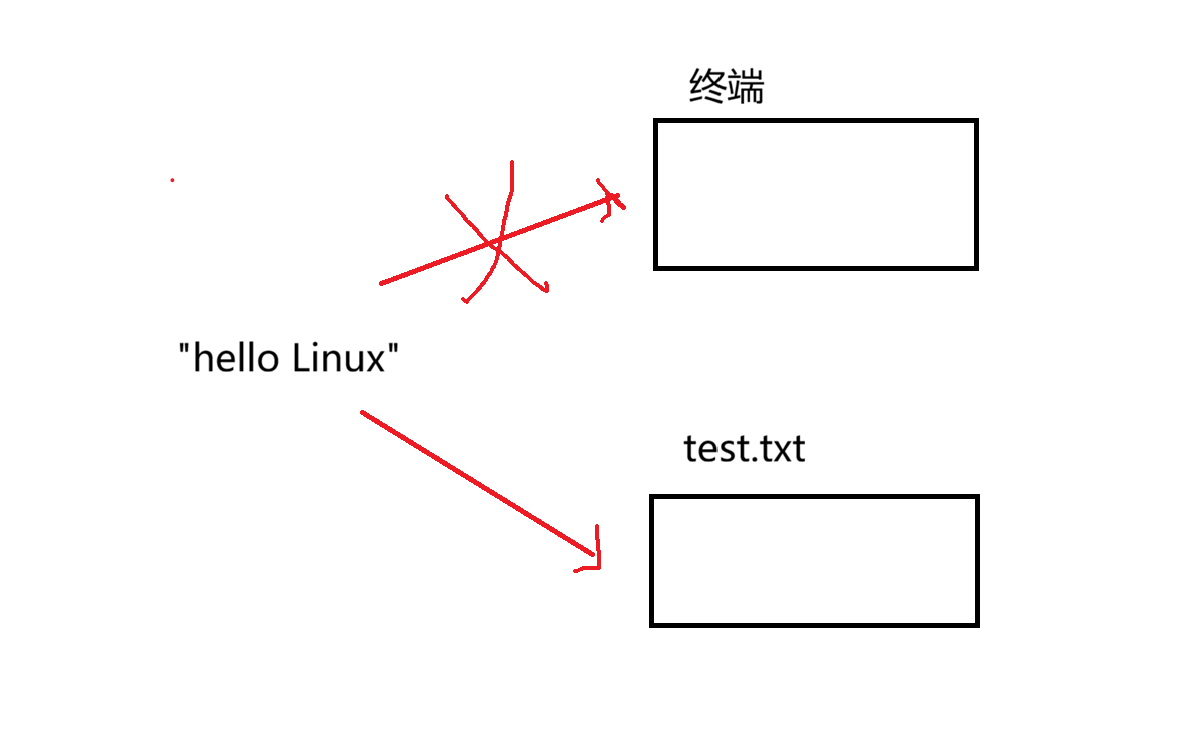
这里分为两种情况:
- 如果后续文件已经存在的话,就是清空原内容再写入
- 后续文件不存在的话就会先创建后写入
追加写入 (>>)
如果你想保留原来的内容,在后面接着写:
[root@VM-0-5-centos testdir]# cat text.txt
hello Linux
[root@VM-0-5-centos testdir]# echo "hello world" >> text.txt
[root@VM-0-5-centos testdir]# cat text.txt
hello Linux
hello world
从文件读取 (<)
这里我们不从终端中读取,也可以改成从文件中读取:
[root@VM-0-5-centos testdir]# cat < text.txt
hello Linux
hello world
2.3向其他终端打印字符
有了前面的知识做铺垫,我们甚至可以向其他终端打印字符,我们写的程序经过编译后变成可执行程序,我们可以写一个程序让打印出的结果流向其他终端。比如我这里开了两个会话:
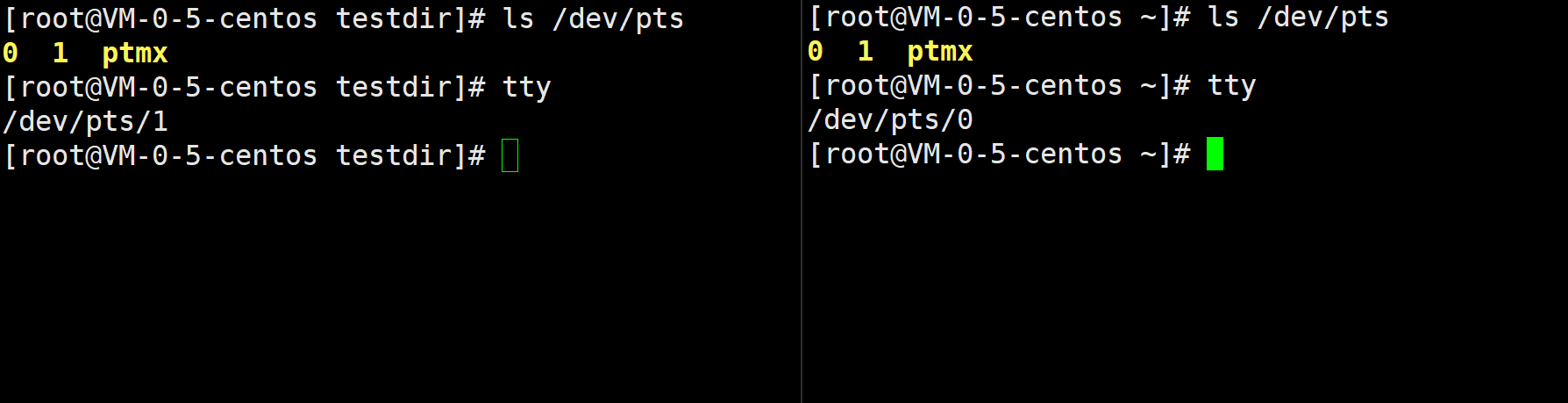
通过>向另外一个终端打印信息:

这里先简单介绍关于重定向的一小部分内容,后面再慢慢补充
完,Linux的指令太多了更何况有些指令还有一堆的选项与细节,我这里就只粗劣的介绍几个常用的,我自己也被这些东西折腾得不轻。。。

汇聚全球AI编程工具,助力开发者即刻编程。
更多推荐

 10
10 0
0- 0


 已为社区贡献3条内容

所有评论(0)