
【Linux】系统下的磁盘与文件系统
·
Linux基础命令(五)
场景思考
- 如何手动设置时间和时区?- tzselect
- 如何设置自动对时?- 使用chrony工具,修改/etc/chrony.conf
- Linux服务网络配置信息主要包括哪些?使用哪些命令查看?- ip -br a [show interface name] | ip -br link | ip route |【dns】/etc/resolv.conf
- 如何使用nmcli工具给网卡ens33配置静态IP?nmcli con add type ethernet ifname ens36 con-name Static ipv4.method manual 10.1.8.100/24
- 如何修改修改系统DNS配置?nmcli conn mod interface_name ipv4.dns X.X.X.X | nmcli conn [ reload | up ] interface_name
- 如何实现CentOS7系统之间复制文件(和目录)?scp | rsync
- 如何实现每周三晚上23:58执行/usr/local/bin/weekly_backup.sh程序?- 58 23 * * 3 /usr/local/bin/weekly_backup.sh
硬盘分区管理
大容量的硬盘,分区使用:C盘系统盘,D盘办公,E盘娱乐。【参考windows分区模式】
识别硬盘设备
| 接口类型 | 设备命名示例 | 说明 |
|---|---|---|
| SATA/SAS/USB/SCSI | /dev/sda、/dev/sdb … |
物理机常用的磁盘设备命名 |
| virtio-blk(虚拟机) | /dev/vda、/dev/vdb … |
KVM 虚拟机常用磁盘命名 |
| NVMe SSD | /dev/nvme0n1、/dev/nvme1n1… |
高性能 NVMe 固态硬盘命名 |
| SD/MMC/eMMC | /dev/mmcblk0、/dev/mmcblk1 … |
嵌入式设备常用存储命名 |
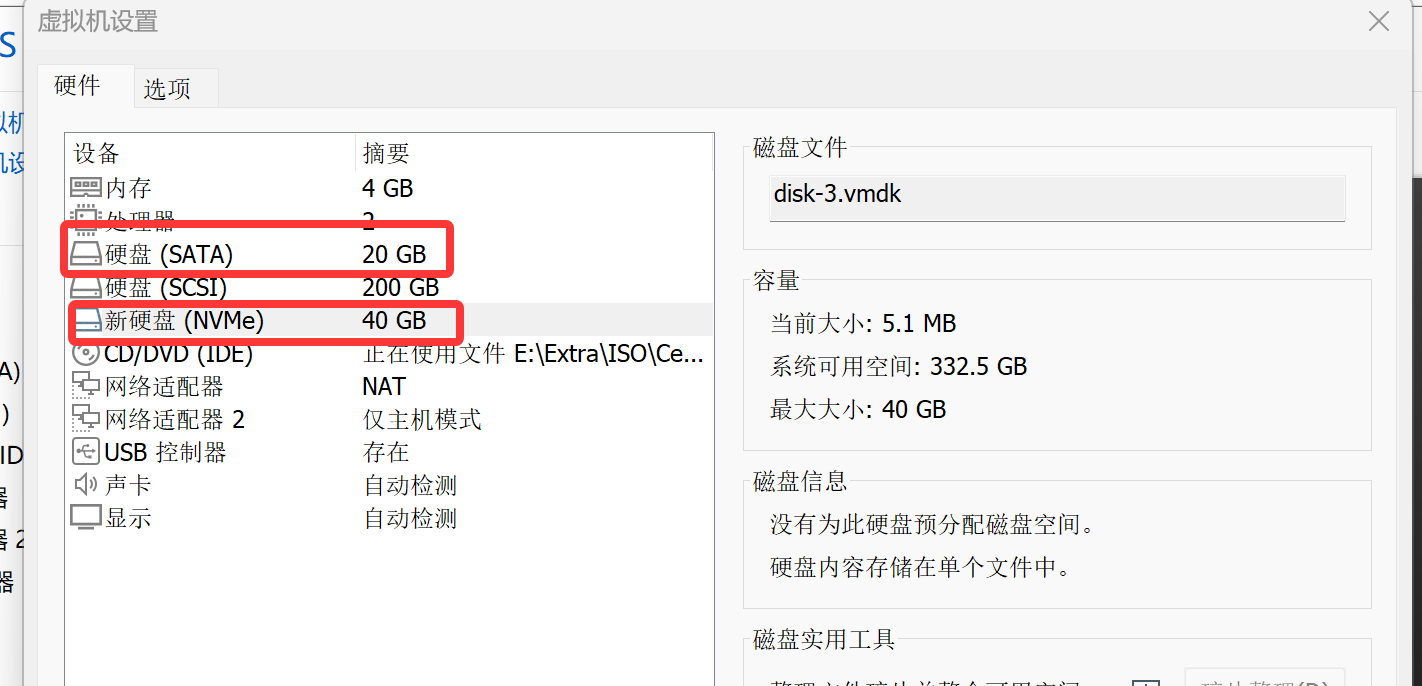
虚拟机添加2个硬盘:
-
sata 接口20G
-
NVMe接口40G(关机添加)
⚠️ 注意:
nmcli networking on服务异常关闭可能造成网络服务异常 ,使用改命令修复网络问题
# 查看块(block)设备清单
[root@CentOS7 ~ 16:17:03]# lsblk
NAME            MAJ:MIN RM  SIZE RO TYPE MOUNTPOINT
sda               8:0    0  200G  0 disk
├─sda1            8:1    0    1G  0 part /boot
└─sda2            8:2    0  199G  0 part
  ├─centos-root 253:0    0   50G  0 lvm  /
  ├─centos-swap 253:1    0    2G  0 lvm  [SWAP]
  └─centos-home 253:2    0  147G  0 lvm  /home
sdb               8:16   0   20G  0 disk # 新增的SATA盘
├─sdb1            8:17   0    5G  0 part
└─sdb2            8:18   0   10G  0 part
sr0              11:0    1  4.4G  0 rom
nvme0n1         259:0    0   20G  0 disk # 新增的NVMe固态硬盘
设备类型:
- 块设备(b),大部分情况下都是存储设备,例如光盘、硬盘、U盘。
- 字符设备(c),一般是输入和输出设备,例如终端设备tty1、vty、pts/0等
硬盘分区方案
直接管理主板上外接设备的系统,称之为固件。例如调整设备启动顺序,光盘作为第一启动项,用来安装系统。
分区方案
MBR
自1982年起,主启动记录(MBR)分区方案成为运行 BIOS 固件 系统的磁盘分区标准。
- 主分区数量限制:最多支持 4 个主分区。
- 扩展分区与逻辑分区:Linux 系统中可通过“主分区+扩展分区”的方式突破主分区限制,扩展分区仅作为逻辑分区的“容器”(不可格式化),逻辑分区可格式化使用,整体最多可创建 15个分区。
- 容量限制:MBR 用4个字节存储分区总扇区数,按单扇区512字节计算,单个分区最大容量不超过 2 TiB。
GPT
全局唯一标识分区表(GPT)是运行 统一可扩展固件接口(UEFI) 系统的磁盘分区标准。
- 容量支持:使用8个字节存储分区总扇区数,单分区/磁盘最大支持 18 ZiB(18亿 TiB),完全满足大磁盘需求。
- 分区数量:默认支持 128个分区(无需扩展分区/逻辑分区),实际使用中建议不超过120个(避免格式化异常)。
- 数据冗余:GPT 分区表包含主表和备份表,且自带 CRC32 校验码,可自动检测并恢复损坏的分区表。
fdisk 工具
fdisk 工具用于管理 MBR 分区方案的硬盘,新版本的fdisk也可以用来管理GPT。
查看硬盘信息
# 查看所有块设备,进一步过滤出sd相关设备
[root@CentOS7 ~ 16:38:01]# fdisk -l | grep sd
WARNING: fdisk GPT support is currently new, and therefore in an experimental phase. Use at your own discretion.
Disk /dev/sda: 214.7 GB, 214748364800 bytes, 419430400 sectors
/dev/sda1   *        2048     2099199     1048576   83  Linux
/dev/sda2         2099200   419430399   208665600   8e  Linux LVM
Disk /dev/sdb: 21.5 GB, 21474836480 bytes, 41943040 sectors

# 查看特定硬盘信息
[root@CentOS7 ~ 16:40:01]# fdisk -l /dev/sda

Disk /dev/sda: 214.7 GB, 214748364800 bytes, 419430400 sectors
Units = sectors of 1 * 512 = 512 bytes
Sector size (logical/physical): 512 bytes / 512 bytes
I/O size (minimum/optimal): 512 bytes / 512 bytes
Disk label type: dos
Disk identifier: 0x00074896

   Device Boot      Start         End      Blocks   Id  System
/dev/sda1   *        2048     2099199     1048576   83  Linux
/dev/sda2         2099200   419430399   208665600   8e  Linux LVM


#  sdb 硬盘没有分区
[root@CentOS7 ~ 16:42:12]# fdisk -l /dev/sdb
WARNING: fdisk GPT support is currently new, and therefore in an experimental phase. Use at your own discretion.

Disk /dev/sdb: 21.5 GB, 21474836480 bytes, 41943040 sectors
Units = sectors of 1 * 512 = 512 bytes
Sector size (logical/physical): 512 bytes / 512 bytes
I/O size (minimum/optimal): 512 bytes / 512 bytes
帮助信息
# 交互方式管理sdb硬盘
[root@CentOS7 ~ 16:42:28]# fdisk /dev/sdb
Welcome to fdisk (util-linux 2.23.2).

Changes will remain in memory only, until you decide to write them.
Be careful before using the write command.

Device does not contain a recognized partition table
Building a new DOS disklabel with disk identifier 0xdfdac101.

# m 查看帮助
Command (m for help): `m`
Command action
   a   toggle a bootable flag # 切换分区启动标记
   b   edit bsd disklabel # 编辑BSD磁盘标签
   c   toggle the dos compatibility flag # 切换DOS兼容标记
   d   delete a partition # 删除分区
   g   create a new empty GPT partition table # 创建GPT分区表
   G   create an IRIX (SGI) partition table # 创建IRIX分区表
   l   list known partition types # 列出已知分区类型
   m   print this menu # 打印帮助菜单
   n   add a new partition # 创建新分区
   o   create a new empty DOS partition table # 创建空MBR分区表
   p   print the partition table # 打印分区表
   q   quit without saving changes # 退出不保存
   s   create a new empty Sun disklabel # 创建Sun磁盘标签
   t   change a partition's system id # 修改分区类型ID
   u   change display/entry units # 切换显示单位
   v   verify the partition table # 校验分区表
   w   write table to disk and exit # 保存并退出
   x   extra functionality (experts only) # 扩展功能(仅专家模式)
查看分区表
# p 查看分区表
Command (m for help): `p`

Disk /dev/sdb: 21.5 GB, 21474836480 bytes, 41943040 sectors
Units = sectors of 1 * 512 = 512 bytes
Sector size (logical/physical): 512 bytes / 512 bytes
I/O size (minimum/optimal): 512 bytes / 512 bytes
Disk label type: dos
Disk identifier: 0xdfdac101

   Device Boot      Start         End      Blocks   Id  System
# sdb硬盘是空盘,没有分区
创建分区
# n 新建分区
Command (m for help): `n`
Partition type:
   p   primary (0 primary, 0 extended, 4 free)
   e   extended
Select (default p): `回车` # 主分区类型
Using default response p
Partition number (1-4, default 1): `回车`   # 分区号
First sector (2048-41943039, default 2048): `回车`   # 分区的起始位置
Using default value 2048
Last sector, +sectors or +size{K,M,G} (2048-41943039, default 41943039): `+5G` # 分区的结束位置
Partition 1 of type Linux and of size 5 GiB is set

# 再次查看,多了一个分区
Command (m for help): `p`

Disk /dev/sdb: 21.5 GB, 21474836480 bytes, 41943040 sectors
Units = sectors of 1 * 512 = 512 bytes
Sector size (logical/physical): 512 bytes / 512 bytes
I/O size (minimum/optimal): 512 bytes / 512 bytes
Disk label type: dos
Disk identifier: 0xdfdac101

   Device Boot      Start         End      Blocks   Id  System
/dev/sdb1            2048    10487807     5242880   83  Linux
保存分区表
# w 保存修改
Command (m for help): `w`
The partition table has been altered!

Calling ioctl() to re-read partition table.
Syncing disks.

# 再次查看块设备
[root@centos7 ~ 08:29:58]# lsblk /dev/sdb
NAME   MAJ:MIN RM SIZE RO TYPE MOUNTPOINT
sdb      8:16   0  20G  0 disk
└─sdb1   8:17   0   5G  0 part
删除分区
[root@CentOS7 ~ 17:00:14]# lsblk /dev/sdb
Welcome to fdisk (util-linux 2.23.2).

Changes will remain in memory only, until you decide to write them.
Be careful before using the write command.

# d 删除分区
Command (m for help): `d`
Selected partition 1
Partition 1 is deleted

Command (m for help): `p`

Disk /dev/sdb: 21.5 GB, 21474836480 bytes, 41943040 sectors
Units = sectors of 1 * 512 = 512 bytes
Sector size (logical/physical): 512 bytes / 512 bytes
I/O size (minimum/optimal): 512 bytes / 512 bytes
Disk label type: dos
Disk identifier: 0xdfdac101

   Device Boot      Start         End      Blocks   Id  System
# 对应的分区被删除

# 保存退出
Command (m for help): `w`
The partition table has been altered!

Calling ioctl() to re-read partition table.
Syncing disks.
计算机存储单位。
GB=1000MB
GiB=1024MiB
gdisk 工具
gdisk 工具用于管理 GPT 分区方案的硬盘。
# 安装工具
[root@CentOS7 ~ 17:07:42]# yum install -y gdisk
查看硬盘信息
[root@CentOS7 ~ 17:11:44]# gdisk -l /dev/sdb
GPT fdisk (gdisk) version 0.8.10

Partition table scan:
  MBR: protective
  BSD: not present
  APM: not present
  GPT: present

Found valid GPT with protective MBR; using GPT.
Disk /dev/sdb: 41943040 sectors, 20.0 GiB
Logical sector size: 512 bytes
Disk identifier (GUID): 328C697D-F05D-4772-AB36-A845A1D3827C
Partition table holds up to 128 entries
First usable sector is 34, last usable sector is 41943006
Partitions will be aligned on 2048-sector boundaries
Total free space is 2014 sectors (1007.0 KiB)

Number  Start (sector)    End (sector)  Size       Code  Name
   1            2048        10487807   5.0 GiB     8300  Linux filesystem
   2        10487808        31459327   10.0 GiB    8300  Linux filesystem
   3        31459328        41943006   5.0 GiB     8300
帮助信息
[root@CentOS7 ~ 17:12:12]# gdisk /dev/sdb
GPT fdisk (gdisk) version 0.8.10

Partition table scan:
  MBR: MBR only
  BSD: not present
  APM: not present
  GPT: not present


***************************************************************
Found invalid GPT and valid MBR; converting MBR to GPT format
in memory. THIS OPERATION IS POTENTIALLY DESTRUCTIVE! Exit by
typing 'q' if you don't want to convert your MBR partitions
to GPT format!
***************************************************************


Command (? for help): ?
b   back up GPT data to a file # 备份GPT数据到文件
c   change a partition's name # 修改分区名称
d   delete a partition # 删除分区
i   show detailed information on a partition # 查看分区详细信息
l   list known partition types # 列出已知分区类型
n   add a new partition # 创建新分区
o   create a new empty GUID partition table (GPT) # 创建空GPT分区表
p   print the partition table # 打印分区表
q   quit without saving changes # 退出不保存
r   recovery and transformation options (experts only) # 恢复/转换选项(专家模式)
s   sort partitions # 排序分区
t   change a partition's type code # 修改分区类型码
v   verify disk # 校验磁盘
w   write table to disk and exit # 保存并退出
x   extra functionality (experts only) # 扩展功能(专家模式)
?   print this menu # 打印帮助菜单
查看分区表
Command (? for help): p
Disk /dev/sdb: 41943040 sectors, 20.0 GiB
Logical sector size: 512 bytes
Disk identifier (GUID): 7EAD059D-101E-4C4F-A263-B30CF8B6FD42
Partition table holds up to 128 entries
First usable sector is 34, last usable sector is 41943006
Partitions will be aligned on 2048-sector boundaries
Total free space is 41942973 sectors (20.0 GiB)

Number  Start (sector)    End (sector)  Size       Code  Name
创建分区
Command (? for help): n
Partition number (1-128, default 1):
First sector (34-41943006, default = 2048) or {+-}size{KMGTP}:
Last sector (2048-41943006, default = 41943006) or {+-}size{KMGTP}: +10G
Current type is 'Linux filesystem'
Hex code or GUID (L to show codes, Enter = 8300): `回车` # 分区也是有类型,例如lvm,表明分区的用途
Changed type of partition to 'Linux filesystem'

Command (? for help): p
Disk /dev/sdb: 41943040 sectors, 20.0 GiB
Logical sector size: 512 bytes
Disk identifier (GUID): 7EAD059D-101E-4C4F-A263-B30CF8B6FD42
Partition table holds up to 128 entries
First usable sector is 34, last usable sector is 41943006
Partitions will be aligned on 2048-sector boundaries
Total free space is 20971453 sectors (10.0 GiB)

Number  Start (sector)    End (sector)  Size       Code  Name
   1            2048        20973567   10.0 GiB    8300  Linux filesystem
保存分区表
Command (? for help): w

Final checks complete. About to write GPT data. THIS WILL OVERWRITE EXISTING
PARTITIONS!!

Do you want to proceed? (Y/N): Y
OK; writing new GUID partition table (GPT) to /dev/sdb.
The operation has completed successfully.

# 再次查看
[root@CentOS7 ~ 17:14:04]# lsblk /dev/sdb
NAME   MAJ:MIN RM SIZE RO TYPE MOUNTPOINT
sdb      8:16   0  20G  0 disk
├─sdb1   8:17   0   5G  0 part /mnt/web
├─sdb2   8:18   0  10G  0 part
└─sdb3   8:19   0   5G  0 part
删除分区
[root@CentOS7 ~ 17:15:26]# gidsk /dev/sdb
GPT fdisk (gdisk) version 0.8.10

Partition table scan:
  MBR: protective  # 保护式MBR(属于GPT的一部分)
  BSD: not present
  APM: not present
  GPT: present   # GPT 格式

Found valid GPT with protective MBR; using GPT.

Command (? for help): p
Disk /dev/sdb: 41943040 sectors, 20.0 GiB
Logical sector size: 512 bytes
Disk identifier (GUID): 7EAD059D-101E-4C4F-A263-B30CF8B6FD42
Partition table holds up to 128 entries
First usable sector is 34, last usable sector is 41943006
Partitions will be aligned on 2048-sector boundaries
Total free space is 20971453 sectors (10.0 GiB)

Number  Start (sector)    End (sector)  Size       Code  Name
   1            2048        20973567   10.0 GiB    8300  Linux filesystem

# d 删除
Command (? for help): d
Using 1

# 再次确认
Command (? for help): p
Disk /dev/sdb: 41943040 sectors, 20.0 GiB
Logical sector size: 512 bytes
Disk identifier (GUID): 7EAD059D-101E-4C4F-A263-B30CF8B6FD42
Partition table holds up to 128 entries
First usable sector is 34, last usable sector is 41943006
Partitions will be aligned on 2048-sector boundaries
Total free space is 41942973 sectors (20.0 GiB)

Number  Start (sector)    End (sector)  Size       Code  Name

# 保存退出
Command (? for help): w

Final checks complete. About to write GPT data. THIS WILL OVERWRITE EXISTING
PARTITIONS!!

Do you want to proceed? (Y/N): Y
OK; writing new GUID partition table (GPT) to /dev/sdb.
The operation has completed successfully.

# 再次查看
[root@CentOS7 ~ 17:16:32]# lsblk /dev/sdb
NAME   MAJ:MIN RM SIZE RO TYPE MOUNTPOINT
sdb      8:16   0  20G  0 disk
文件系统挂载
硬盘挂载之后才能使用,类似于windows中分配盘符(C盘)。
文件系统格式化
硬盘分区不能直接使用,需要格式化成相应的文件系统(ext4、xfs)才能存储文件。
# 将sdb1格式化为ext4
[root@centos7 ~ 09:33:34]# mkfs.ext4 /dev/sdb1
mke2fs 1.42.9 (28-Dec-2013)
Filesystem label=
OS type: Linux
Block size=4096 (log=2)
Fragment size=4096 (log=2)
Stride=0 blocks, Stripe width=0 blocks
327680 inodes, 1310720 blocks
65536 blocks (5.00%) reserved for the super user
First data block=0
Maximum filesystem blocks=1342177280
40 block groups
32768 blocks per group, 32768 fragments per group
8192 inodes per group
Superblock backups stored on blocks:
    32768, 98304, 163840, 229376, 294912, 819200, 884736

Allocating group tables: done
Writing inode tables: done
Creating journal (32768 blocks): done
Writing superblocks and filesystem accounting information: done

# 将sdb3格式化为xfs
[root@CentOS7 ~ 17:33:16]# mkfs.xfs /dev/sdb3
meta-data=/dev/sdb3              isize=512    agcount=4, agsize=327615 blks
         =                       sectsz=512   attr=2, projid32bit=1
         =                       crc=1        finobt=0, sparse=0
data     =                       bsize=4096   blocks=1310459, imaxpct=25
         =                       sunit=0      swidth=0 blks
naming   =version 2              bsize=4096   ascii-ci=0 ftype=1
log      =internal log           bsize=4096   blocks=2560, version=2
         =                       sectsz=512   sunit=0 blks, lazy-count=1
realtime =none                   extsz=4096   blocks=0, rtextents=0
示例1:挂载/dev/sdb1给web应用使用
# 准备挂载点(目录)
[root@centos7 ~ 09:40:16]# mkdir /mnt/web

# 挂载/dev/sdb1到/mnt/web,后续写入分区sdb1的数据通过路径/mnt/web引用。
[root@centos7 ~ 09:43:13]# mount /dev/sdb1 /mnt/web

# 查看设备和挂载点关系
[root@centos7 ~ 09:43:35]# df -h /mnt/web
Filesystem      Size  Used Avail Use% Mounted on
/dev/sdb1       4.8G   20M  4.6G   1% /mnt/web

# 写入测试
[root@centos7 ~ 09:43:40]# echo Hello World > /mnt/web/web.txt
[root@centos7 ~ 09:50:52]# cat /mnt/web/web.txt
Hello World
# 此时文件/mnt/web/web.txt,存储到/dev/sdb1中。
示例2:挂载/dev/sdb2给db应用使用
[root@centos7 ~ 09:40:16]# mkdir /mnt/db

[root@centos7 ~ 09:45:32]# mount /dev/sdb2 /mnt/db

[root@centos7 ~ 09:46:37]# df -h /mnt/db
Filesystem      Size  Used Avail Use% Mounted on
/dev/sdb2        10G   33M   10G   1% /mnt/db

[root@centos7 ~ 09:46:44]# echo Hello mysql > /mnt/db/db.txt
[root@centos7 ~ 09:47:07]# cat /mnt/db/db.txt
Hello mysql
实践:部署 web 服务器
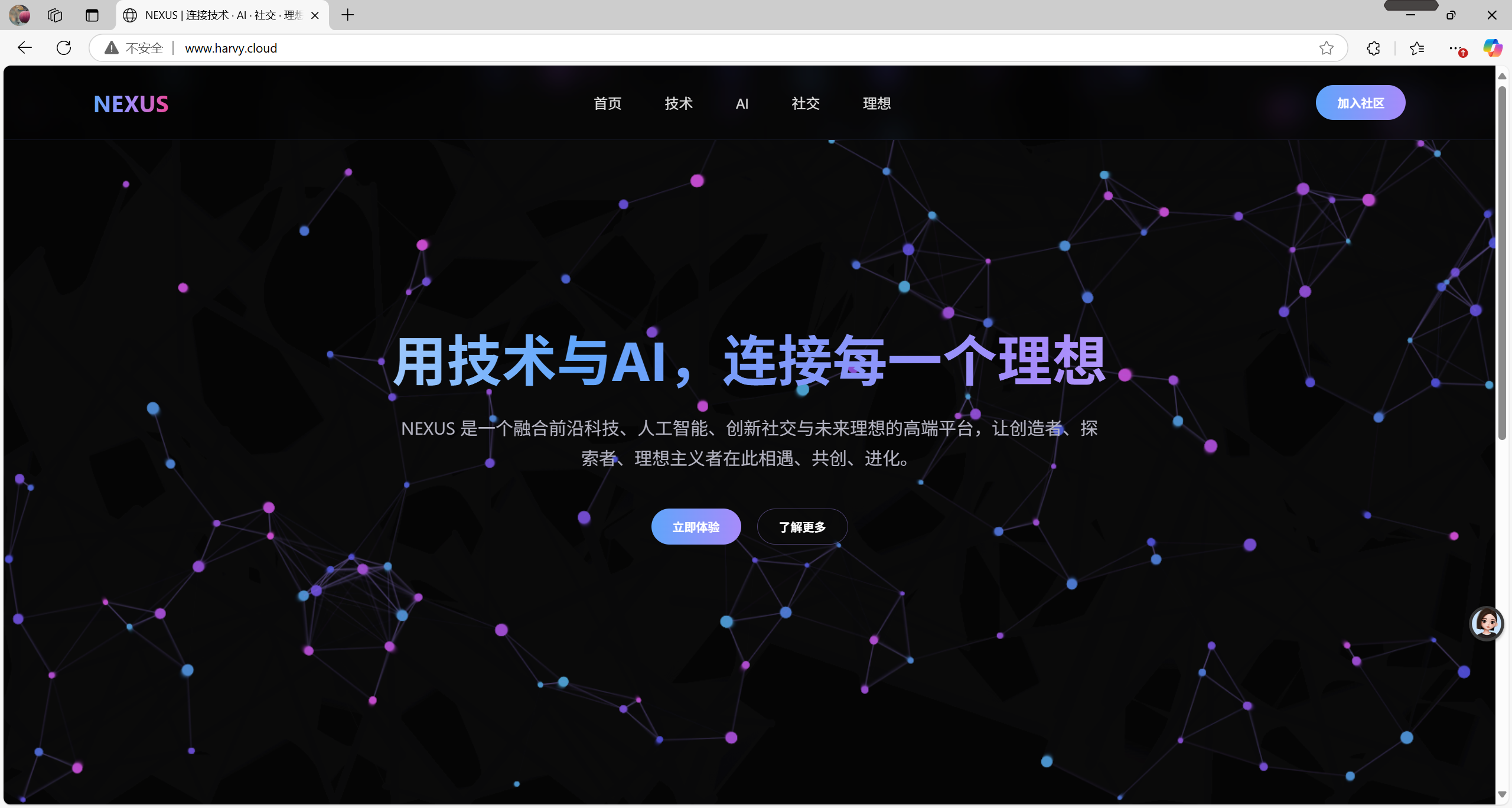
web 服务器提供web页面分享,提供一些动态网站,例如购物。
部署服务流程:
- 安装相关软件包
- 准备相关材料
- 配置服务
- 启用并启动服务
- 设置防火墙
- 客户端访问测试
# 1. 安装相关软件包
[root@centos7 ~ 09:50:54]# yum install -y nginx

# 2. 准备相关材料
# 使用/mnt/web 作为网站的根目录
[root@centos7 ~ 11:42:04]# echo Hello World From Nginx > /mnt/web/index.html

# 3. 配置服务
[root@centos7 ~ 11:42:59]# cp /etc/nginx/nginx.conf /etc/nginx/conf.d/vhost-www.laoma.cloud.conf
[root@centos7 ~ 11:43:55]# vim /etc/nginx/conf.d/vhost-www.laoma.cloud.conf
server {
    server_name  www.laoma.cloud;
    root         /mnt/web;
}

# 4. 启用并启动服务
[root@centos7 ~ 11:46:10]# systemctl enable nginx --now

# 5. 设置防火墙
[root@centos7 ~ 11:46:16]# systemctl stop firewalld

# 6. 客户端访问测试
[root@centos7 ~ 11:46:47]# vim /etc/hosts
127.0.0.1   localhost localhost.localdomain localhost4 localhost4.localdomain4
::1         localhost localhost.localdomain localhost6 localhost6.localdomain6

# 增加域名解析
10.1.8.10 www.laoma.cloud www

[root@centos7 ~ 11:47:08]# curl http://www.laoma.cloud/
Hello World From Nginx

# 如果是windows访问,则修改C:\Windows\System32\drivers\etc\hosts,也添加相应记录
持久化挂载
计算机重启后,文件系统自动挂载。
/etc/fstab存储了系统自动挂载设备清单。
[root@CentOS7 ~ 17:42:33]# cat /etc/fstab
#
# /etc/fstab
# Created by anaconda on Fri Apr  3 15:45:57 2026
#
# Accessible filesystems, by reference, are maintained under '/dev/disk'
# See man pages fstab(5), findfs(8), mount(8) and/or blkid(8) for more info
#
/dev/mapper/centos-root /                       xfs     defaults        0 0
UUID=a90d05c3-2ade-4aa6-bd7e-0781907fb198 /boot                   xfs     defaults        0 0
/dev/mapper/centos-home /home                   xfs     defaults        0 0
/dev/mapper/centos-swap swap                    swap    defaults        0 0
/dev/sdb1 /mnt/web                    ext4    defaults        0 0
/dev/sdb2 /mnt/db                    xfs    defaults        0 0
/dev/sdb3 /mnt/server                    xfs    defaults        0 0
设置/dev/sdb3 自动挂载到 /mnt/server
[root@centos7 ~ 15:52:23]# cp /etc/fstab /etc/fstab-0408
[root@centos7 ~ 15:53:15]# vim /etc/fstab
# 最后添加
/dev/sdb3 /mnt/server                    xfs    defaults        0 0
条目参数说明:
- /dev/sdb1:挂载的设备
- /mnt/web:设备挂载点
- ext4:设备的文件系统
- defaults:挂载选项,用于控制文件系统属性,例如defaults改为ro,则文件系统只能读(readonly)
- 0:是否备份,现在已弃用,可用之为0或者1
- 0:文件系统监测顺序,值越小,越优先检查。基本不用
重启测试。
[root@centos7 ~ 15:58:10]# lsblk /dev/sdb
NAME   MAJ:MIN RM SIZE RO TYPE MOUNTPOINT
sdb      8:16   0  20G  0 disk
├─sdb1   8:17   0   5G  0 part /mnt/web
└─sdb2   8:18   0  10G  0 part
如果/etc/fstab中具备相应条目,则挂载文件系统的时候,只需要写一个名称。
[root@centos7 ~ 15:58:12]# umount /mnt/web
[root@centos7 ~ 16:00:04]# mount /mnt/web
[root@centos7 ~ 16:00:30]# df -h /mnt/web
Filesystem      Size  Used Avail Use% Mounted on
/dev/sdb1       4.8G   21M  4.6G   1% /mnt/web
文件系统卸载
文件系统不使用的时候,可以卸载(取消目录和设备之间的映射关系)。
[root@centos7 ~ 13:54:59]# lsblk /dev/sdb
NAME   MAJ:MIN RM SIZE RO TYPE MOUNTPOINT
sdb      8:16   0  20G  0 disk
├─sdb1   8:17   0   5G  0 part /mnt/web
└─sdb2   8:18   0  10G  0 part /mnt/db

# 卸载挂载点
[root@centos7 ~ 14:35:57]# umount /mnt/db
[root@centos7 ~ 14:36:08]# lsblk /dev/sdb2
NAME MAJ:MIN RM SIZE RO TYPE MOUNTPOINT
sdb2   8:18   0  10G  0 part
换一种方式挂载和卸载
# 查看设备id
[root@CentOS7 ~ 15:04:43]# blkid /dev/sdb2
/dev/sdb2: UUID="f21e4ef4-f922-49f1-a3fc-d18ad4e667f9" TYPE="xfs" PARTLABEL="Linux filesystem" PARTUUID="56a04468-5a58-4b41-96e9-586199fabe25"

# 可以使用以下任意一种方式表达设备
- /dev/sdb2
- UUID="f21e4ef4-f922-49f1-a3fc-d18ad4e667f9"
- PARTLABEL="Linux filesystem"
- PARTUUID="56a04468-5a58-4b41-96e9-586199fabe25"

# 使用 UUID 挂载
[root@centos7 ~ 14:37:23]# mount UUID="edd9b435-5c20-46a8-9a1b-adce611e64c7" /mnt/db
[root@centos7 ~ 14:37:50]# lsblk /dev/sdb2
NAME MAJ:MIN RM SIZE RO TYPE MOUNTPOINT
sdb2   8:18   0  10G  0 part /mnt/db

# 通过设备名称卸载
[root@centos7 ~ 14:38:39]# umount /dev/sdb2
[root@centos7 ~ 14:38:56]# lsblk /dev/sdb2
NAME MAJ:MIN RM SIZE RO TYPE MOUNTPOINT
sdb2   8:18   0  10G  0 part
文件系统卸载失败
模拟占用
[root@CentOS7 ~ 14:53:08]# tail -f /mnt/web/index.html &
[1] 1926
[root@CentOS7 ~ 14:56:26]# Ngnix is running
卸载文件系统报错: target is busy.
[root@CentOS7 ~ 14:56:29]# blkid /dev/sdb1
/dev/sdb1: UUID="adf5a83d-13f1-45a0-87b4-3ce31cbf069f" TYPE="ext4" PARTLABEL="Linux filesystem" PARTUUID="a4a5a4ac-a9a1-4e47-9d1d-fc4e388e40f0"
[root@CentOS7 ~ 14:56:58]# umount UUID="adf5a83d-13f1-45a0-87b4-3ce31cbf069f"
umount: /mnt/web: target is busy.
        (In some cases useful info about processes that use
         the device is found by lsof(8) or fuser(1))
找到使用设备的进程
[root@CentOS7 ~ 14:57:33]# lsof /mnt/web/
COMMAND  PID USER   FD   TYPE DEVICE SIZE/OFF NODE NAME
tail    1926 root    3r   REG   8,17       17   13 /mnt/web/index.html
[root@CentOS7 ~ 14:57:46]# kill -15 1926
# kill的结果返回
[1]+  Terminated              tail -f /mnt/web/index.html
[root@CentOS7 ~ 14:58:49]# ps -aux | grep 1926
root       1939  0.0  0.0 112812   980 pts/0    S+   14:59   0:00 grep --color=auto 1926

# 在次卸载挂载
[root@CentOS7 ~ 14:59:04]# umount UUID="adf5a83d-13f1-45a0-87b4-3ce31cbf069f"
[root@CentOS7 ~ 14:59:21]# lsblk /dev/sdb
NAME   MAJ:MIN RM SIZE RO TYPE MOUNTPOINT
sdb      8:16   0  20G  0 disk
├─sdb1   8:17   0   5G  0 part
└─sdb2   8:18   0  10G  0 part

汇聚全球AI编程工具,助力开发者即刻编程。
更多推荐

 6
6 0
0- 0


 已为社区贡献12条内容

所有评论(0)