
Docker 命令综合实践:适配工作生产常用场景
文章目录
创建自己私有仓库
- 首先安装 BusyBox
BusyBox 是一个集成了三百多个最常用 Linux 命令和工具的软件。BusyBox 包含了一
些简单的工具,例如 ls、cat 和 echo 等等,还包含了一些更大、更复杂的工具,例
grep、find、mount 以及 telnet,我们拉取该镜像推送到自己的仓库。
drw@VM-0-14-ubuntu:/data$ sudo apt install -y busybox
drw@VM-0-14-ubuntu:/usr/bin$ busybox ls /
Users               dev                 lost+found          run                 swap.img            wget-log.1
bin                 etc                 media               sbin                sys                 wget-log.2
bin.usr-is-merged   home                mnt                 sbin.usr-is-merged  tmp
boot                lib                 opt                 snap                usr
cdrom               lib.usr-is-merged   proc                srv                 var
data                lib64               root                step                wget-log
- 拉取busybox并选择腾讯云进行注册,先注册命名空间再注册仓库,最后经过tag推送到远程仓库:
drw@VM-0-14-ubuntu:~$ docker images busybox                                                                                                         i Info →   U  In Use
IMAGE            ID             DISK USAGE   CONTENT SIZE   EXTRA
busybox:latest   1487d0af5f52       6.77MB         2.22MB
drw@VM-0-14-ubuntu:~$ docker tag 1487d0af5f52 ccr.ccs.tencentyun.com/yuki-namespcae/myhub:1.0.0
drw@VM-0-14-ubuntu:~$ docker push ccr.ccs.tencentyun.com/yuki-namespcae/myhub:1.0.0
The push refers to repository [ccr.ccs.tencentyun.com/yuki-namespcae/myhub]
481282afbc43: Pushed
1.0.0: digest: sha256:b8d1827e38a1d49cd17217efd7b07d689e4ea1744e39c7dcbb95533d175bea65 size: 610

i Info → Not all multiplatform-content is present and only the available single-platform image was pushed
         sha256:1487d0af5f52b4ba31c7e465126ee2123fe3f2305d638e7827681e7cf6c83d5e -> sha256:b8d1827e38a1d49cd17217efd7b07d689e4ea1744e39c7dcbb95533d175bea65
查看镜像及列表存储位置
- 进入
/data/docker/image/目录(这里是前面修改后的存放目录)
# 这里存放了拉取的镜像的一些相关信息,不同版本docker存在差异,有的是json文件,有的是db数据
root@VM-0-14-ubuntu:/home/drw# cd /data/docker/image/
root@VM-0-14-ubuntu:/data/docker/image# ll
total 40
drwx------  2 root root  4096 Mar 25 01:12 ./
drwx--x--- 12 root root  4096 Mar 25 12:49 ../
-rw-------  1 root root 65536 Mar 29 23:49 identity-cache.db
镜像迁移
- 在第一台主机上制作好镜像tar包:
root@VM-0-14-ubuntu:/home/drw# docker save -o mynginx.tar nginx:1.24.0
root@VM-0-14-ubuntu:/home/drw# ls
mynginx.tar  nacos
- 通过scp传输到第二台主机上:
root@VM-0-14-ubuntu:/home/drw# scp mynginx.tar drw1@47.122.127.6:/home/drw1/
drw1@47.122.127.6's password:
mynginx.tar                                                                                     0%  255KB  80.0KB/s - stalled -
- 运行容器:
root@iZn4adgxsi96b0p10hxn1fZ:/home/drw1# docker run -d -p 8080:80 -m 500M f6daac2445b0
de84e37fb31f7561f52ae258412c91ee09e6f95a5aa2e817c88cf1fd42587306
root@iZn4adgxsi96b0p10hxn1fZ:/home/drw1# docker ps
CONTAINER ID   IMAGE          COMMAND                  CREATED         STATUS         PORTS                                     NAMES
de84e37fb31f   f6daac2445b0   "/docker-entrypoint.…"   3 seconds ago   Up 2 seconds   0.0.0.0:8080->80/tcp, [::]:8080->80/tcp   inspiring_noyce
root@iZn4adgxsi96b0p10hxn1fZ:/home/drw1#
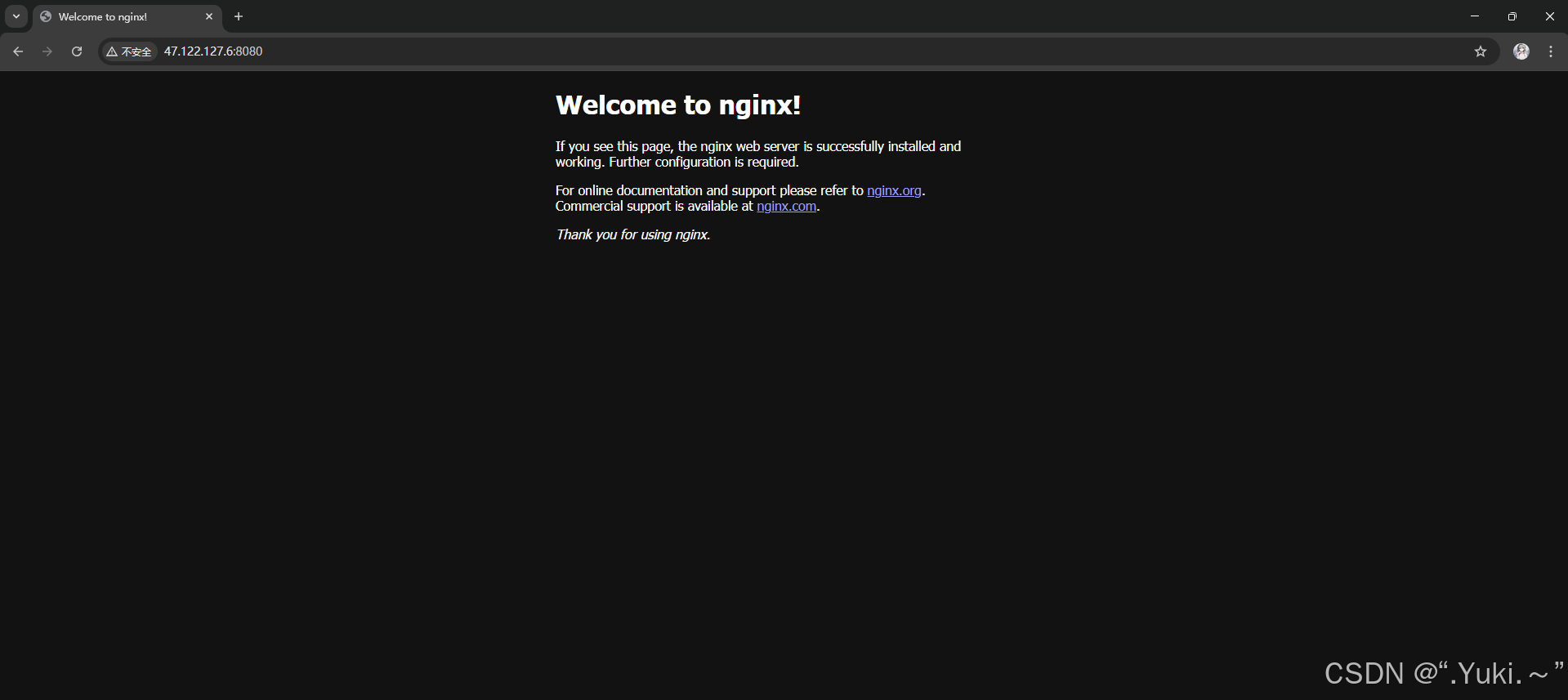
- 可以直接通过8080端口访问到nginx了:
镜像文件的压缩与共享
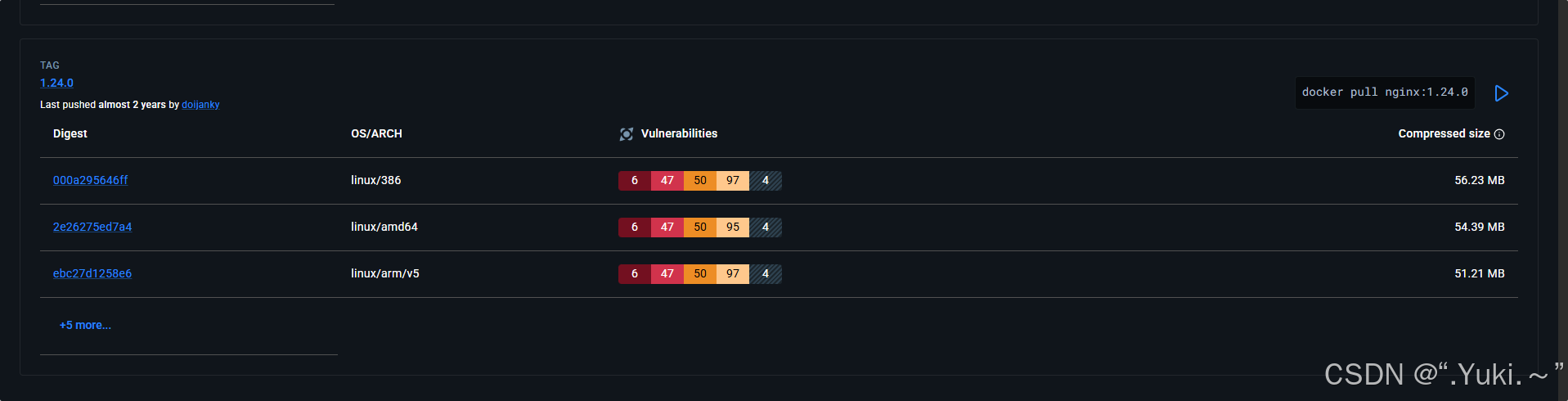
- 登录hub.docker.com来查看nginx:1.24.0镜像文件的大小:
root@VM-0-14-ubuntu:/home/drw# docker images nginx
                                                                                                                               i Info →   U  In Use
IMAGE          ID             DISK USAGE   CONTENT SIZE   EXTRA
nginx:1.21.4   366e9f1ddebd        213MB         56.7MB
nginx:1.21.5   0d17b565c37b        213MB         56.7MB
nginx:1.24.0   f6daac2445b0        218MB         60.1MB    U
可以看到官网上的镜像文件是进行了压缩的,这也是为了便于拉取,如果将自己的镜像文件进行tag后上传,也会进行压缩。
- 当有多个镜像有相同的文件层时,docker会直接复用,而不会再次复制一份!
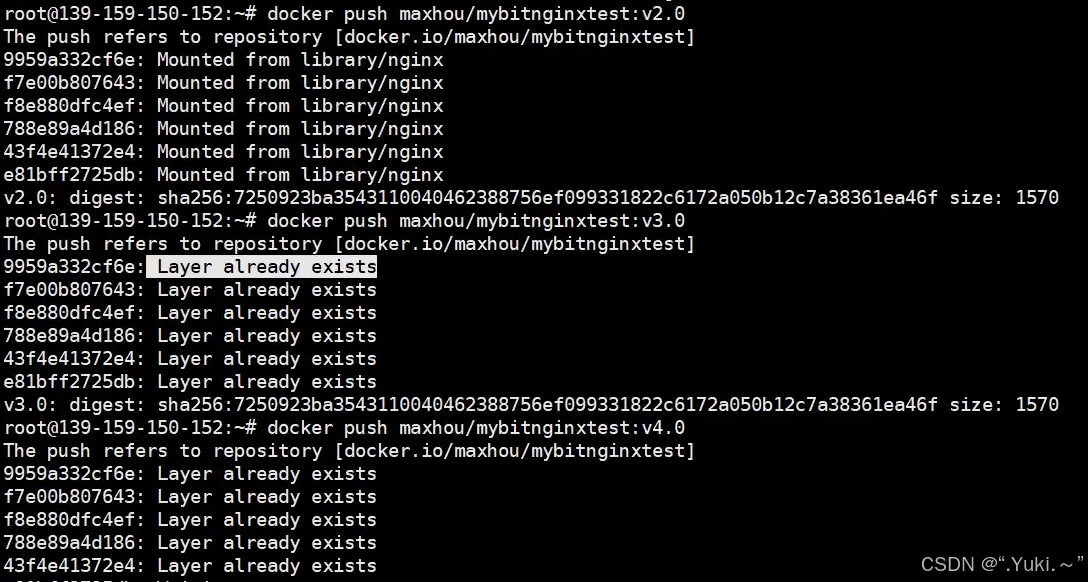
可以看到第一次就直接mount挂载了官方的镜像文件,后续再次push时直接显示layer already exists显示已经存在。
容器操作案例
- 直接使用docker run命令完成容器的创建和启动,本地没有的镜像去远程仓库中拉取:
drw@VM-0-14-ubuntu:~$ docker run --name mynewnginx -m 500M nginx:1.22.0
Unable to find image 'nginx:1.22.0' locally
1.22.0: Pulling from library/nginx
e0c68760750a: Pull complete
9f5a323076dc: Pull complete
bd159e379b3b: Pull complete
20d83d630f2b: Pull complete
265da2307f4a: Pull complete
1cb127bd9321: Pull complete
Digest: sha256:f0d28f2047853cbc10732d6eaa1b57f1f4db9b017679b9fd7966b6a2f9ccc2d1
Status: Downloaded newer image for nginx:1.22.0
/docker-entrypoint.sh: /docker-entrypoint.d/ is not empty, will attempt to perform configuration
/docker-entrypoint.sh: Looking for shell scripts in /docker-entrypoint.d/
/docker-entrypoint.sh: Launching /docker-entrypoint.d/10-listen-on-ipv6-by-default.sh
10-listen-on-ipv6-by-default.sh: info: Getting the checksum of /etc/nginx/conf.d/default.conf
10-listen-on-ipv6-by-default.sh: info: Enabled listen on IPv6 in /etc/nginx/conf.d/default.conf
/docker-entrypoint.sh: Launching /docker-entrypoint.d/20-envsubst-on-templates.sh
/docker-entrypoint.sh: Launching /docker-entrypoint.d/30-tune-worker-processes.sh
/docker-entrypoint.sh: Configuration complete; ready for start up
2026/04/03 03:32:58 [notice] 1#1: using the "epoll" event method
2026/04/03 03:32:58 [notice] 1#1: nginx/1.22.0
2026/04/03 03:32:58 [notice] 1#1: built by gcc 10.2.1 20210110 (Debian 10.2.1-6)
2026/04/03 03:32:58 [notice] 1#1: OS: Linux 6.8.0-71-generic
2026/04/03 03:32:58 [notice] 1#1: getrlimit(RLIMIT_NOFILE): 1024:524288
2026/04/03 03:32:58 [notice] 1#1: start worker processes
2026/04/03 03:32:58 [notice] 1#1: start worker process 31
2026/04/03 03:32:58 [notice] 1#1: start worker process 32
2026/04/03 03:32:58 [notice] 1#1: start worker process 33
2026/04/03 03:32:58 [notice] 1#1: start worker process 34
- 使用docker ps以及docker logs来查看容器运行以及日志:
drw@VM-0-14-ubuntu:~$ docker container inspect mynewnginx
[
    {
        "Id": "e34e9ae8a9f4565afd4244e7ca40ea3b1656ccc436d8f1b5c8bef0ed80f367ca",
        "Created": "2026-04-03T03:32:57.938160651Z",
        "Path": "/docker-entrypoint.sh",
        "Args": [
            "nginx",
            "-g",
            "daemon off;"
        ],
        "State": {
            "Status": "running",
            "Running": true,
            "Paused": false,
            "Restarting": false,
            "OOMKilled": false,
            "Dead": false,
            "Pid": 3742149,
            "ExitCode": 0,
            "Error": "",
            "StartedAt": "2026-04-03T03:32:58.248100279Z",
            "FinishedAt": "0001-01-01T00:00:00Z"
        },
        "Image": "sha256:f0d28f2047853cbc10732d6eaa1b57f1f4db9b017679b9fd7966b6a2f9ccc2d1",
        "ResolvConfPath": "/data/docker/containers/e34e9ae8a9f4565afd4244e7ca40ea3b1656ccc436d8f1b5c8bef0ed80f367ca/resolv.conf",
        "HostnamePath": "/data/docker/containers/e34e9ae8a9f4565afd4244e7ca40ea3b1656ccc436d8f1b5c8bef0ed80f367ca/hostname",
        "HostsPath": "/data/docker/containers/e34e9ae8a9f4565afd4244e7ca40ea3b1656ccc436d8f1b5c8bef0ed80f367ca/hosts",
        "LogPath": "/data/docker/containers/e34e9ae8a9f4565afd4244e7ca40ea3b1656ccc436d8f1b5c8bef0ed80f367ca/e34e9ae8a9f4565afd4244e7ca40ea3b1656ccc436d8f1b5c8bef0ed80f367ca-json.log",
        "Name": "/mynewnginx",
        "RestartCount": 0,
        "Driver": "overlayfs",
        "Platform": "linux",
        "MountLabel": "",
        "ProcessLabel": "",
        "AppArmorProfile": "docker-default",
        "ExecIDs": null,
        "HostConfig": {
            "Binds": null,
            "ContainerIDFile": "",
            "LogConfig": {
                "Type": "json-file",
                "Config": {}
            },
            "NetworkMode": "bridge",
            "PortBindings": {},
            "RestartPolicy": {
                "Name": "no",
                "MaximumRetryCount": 0
            },
            "AutoRemove": false,
            "VolumeDriver": "",
            "VolumesFrom": null,
            "ConsoleSize": [
                30,
                160
            ],
            "CapAdd": null,
            "CapDrop": null,
            "CgroupnsMode": "private",
            "Dns": null,
            "DnsOptions": [],
            "DnsSearch": [],
            "ExtraHosts": null,
            "GroupAdd": null,
            "IpcMode": "private",
            "Cgroup": "",
            "Links": null,
            "OomScoreAdj": 0,
            "PidMode": "",
            "Privileged": false,
            "PublishAllPorts": false,
            "ReadonlyRootfs": false,
            "SecurityOpt": null,
            "UTSMode": "",
            "UsernsMode": "",
            "ShmSize": 67108864,
            "Runtime": "runc",
            "Isolation": "",
            "CpuShares": 0,
            "Memory": 524288000,
            "NanoCpus": 0,
            "CgroupParent": "",
            "BlkioWeight": 0,
            "BlkioWeightDevice": [],
            "BlkioDeviceReadBps": [],
            "BlkioDeviceWriteBps": [],
            "BlkioDeviceReadIOps": [],
            "BlkioDeviceWriteIOps": [],
            "CpuPeriod": 0,
            "CpuQuota": 0,
            "CpuRealtimePeriod": 0,
            "CpuRealtimeRuntime": 0,
            "CpusetCpus": "",
            "CpusetMems": "",
            "Devices": [],
            "DeviceCgroupRules": null,
            "DeviceRequests": null,
            "MemoryReservation": 0,
            "MemorySwap": 1048576000,
            "MemorySwappiness": null,
            "OomKillDisable": null,
            "PidsLimit": null,
            "Ulimits": [],
            "CpuCount": 0,
            "CpuPercent": 0,
            "IOMaximumIOps": 0,
            "IOMaximumBandwidth": 0,
            "MaskedPaths": [
                "/proc/acpi",
                "/proc/asound",
                "/proc/interrupts",
                "/proc/kcore",
                "/proc/keys",
                "/proc/latency_stats",
                "/proc/sched_debug",
                "/proc/scsi",
                "/proc/timer_list",
                "/proc/timer_stats",
                "/sys/devices/virtual/powercap",
                "/sys/firmware"
            ],
            "ReadonlyPaths": [
                "/proc/bus",
                "/proc/fs",
                "/proc/irq",
                "/proc/sys",
                "/proc/sysrq-trigger"
            ]
        },
        "Storage": {
            "RootFS": {
                "Snapshot": {
                    "Name": "overlayfs"
                }
            }
        },
        "Mounts": [],
        "Config": {
            "Hostname": "e34e9ae8a9f4",
            "Domainname": "",
            "User": "",
            "AttachStdin": false,
            "AttachStdout": true,
            "AttachStderr": true,
            "ExposedPorts": {
                "80/tcp": {}
            },
            "Tty": false,
            "OpenStdin": false,
            "StdinOnce": false,
            "Env": [
                "PATH=/usr/local/sbin:/usr/local/bin:/usr/sbin:/usr/bin:/sbin:/bin",
                "NGINX_VERSION=1.22.0",
                "NJS_VERSION=0.7.6",
                "PKG_RELEASE=1~bullseye"
            ],
            "Cmd": [
                "nginx",
                "-g",
                "daemon off;"
            ],
            "Image": "nginx:1.22.0",
            "Volumes": null,
            "WorkingDir": "",
            "Entrypoint": [
                "/docker-entrypoint.sh"
            ],
            "Labels": {
                "maintainer": "NGINX Docker Maintainers <docker-maint@nginx.com>"
            },
            "StopSignal": "SIGQUIT"
        },
        "NetworkSettings": {
            "SandboxID": "4bbd440c60f1e195cb5ff0326187ea559fa77824e2cb85efc28152a5740b3a4a",
            "SandboxKey": "/var/run/docker/netns/4bbd440c60f1",
            "Ports": {
                "80/tcp": null
            },
            "Networks": {
                "bridge": {
                    "IPAMConfig": null,
                    "Links": null,
                    "Aliases": null,
                    "DriverOpts": null,
                    "GwPriority": 0,
                    "NetworkID": "81142c44c27cd33de4dfa2e02390fe5faea382af1c17c77948e675a7815ebe8e",
                    "EndpointID": "4fa55dc6b81d4229639e440d56a9c1cf919066ef03d09c130df152d70e22054d",
                    "Gateway": "172.17.0.1",
                    "IPAddress": "172.17.0.3",
                    "MacAddress": "82:d8:d4:66:83:0d",
                    "IPPrefixLen": 16,
                    "IPv6Gateway": "",
                    "GlobalIPv6Address": "",
                    "GlobalIPv6PrefixLen": 0,
                    "DNSNames": null
                }
            }
        },
        "ImageManifestDescriptor": {
            "mediaType": "application/vnd.docker.distribution.manifest.v2+json",
            "digest": "sha256:b3a676a9145dc005062d5e79b92d90574fb3bf2396f4913dc1732f9065f55c4b",
            "size": 1570,
            "platform": {
                "architecture": "amd64",
                "os": "linux"
            }
        }
    }
]

drw@VM-0-14-ubuntu:~$ docker logs mynewnginx
/docker-entrypoint.sh: /docker-entrypoint.d/ is not empty, will attempt to perform configuration
/docker-entrypoint.sh: Looking for shell scripts in /docker-entrypoint.d/
/docker-entrypoint.sh: Launching /docker-entrypoint.d/10-listen-on-ipv6-by-default.sh
10-listen-on-ipv6-by-default.sh: info: Getting the checksum of /etc/nginx/conf.d/default.conf
10-listen-on-ipv6-by-default.sh: info: Enabled listen on IPv6 in /etc/nginx/conf.d/default.conf
/docker-entrypoint.sh: Launching /docker-entrypoint.d/20-envsubst-on-templates.sh
/docker-entrypoint.sh: Launching /docker-entrypoint.d/30-tune-worker-processes.sh
/docker-entrypoint.sh: Configuration complete; ready for start up
2026/04/03 03:32:58 [notice] 1#1: using the "epoll" event method
2026/04/03 03:32:58 [notice] 1#1: nginx/1.22.0
2026/04/03 03:32:58 [notice] 1#1: built by gcc 10.2.1 20210110 (Debian 10.2.1-6)
2026/04/03 03:32:58 [notice] 1#1: OS: Linux 6.8.0-71-generic
2026/04/03 03:32:58 [notice] 1#1: getrlimit(RLIMIT_NOFILE): 1024:524288
2026/04/03 03:32:58 [notice] 1#1: start worker processes
2026/04/03 03:32:58 [notice] 1#1: start worker process 31
2026/04/03 03:32:58 [notice] 1#1: start worker process 32
2026/04/03 03:32:58 [notice] 1#1: start worker process 33
2026/04/03 03:32:58 [notice] 1#1: start worker process 34
- 如果不想使用容器后,先进行stop再进行rm清理即可:
drw@VM-0-14-ubuntu:~$ docker stop mynewnginx
mynewnginx
drw@VM-0-14-ubuntu:~$ docker rm mynewnginx
mynewnginx
容器批量处理
Docker容器常用查询命令
| 命令 | 说明 |
|---|---|
docker container ls -aq |
静默获取全部容器id |
docker container ls --filter ancestor=xxx |
过滤镜像名为 xxx 的容器信息 |
docker container ls --filter ancestor=xxx |
过滤镜像id为 xxx 的容器信息 |
常用参数说明
-a: 表示打印所有的容器信息, 包括正在运行和已经退出的-q: 表示只返回容器ID-f: 表示基于给定的条件过滤,等价于--filter选项
容器批量操作案例
drw@VM-0-14-ubuntu:~$ docker run --name mynginx001 -d nginx:1.24.0
f3be5eb48e0b8f485842e9fc26f939207a155d7ced73ff3f72a71466d7fb4ac7
drw@VM-0-14-ubuntu:~$ docker run --name mynginx002 -d nginx:1.24.0
71d99121d148ccd4dcbb7a1bce30e4c19b363f0a602c6a710d57ea0bc8b80746
drw@VM-0-14-ubuntu:~$ docker run --name mynginx003 -d nginx:1.24.0
63ba61e66f4ef31044190afd897dbbce5e4686c18c193ee36a41fa22d36c98e5
drw@VM-0-14-ubuntu:~$ docker run --name mynginx004 -d nginx:1.24.0
85784bf2bfcee1ad87dd02ac83dcdc6d235fe011622ae963be4d2dcdf2f0311f
drw@VM-0-14-ubuntu:~$ docker ps -a
CONTAINER ID   IMAGE          COMMAND                  CREATED          STATUS          PORTS                                     NAMES
85784bf2bfce   nginx:1.24.0   "/docker-entrypoint.…"   2 seconds ago    Up 1 second     80/tcp                                    mynginx004
63ba61e66f4e   nginx:1.24.0   "/docker-entrypoint.…"   5 seconds ago    Up 5 seconds    80/tcp                                    mynginx003
71d99121d148   nginx:1.24.0   "/docker-entrypoint.…"   9 seconds ago    Up 8 seconds    80/tcp                                    mynginx002
f3be5eb48e0b   nginx:1.24.0   "/docker-entrypoint.…"   13 seconds ago   Up 13 seconds   80/tcp                                    mynginx001

# 批量查询
drw@VM-0-14-ubuntu:~$ docker ps -f status=running
CONTAINER ID   IMAGE          COMMAND                  CREATED              STATUS              PORTS                                     NAMES
85784bf2bfce   nginx:1.24.0   "/docker-entrypoint.…"   58 seconds ago       Up 57 seconds       80/tcp                                    mynginx004
63ba61e66f4e   nginx:1.24.0   "/docker-entrypoint.…"   About a minute ago   Up About a minute   80/tcp                                    mynginx003
71d99121d148   nginx:1.24.0   "/docker-entrypoint.…"   About a minute ago   Up About a minute   80/tcp                                    mynginx002
f3be5eb48e0b   nginx:1.24.0   "/docker-entrypoint.…"   About a minute ago   Up About a minute   80/tcp                                    mynginx001
51b9324d42cb   nginx:1.24.0   "/docker-entrypoint.…"   6 days ago           Up 3 days           0.0.0.0:8080->80/tcp, [::]:8080->80/tcp   mynginx_new
drw@VM-0-14-ubuntu:~$ docker ps -f status=exited
CONTAINER ID   IMAGE     COMMAND   CREATED   STATUS    PORTS     NAMES
drw@VM-0-14-ubuntu:~$ docker ps -f ancestor=nginx:1.24.0
CONTAINER ID   IMAGE          COMMAND                  CREATED              STATUS              PORTS                                     NAMES
85784bf2bfce   nginx:1.24.0   "/docker-entrypoint.…"   About a minute ago   Up About a minute   80/tcp                                    mynginx004
63ba61e66f4e   nginx:1.24.0   "/docker-entrypoint.…"   About a minute ago   Up About a minute   80/tcp                                    mynginx003
71d99121d148   nginx:1.24.0   "/docker-entrypoint.…"   About a minute ago   Up About a minute   80/tcp                                    mynginx002
f3be5eb48e0b   nginx:1.24.0   "/docker-entrypoint.…"   About a minute ago   Up About a minute   80/tcp                                    mynginx001
51b9324d42cb   nginx:1.24.0   "/docker-entrypoint.…"   6 days ago           Up 3 days           0.0.0.0:8080->80/tcp, [::]:8080->80/tcp   mynginx_new

# 案例一: 批量停止/启动容器
drw@VM-0-14-ubuntu:~$ docker stop `docker ps -q`
85784bf2bfce
63ba61e66f4e
71d99121d148
f3be5eb48e0b
51b9324d42cb
drw@VM-0-14-ubuntu:~$ docker start `docker ps -a -q`
85784bf2bfce
63ba61e66f4e
71d99121d148
f3be5eb48e0b
51b9324d42cb
drw@VM-0-14-ubuntu:~$ docker ps -a
CONTAINER ID   IMAGE          COMMAND                  CREATED         STATUS         PORTS                                     NAMES
85784bf2bfce   nginx:1.24.0   "/docker-entrypoint.…"   9 minutes ago   Up 2 seconds   80/tcp                                    mynginx004
63ba61e66f4e   nginx:1.24.0   "/docker-entrypoint.…"   9 minutes ago   Up 2 seconds   80/tcp                                    mynginx003
71d99121d148   nginx:1.24.0   "/docker-entrypoint.…"   9 minutes ago   Up 2 seconds   80/tcp                                    mynginx002
f3be5eb48e0b   nginx:1.24.0   "/docker-entrypoint.…"   9 minutes ago   Up 2 seconds   80/tcp                                    mynginx001
51b9324d42cb   nginx:1.24.0   "/docker-entrypoint.…"   6 days ago      Up 1 second    0.0.0.0:8080->80/tcp, [::]:8080->80/tcp   mynginx_new
注: 其他批量操作命令可同理使用,例如批量停止容器:
docker container stop $(docker container ps -aq)
容器交互模式
attached 模式
drw@VM-0-14-ubuntu:~$ docker run --name mynginx004 nginx:1.24.0
- 通过上述方式创建容器,就是 attached 模式,容器会在前台运行
- 访问服务器网址的时候,每访问一次,命令窗口就会打印一次日志,Docker容器的日志会实时的展现到窗口并且占用此端口
- 在Linux服务器上,Ctrl+C就会停掉服务
- attached模式仅适用于容器和程序的调试阶段
drw@VM-0-14-ubuntu:~$ docker run --name mynginx004 nginx:1.24.0
/docker-entrypoint.sh: /docker-entrypoint.d/ is not empty, will attempt to perform configuration
/docker-entrypoint.sh: Looking for shell scripts in /docker-entrypoint.d/
/docker-entrypoint.sh: Launching /docker-entrypoint.d/10-listen-on-ipv6-by-default.sh
10-listen-on-ipv6-by-default.sh: info: Getting the checksum of /etc/nginx/conf.d/default.conf
10-listen-on-ipv6-by-default.sh: info: Enabled listen on IPv6 in /etc/nginx/conf.d/default.conf
/docker-entrypoint.sh: Launching /docker-entrypoint.d/20-envsubst-on-templates.sh
/docker-entrypoint.sh: Launching /docker-entrypoint.d/30-tune-worker-processes.sh
/docker-entrypoint.sh: Configuration complete; ready for start up
2026/04/06 13:47:38 [notice] 1#1: using the "epoll" event method
2026/04/06 13:47:38 [notice] 1#1: nginx/1.24.0
2026/04/06 13:47:38 [notice] 1#1: built by gcc 10.2.1 20210110 (Debian 10.2.1-6)
2026/04/06 13:47:38 [notice] 1#1: OS: Linux 6.8.0-71-generic
2026/04/06 13:47:38 [notice] 1#1: getrlimit(RLIMIT_NOFILE): 1024:524288
2026/04/06 13:47:38 [notice] 1#1: start worker processes
2026/04/06 13:47:38 [notice] 1#1: start worker process 29
2026/04/06 13:47:38 [notice] 1#1: start worker process 30
2026/04/06 13:47:38 [notice] 1#1: start worker process 31
2026/04/06 13:47:38 [notice] 1#1: start worker process 32
^C2026/04/06 13:47:44 [notice] 1#1: signal 2 (SIGINT) received, exiting
2026/04/06 13:47:44 [notice] 29#29: exiting
2026/04/06 13:47:44 [notice] 30#30: exiting
2026/04/06 13:47:44 [notice] 29#29: exit
2026/04/06 13:47:44 [notice] 30#30: exit
2026/04/06 13:47:44 [notice] 31#31: exiting
2026/04/06 13:47:44 [notice] 31#31: exit
2026/04/06 13:47:44 [notice] 32#32: exiting
2026/04/06 13:47:44 [notice] 32#32: exit
2026/04/06 13:47:44 [notice] 1#1: signal 17 (SIGCHLD) received from 30
2026/04/06 13:47:44 [notice] 1#1: worker process 30 exited with code 0
2026/04/06 13:47:44 [notice] 1#1: worker process 31 exited with code 0
2026/04/06 13:47:44 [notice] 1#1: signal 29 (SIGIO) received
2026/04/06 13:47:44 [notice] 1#1: signal 17 (SIGCHLD) received from 29
2026/04/06 13:47:44 [notice] 1#1: worker process 29 exited with code 0
2026/04/06 13:47:44 [notice] 1#1: signal 17 (SIGCHLD) received from 32
2026/04/06 13:47:44 [notice] 1#1: worker process 32 exited with code 0
2026/04/06 13:47:44 [notice] 1#1: exit
detached 模式
在 docker container run -p 80:80 nginx 命令基础上加一个-d或者--detach选项表示 detached 模式,即在后台执行
- 在后台运行,启动后只显示容器ID,并且可以输入任何命令
- 就算关掉窗口依然继续运行,停止和删除容器都需要使用shell命令,减少了很多的误操作
- 比起attached模式更建议使用
drw@VM-0-14-ubuntu:~$ docker run --name mynginx004 -d nginx:1.24.0
e9905077650e60a2644ad72bcb60c13e2b81dcad37b28cab43bd7f1ecda3ceff
drw@VM-0-14-ubuntu:~$ docker logs -f mynginx004
/docker-entrypoint.sh: /docker-entrypoint.d/ is not empty, will attempt to perform configuration
/docker-entrypoint.sh: Looking for shell scripts in /docker-entrypoint.d/
/docker-entrypoint.sh: Launching /docker-entrypoint.d/10-listen-on-ipv6-by-default.sh
10-listen-on-ipv6-by-default.sh: info: Getting the checksum of /etc/nginx/conf.d/default.conf
10-listen-on-ipv6-by-default.sh: info: Enabled listen on IPv6 in /etc/nginx/conf.d/default.conf
/docker-entrypoint.sh: Launching /docker-entrypoint.d/20-envsubst-on-templates.sh
/docker-entrypoint.sh: Launching /docker-entrypoint.d/30-tune-worker-processes.sh
/docker-entrypoint.sh: Configuration complete; ready for start up
2026/04/06 13:50:45 [notice] 1#1: using the "epoll" event method
2026/04/06 13:50:45 [notice] 1#1: nginx/1.24.0
2026/04/06 13:50:45 [notice] 1#1: built by gcc 10.2.1 20210110 (Debian 10.2.1-6)
2026/04/06 13:50:45 [notice] 1#1: OS: Linux 6.8.0-71-generic
2026/04/06 13:50:45 [notice] 1#1: getrlimit(RLIMIT_NOFILE): 1024:524288
2026/04/06 13:50:45 [notice] 1#1: start worker processes
2026/04/06 13:50:45 [notice] 1#1: start worker process 29
2026/04/06 13:50:45 [notice] 1#1: start worker process 30
2026/04/06 13:50:45 [notice] 1#1: start worker process 31
2026/04/06 13:50:45 [notice] 1#1: start worker process 32
- detached模式转attached模式
drw@VM-0-14-ubuntu:~$ docker run --name mynginx004 -d nginx:1.24.0
e9905077650e60a2644ad72bcb60c13e2b81dcad37b28cab43bd7f1ecda3ceff
drw@VM-0-14-ubuntu:~$ docker logs -f mynginx004
/docker-entrypoint.sh: /docker-entrypoint.d/ is not empty, will attempt to perform configuration
/docker-entrypoint.sh: Looking for shell scripts in /docker-entrypoint.d/
/docker-entrypoint.sh: Launching /docker-entrypoint.d/10-listen-on-ipv6-by-default.sh
10-listen-on-ipv6-by-default.sh: info: Getting the checksum of /etc/nginx/conf.d/default.conf
10-listen-on-ipv6-by-default.sh: info: Enabled listen on IPv6 in /etc/nginx/conf.d/default.conf
/docker-entrypoint.sh: Launching /docker-entrypoint.d/20-envsubst-on-templates.sh
/docker-entrypoint.sh: Launching /docker-entrypoint.d/30-tune-worker-processes.sh
/docker-entrypoint.sh: Configuration complete; ready for start up
2026/04/06 13:50:45 [notice] 1#1: using the "epoll" event method
2026/04/06 13:50:45 [notice] 1#1: nginx/1.24.0
2026/04/06 13:50:45 [notice] 1#1: built by gcc 10.2.1 20210110 (Debian 10.2.1-6)
2026/04/06 13:50:45 [notice] 1#1: OS: Linux 6.8.0-71-generic
2026/04/06 13:50:45 [notice] 1#1: getrlimit(RLIMIT_NOFILE): 1024:524288
2026/04/06 13:50:45 [notice] 1#1: start worker processes
2026/04/06 13:50:45 [notice] 1#1: start worker process 29
2026/04/06 13:50:45 [notice] 1#1: start worker process 30
2026/04/06 13:50:45 [notice] 1#1: start worker process 31
2026/04/06 13:50:45 [notice] 1#1: start worker process 32
interactive 模式
创建运行容器并进入到交互式模式
drw@VM-0-14-ubuntu:~$ docker run -it --name mynginx004 nginx:1.24.0 bash
root@2a20d35584fa:/# nginx # 启动nginx
2026/04/06 14:00:58 [notice] 7#7: using the "epoll" event method
2026/04/06 14:00:58 [notice] 7#7: nginx/1.24.0
2026/04/06 14:00:58 [notice] 7#7: built by gcc 10.2.1 20210110 (Debian 10.2.1-6)
2026/04/06 14:00:58 [notice] 7#7: OS: Linux 6.8.0-71-generic
2026/04/06 14:00:58 [notice] 7#7: getrlimit(RLIMIT_NOFILE): 1024:524288
root@2a20d35584fa:/# 2026/04/06 14:00:58 [notice] 8#8: start worker processes
2026/04/06 14:00:58 [notice] 8#8: start worker process 9
2026/04/06 14:00:58 [notice] 8#8: start worker process 10
2026/04/06 14:00:58 [notice] 8#8: start worker process 11
2026/04/06 14:00:58 [notice] 8#8: start worker process 12
参数说明:
-i: 保持容器运行。通常与-t同时使用,加入it这两个参数后,容器创建后自动进入容器中,退出容器后,容器自动关闭-t: 为容器重新分配一个伪输入终端,通常与-i同时使用
当bash退出后代表容器同时也退出了:
root@2a20d35584fa:/# exit
exit
针对一个已经运行的容器里进入到交互式模式
drw@VM-0-14-ubuntu:~$ docker exec -it mynginx004 bash
root@1430a9a9c648:/# curl 127.0.01
<!DOCTYPE html>
<html>
<head>
<title>Welcome to nginx!</title>
<style>
html { color-scheme: light dark; }
body { width: 35em; margin: 0 auto;
font-family: Tahoma, Verdana, Arial, sans-serif; }
</style>
</head>
<body>
<h1>Welcome to nginx!</h1>
<p>If you see this page, the nginx web server is successfully installed and
working. Further configuration is required.</p>

<p>For online documentation and support please refer to
<a href="http://nginx.org/">nginx.org</a>.<br/>
Commercial support is available at
<a href="http://nginx.com/">nginx.com</a>.</p>

<p><em>Thank you for using nginx.</em></p>
</body>
</html>
root@1430a9a9c648:/# exit
exit
这种模式退出bash后也不会影响容器的正常运行,是最佳生产方案!
容器与宿主机内容复制
启动一个 nginx 服务并查看首页
drw@VM-0-14-ubuntu:~$ docker exec -it mynginx004 bash
root@1430a9a9c648:/# cat /usr/share/nginx/html/index.html
<!DOCTYPE html>
<html>
<head>
<title>Welcome to nginx!</title>
<style>
html { color-scheme: light dark; }
body { width: 35em; margin: 0 auto;
font-family: Tahoma, Verdana, Arial, sans-serif; }
</style>
</head>
<body>
<h1>Welcome to nginx!</h1>
<p>If you see this page, the nginx web server is successfully installed and
working. Further configuration is required.</p>

<p>For online documentation and support please refer to
<a href="http://nginx.org/">nginx.org</a>.<br/>
Commercial support is available at
<a href="http://nginx.com/">nginx.com</a>.</p>

<p><em>Thank you for using nginx.</em></p>
</body>
</html>
root@1430a9a9c648:/# exit
exit
拷贝到本机宿主机并进行修改,后拷贝回去
drw@VM-0-14-ubuntu:~$ vim index.html
drw@VM-0-14-ubuntu:~$ docker cp ./index.html mynginx004:/usr/share/nginx/html/index.html
Successfully copied 2.56kB to mynginx004:/usr/share/nginx/html/index.html
drw@VM-0-14-ubuntu:~$ docker exec -it mynginx004 bash
root@1430a9a9c648:/# cat /usr/share/nginx/html/index.html
<!DOCTYPE html>
<html>
<head>
<title>Welcome to nginx!</title>
<style>
html { color-scheme: light dark; }
body { width: 35em; margin: 0 auto;
font-family: Tahoma, Verdana, Arial, sans-serif; }
</style>
</head>
<body>
<h1>Welcome to my nginx!</h1>
<p>If you see this page, the nginx web server is successfully installed and
working. Further configuration is required.</p>

<p>For online documentation and support please refer to
<a href="http://nginx.org/">nginx.org</a>.<br/>
Commercial support is available at
<a href="http://nginx.com/">nginx.com</a>.</p>

<p><em>Thank you for using nginx.</em></p>
</body>
</html>
容器自动重启
容器重启选项说明:
docker run --restart=no [容器名]:默认值,容器退出时不自动重启docker run --restart=on-failure:3 [容器名]:容器退出状态非0时自动重启,可指定最大重启次数,超过次数后停止重启docker run --restart=always [容器名]:无论容器退出状态如何,退出时总是自动重启docker run --restart=unless-stopped [容器名]:容器退出时总是重启,Docker守护进程启动时已停止的容器除外
手动stop容器时不能够重启!
| 场景 | no |
on-failure |
always |
unless-stopped |
|---|---|---|---|---|
| 容器异常退出 | ❌ | ✅ | ✅ | ✅ |
| 容器正常退出 | ❌ | ❌ | ✅ | ✅ |
| 手动停止容器 | ❌ | ❌ | ❌(Docker 重启后恢复) | ❌ |
| Docker 守护进程重启 | ❌ | ❌ | ✅ | ✅(未手动停止时) |
kill后自动重启:
drw@VM-0-14-ubuntu:~$ docker run -d --restart=always --name mynginx004 nginx:1.24.0
89616aa8424c071e8724d1283a6be14729715d48c4badc3fcf0025bfb80b6ba3
drw@VM-0-14-ubuntu:~$ docker exec -it mynginx004 bash
root@89616aa8424c:/# kill 1
root@89616aa8424c:/# drw@VM-0-14-ubuntu:~$ docker ps -a
CONTAINER ID   IMAGE          COMMAND                  CREATED          STATUS         PORTS                                     NAMES
89616aa8424c   nginx:1.24.0   "/docker-entrypoint.…"   26 seconds ago   Up 4 seconds   80/tcp                                    mynginx004
容器环境变量设置
方式一:启动容器时通过 -e/--env 参数直接设置
这是最直接的临时设置方式,适合变量少、单次启动的场景,直接在 docker run 命令中通过多个 -e 参数声明环境变量。
docker run [其他启动参数] -e 变量名1=值1 -e 变量名2=值2 镜像名/镜像ID [启动命令]
方式二:通过 --env-file 加载环境变量文件批量设置
适合变量多、需要统一管理的场景,把所有环境变量写在一个文件中,启动容器时一次性加载,避免启动命令过长。
docker run [其他启动参数] --env-file=环境变量文件路径 镜像名/镜像ID [启动命令]
- 先创建并编辑环境变量文件
# 创建工作目录并进入
mkdir -p /data/maxhou/mytestenv
cd /data/maxhou/mytestenv

# 编辑环境变量文件(文件名可自定义,这里用 myenv)
vi myenv
- 在
myenv文件中按变量名=值的格式,每行写一个环境变量
MYTEST1=1
MYTEST2=2
MYTEST3=3
MYTEST4=4
- 启动容器时加载文件,批量注入环境变量
# 启动容器,通过 --env-file 加载环境变量文件
docker run -it --rm --env-file=./myenv 2a06ffcd98fb bash

# 进入容器后,验证环境变量是否生效
env | grep MYTEST
容器执行单行命令
我们可以直接借助docker的容器环境执行一些命令,比如容器中有某个命令而宿主机上没有,这个时候借助容器可以完成某些任务。
drw@VM-0-14-ubuntu:~$  docker run --rm -p 8888:80 nginx:1.24.0 echo "hello world"
hello world
容器镜像导入导出
通过docker export将运行的容器保存镜像
drw@VM-0-14-ubuntu:~$ docker run -d --name mynginx004 --rm nginx:1.24.0
7f0e7b4b7a8b741fb414606f86336d437276f7985ca4eccd063704ea3d028284
drw@VM-0-14-ubuntu:~$ docker exec -it mynginx004 bash
root@7f0e7b4b7a8b:/# echo "hello world" > /usr/share/nginx/html/index.html
root@7f0e7b4b7a8b:/# exit
exit
drw@VM-0-14-ubuntu:~$ docker export -o mynginx.tar mynginx004
drw@VM-0-14-ubuntu:~$ ls -h mynginx.tar
mynginx.tar
drw@VM-0-14-ubuntu:~$ docker rm -f mynginx004
mynginx004
通过docker import导入镜像
drw@VM-0-14-ubuntu:~$ docker import mynginx.tar mynginx004
sha256:4d9f2782d7107a47397a137f09adafdc7d2887d790ef5af0d7fad96e08a46916
drw@VM-0-14-ubuntu:~$ docker ps -a
CONTAINER ID   IMAGE          COMMAND                  CREATED        STATUS                      PORTS     NAMES
63ba61e66f4e   nginx:1.24.0   "/docker-entrypoint.…"   39 hours ago   Exited (0) 31 minutes ago             mynginx003
71d99121d148   nginx:1.24.0   "/docker-entrypoint.…"   39 hours ago   Exited (0) 31 minutes ago             mynginx002
f3be5eb48e0b   nginx:1.24.0   "/docker-entrypoint.…"   39 hours ago   Exited (0) 31 minutes ago             mynginx001
51b9324d42cb   nginx:1.24.0   "/docker-entrypoint.…"   8 days ago     Exited (0) 31 minutes ago             mynginx_new
drw@VM-0-14-ubuntu:~$ docker images mynginx004
                                                                                                   i Info →   U  In Use
IMAGE               ID             DISK USAGE   CONTENT SIZE   EXTRA
mynginx004:latest   4d9f2782d710        212MB         56.6MB
注意:如果使用import导入save产生的文件,虽然导入不提示错误,但是启动容器时会提示失败,会出现类似
docker: Error response from daemon: Container command not found or does not exist的错误。我们必须指定启动命令,因为export丢失了元数据信息。
因此,需要使用 docker run -g 命令来补启动命令:
drw@VM-0-14-ubuntu:~$ docker run -d --name mynginx004 4d9f2782d710 nginx -g "daemon off;"
7ff882192257cac01833bd4577e2218f75f159eb99dc5606898bfbc6f90d339c
drw@VM-0-14-ubuntu:~$ docker ps -a
CONTAINER ID   IMAGE          COMMAND                  CREATED         STATUS                      PORTS     NAMES
7ff882192257   4d9f2782d710   "nginx -g 'daemon of…"   3 seconds ago   Up 3 seconds                          mynginx004
drw@VM-0-14-ubuntu:~$ docker exec -it mynginx004 bash
root@7ff882192257:/# cat /usr/share/nginx/html/index.html
hello world
root@7ff882192257:/#
容器日志查看
查看全部日志
直接使用 docker logs [容器名称] 即可,这里就不再演示
实时查看日志
带上 -f 参数即可,没有什么难度:
docker logs -f mynginx1
# 刷新访问几次页面,日志会实时新增访问记录
重定向日志信息到文件
docker logs mynginx004 1>logs.txt 2>err.txt
也可以直接查看json日志:
root@VM-0-14-ubuntu:/data# cd docker/containers/
# 保存的就是各个容器
root@VM-0-14-ubuntu:/data/docker/containers# ls
51b9324d42cb904c639ec2d58b3f3bc10664f6d26440008f8a618e32004e2ed5  7ff882192257cac01833bd4577e2218f75f159eb99dc5606898bfbc6f90d339c
63ba61e66f4ef31044190afd897dbbce5e4686c18c193ee36a41fa22d36c98e5  f3be5eb48e0b8f485842e9fc26f939207a155d7ced73ff3f72a71466d7fb4ac7
71d99121d148ccd4dcbb7a1bce30e4c19b363f0a602c6a710d57ea0bc8b80746
# 选中一个容器ID进行查看
root@VM-0-14-ubuntu:/data/docker/containers# cd 7ff882192257cac01833bd4577e2218f75f159eb99dc5606898bfbc6f90d339c/
root@VM-0-14-ubuntu:/data/docker/containers/7ff882192257cac01833bd4577e2218f75f159eb99dc5606898bfbc6f90d339c# ls
7ff882192257cac01833bd4577e2218f75f159eb99dc5606898bfbc6f90d339c-json.log  config.v2.json   hostname  mounts       resolv.conf.hash
checkpoints                                                                hostconfig.json  hosts     resolv.conf
# log就是json格式的日志信息
root@VM-0-14-ubuntu:/data/docker/containers/7ff882192257cac01833bd4577e2218f75f159eb99dc5606898bfbc6f90d339c# cat *.log
{"log":"2026/04/08 04:50:04 [notice] 1#1: using the \"epoll\" event method\n","stream":"stderr","time":"2026-04-08T04:50:04.601363503Z"}
{"log":"2026/04/08 04:50:04 [notice] 1#1: nginx/1.24.0\n","stream":"stderr","time":"2026-04-08T04:50:04.601502616Z"}
{"log":"2026/04/08 04:50:04 [notice] 1#1: built by gcc 10.2.1 20210110 (Debian 10.2.1-6) \n","stream":"stderr","time":"2026-04-08T04:50:04.601509769Z"}
{"log":"2026/04/08 04:50:04 [notice] 1#1: OS: Linux 6.8.0-71-generic\n","stream":"stderr","time":"2026-04-08T04:50:04.601512187Z"}
{"log":"2026/04/08 04:50:04 [notice] 1#1: getrlimit(RLIMIT_NOFILE): 1024:524288\n","stream":"stderr","time":"2026-04-08T04:50:04.601514243Z"}
{"log":"2026/04/08 04:50:04 [notice] 1#1: start worker processes\n","stream":"stderr","time":"2026-04-08T04:50:04.605561867Z"}
{"log":"2026/04/08 04:50:04 [notice] 1#1: start worker process 7\n","stream":"stderr","time":"2026-04-08T04:50:04.606029347Z"}
{"log":"2026/04/08 04:50:04 [notice] 1#1: start worker process 8\n","stream":"stderr","time":"2026-04-08T04:50:04.606084193Z"}
{"log":"2026/04/08 04:50:04 [notice] 1#1: start worker process 9\n","stream":"stderr","time":"2026-04-08T04:50:04.607189283Z"}
{"log":"2026/04/08 04:50:04 [notice] 1#1: start worker process 10\n","stream":"stderr","time":"2026-04-08T04:50:04.607201079Z"}
容器资源查看
使用 docker top 来查看容器进程信息,使用 docker stat 来查看资源占用情况:
root@VM-0-14-ubuntu:~# docker stat -a
CONTAINER ID   NAME          CPU %     MEM USAGE / LIMIT     MEM %     NET I/O        BLOCK I/O     PIDS
7ff882192257   mynginx004    0.00%     4.012MiB / 3.636GiB   0.11%     1.3kB / 126B   0B / 12.3kB   5
63ba61e66f4e   mynginx003    0.00%     0B / 0B               0.00%     0B / 0B        0B / 0B       0
71d99121d148   mynginx002    0.00%     0B / 0B               0.00%     0B / 0B        0B / 0B       0
f3be5eb48e0b   mynginx001    0.00%     0B / 0B               0.00%     0B / 0B        0B / 0B       0
51b9324d42cb   mynginx_new   0.00%     0B / 0B               0.00%     0B / 0B        0B / 0B       0

^Croot@VM-0-14-ubuntu:~# docker top mynginx004
UID                 PID                 PPID                C                   STIME               TTY                 TIME                CMD
root                1223022             1222997             0                   12:50               ?                   00:00:00            nginx: master process nginx -g daemon off;
message+            1223055             1223022             0                   12:50               ?                   00:00:00            nginx: worker process
message+            1223056             1223022             0                   12:50               ?                   00:00:00            nginx: worker process
message+            1223057             1223022             0                   12:50               ?                   00:00:00            nginx: worker process
message+            1223058             1223022             0                   12:50               ?                   00:00:00            nginx: worker process

汇聚全球AI编程工具,助力开发者即刻编程。
更多推荐
 8
8 0
0- 0


 已为社区贡献6条内容

所有评论(0)