
Git 案例1:不同设备的文件同步
实际需求
我有两台Linux设备,记为A和B。A放在家里用,B放在工作的地方“摸鱼”。A和B几乎没有同时通电的时候,不在同一个无线局域网内。最近在学bash脚本,有时在A上写,有时在B上写,希望里面的内容实现同步,该如何做?我想到了最近初学的 Git,但还没学到多端同步的程度。
A 上和 B 上学 bash 的目录均为 ~/bash。
Step 1:建立 GitHub Repository
https://github.com/
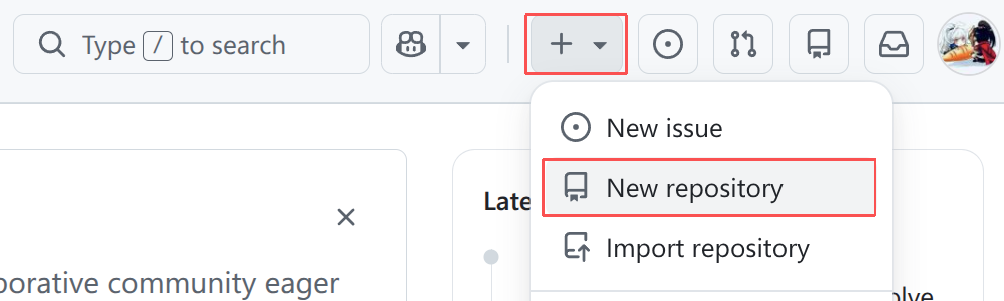
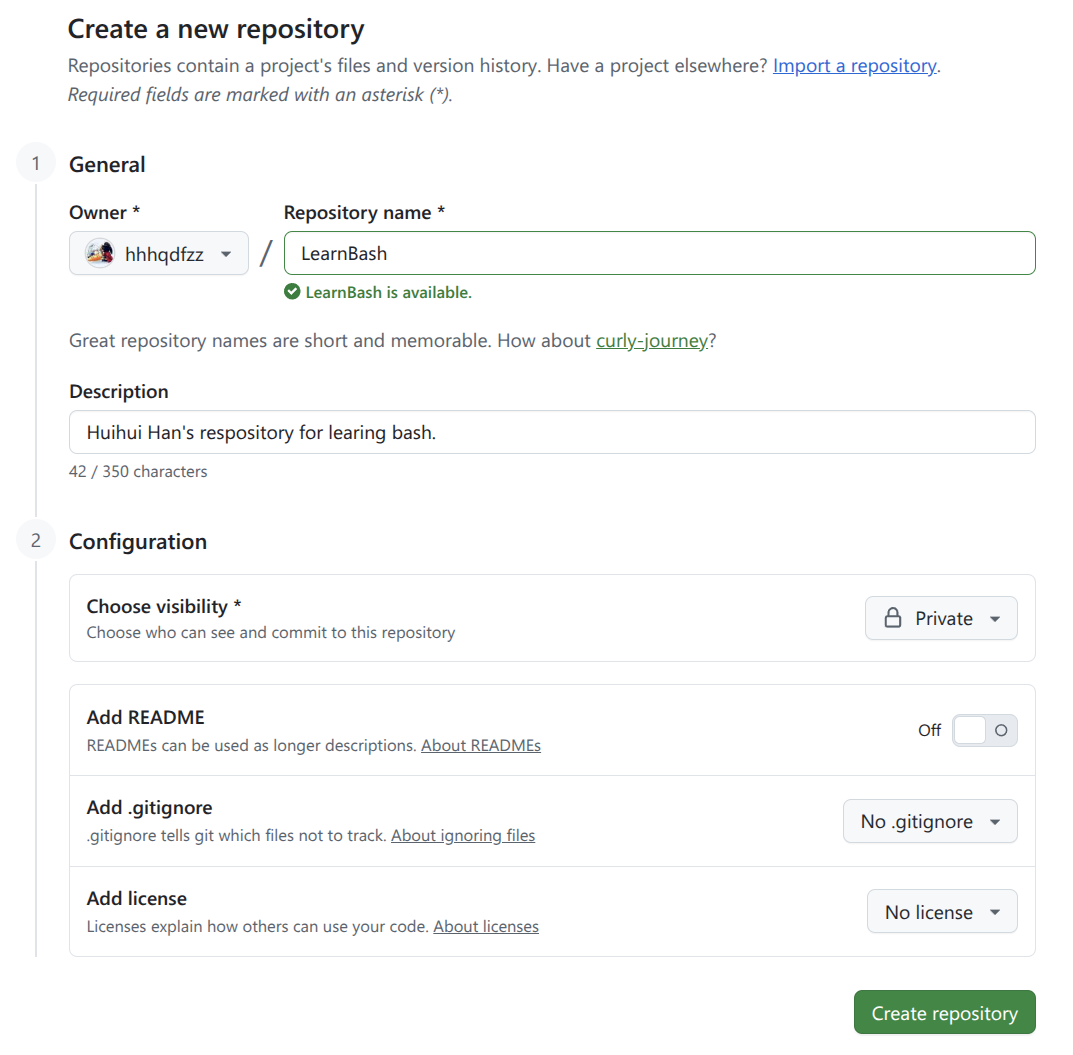
注意不要勾选 Add README,否则会自动将 README.md commit 进去了,到时候把本地的内容上传到 GitHub Repository时,会出现内容冲突的错误。
Step 2:在A上初始化 Git 仓库
以在A上为例,在~/bash/上建立本地的 Git Repository:
user@localhost:~/bash$ git init
提示:使用 'master' 作为初始分支的名称。这个默认分支名称可能会更改。要在新仓库中
提示:配置使用初始分支名,并消除这条警告,请执行:
提示:
提示:	git config --global init.defaultBranch <名称>
提示:
提示:除了 'master' 之外,通常选定的名字有 'main'、'trunk' 和 'development'。
提示:可以通过以下命令重命名刚创建的分支:
提示:
提示:	git branch -m <name>
已初始化空的 Git 仓库于 ~/bash/.git/
分支,指的是:
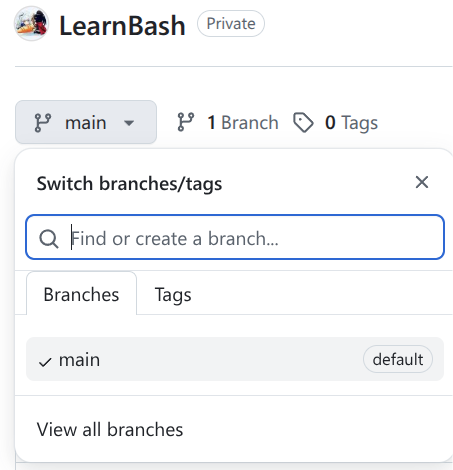
查看当前分支:
git branch
此时没有任何输出结果。因为只有 git commit 之后才会创建分支。从输出结果看出,初次创建的分支名为 master,还可以对此进行修改:
git branch -m main  # 对当前仓库生效
git config --global init.defaultBranch main  # 对所有仓库均生效
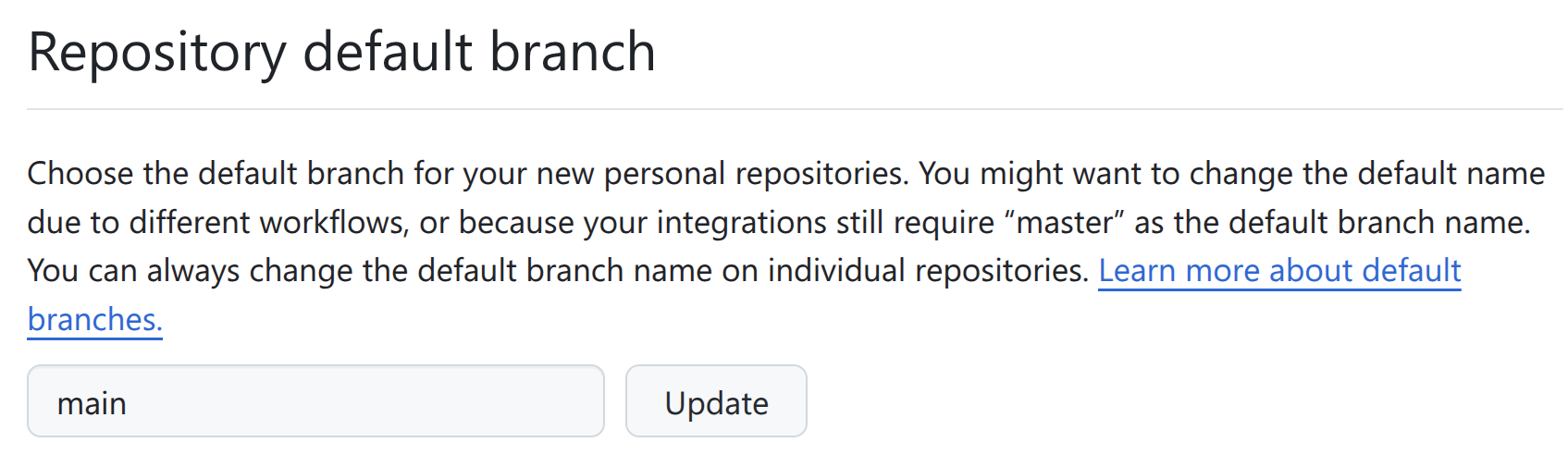
不同分支下,仓库的内容是不同的。比如刚才 GitHub 上的初始分支是 main。
若想修改 GitHub Repository 的默认分支,请在 GitHub 的 Settings -> Repositories -> Repository default branch 中进行设置。
Step 3:在 A 上 commit 自己的内容
user@localhost:~/bash$ echo "# LearnBash" >> README.md
user@localhost:~/bash$ git add .
user@localhost:~/bash$ git commit -m "first commit on Mint"
[main (根提交) 54c8274] first commit on Mint
 7 files changed, 78 insertions(+)
 create mode 100644 answer_yn.sh
 create mode 100644 args.sh
 create mode 100644 calc_pi.sh
 create mode 100644 csv_analysis.sh
 create mode 100644 data.csv
 create mode 100644 multiply.sh
 create mode 100644 read.sh
Step 4:关联 GitHub Repository 远程库
创建密钥对 {#A创建密钥对}
user@localhost:~/bash$ ssh-keygen -t ed25519 -C "<your_email>"
Generating public/private ed25519 key pair.
Enter file in which to save the key (/home/binzz/.ssh/id_ed25519):
Enter passphrase (empty for no passphrase):
Enter same passphrase again:
Your identification has been saved in /home/binzz/.ssh/id_ed25519
Your public key has been saved in /home/binzz/.ssh/id_ed25519.pub
The key fingerprint is:
# ... 省略
The key's randomart image is:
+--[ED25519 256]--+
# ... 省略
+----[SHA256]-----+
user@localhost:~/bash$ cat ~/.ssh/id_ed25519.pub
# ... 省略输出内容  # 拷贝一下,需要在 GitHub 上添加到 SSH Keys 中
补充说明:
ssh-keygen命令用于生成密钥对。
For modern security, Ed25519 is recommended:
Ifssh-keygen -t ed25519 -C "your_email@example.com"Ed25519is unsupported, useRSAwith strong encryption:ssh-keygen -t rsa -b 4096 -C "your_email@example.com"-tspecifies the algorithm.-bsets key length (RSA only).-Cadds a label (usually your email).
在 GitHub 上打开 Settings -> SSH and GPG keys -> New SSH key,粘贴刚才拷贝的内容。
添加远程库 {#A添加远程库}
在 A 上操作。
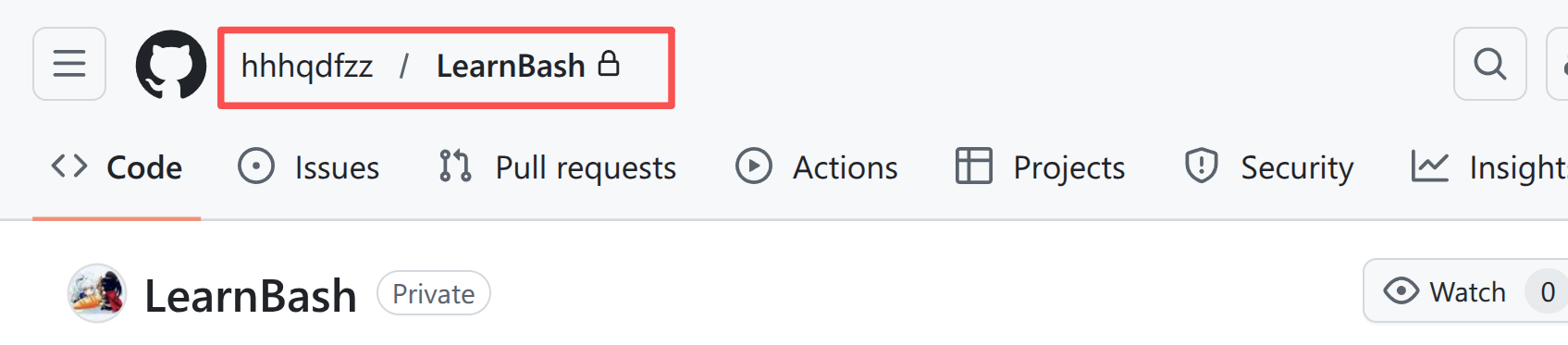
git remote add origin git@github.com:hhhqdfzz/LearnBash.git
origin是远程库的名字,是Git默认的叫法,也可以改成别的,但是origin这个名字一看就知道是远程库。hhhqdfzz是用户名,LearnBash是仓库名。
查看远程库:
user@localhost:~/bash$ git remote -v
origin	git@github.com:hhhqdfzz/LearnBash.git (fetch)
origin	git@github.com:hhhqdfzz/LearnBash.git (push)
Step 5:把A上的内容上传到远程库
git push -u origin main
推送到远程库 origin 的 main 分支。由于远程库是空的,我们第一次推送main分支时,加上了-u 参数,Git不但会把本地的main分支内容推送的远程新的main分支,还会把本地的main分支和远程的main分支关联起来,在以后的推送或者拉取时就可以简化命令。
以后再上传时,就不需要加上-u参数了,即:
git push origin main
Step 6:在B上拉取 GitHub Repository
创建密钥对
方法同 A。
克隆仓库
user@localhost:~$ git clone git@github.com:hhhqdfzz/LearnBash.git
Cloning into 'LearnBash'...
The authenticity of host 'github.com (xx.xx.xx.xx)' can't be established.
ED25519 key fingerprint is <省略>.
This key is not known by any other names.
Are you sure you want to continue connecting (yes/no/[fingerprint])? yes
Warning: Permanently added 'github.com' (ED25519) to the list of known hosts.
remote: Enumerating objects: 12, done.
remote: Counting objects: 100% (12/12), done.
remote: Compressing objects: 100% (10/10), done.
remote: Total 12 (delta 1), reused 12 (delta 1), pack-reused 0 (from 0)
Receiving objects: 100% (12/12), done.
Resolving deltas: 100% (1/1), done.
user@localhost:~$ mv LearnBash/ bash
里面有 .git 目录,与 A 和 GitHub Repository 中的 .git 目录的内容是相同的,因此不需要再添加远程库。
拉取更新
假如在 A 上更新了内容并上传:
user@localhost:~/bash$ echo "The repository is for Huihui Han." >> README.md
user@localhost:~/bash$ git add .
user@localhost:~/bash$ git commit -m "Modified README on Mint."
[main 2e8a84c] Modified README on Mint.
 1 file changed, 1 insertion(+)
user@localhost:~/bash$ git push origin main
枚举对象中: 5, 完成.
对象计数中: 100% (5/5), 完成.
使用 32 个线程进行压缩
压缩对象中: 100% (2/2), 完成.
写入对象中: 100% (3/3), 328 字节 | 328.00 KiB/s, 完成.
总共 3(差异 1),复用 0(差异 0),包复用 0
remote: Resolving deltas: 100% (1/1), completed with 1 local object.
To github.com:hhhqdfzz/LearnBash.git
   7cdd8a5..2e8a84c  main -> main
则 在 B 上需要拉取更新:
git pull origin main
可以看到,的确更新了:
user@localhost:~/bash$ cat README.md
# LearnBash
The repository is for Huihui Han.
user@localhost:~/bash$
附:反悔药
删除 ssh 密钥对
rm ~/.ssh/id_ed25519*
再去 GitHub 上删除。
删除远程库
git remote rm origin
origin 是远程库的名称。

汇聚全球AI编程工具,助力开发者即刻编程。
更多推荐

 7
7 0
0- 0


 已为社区贡献1条内容

所有评论(0)