
Linux 硬盘分区管理
Linux 硬盘分区管理
硬盘为什么要分区?
将操作系统文件与用户文件分隔开,避免应用数据太多撑满操作系统盘。
限制应用或用户的可用空间。
如果一个分区出现逻辑损坏,仅损坏该分区数据而不影响硬盘上其他分区。
用于创建交换分区。
限制磁盘空间使用,以提高诊断工具和备份镜像的性能。
便于定制文件系统,例如有的文件系统存放大量小文件,有的文件系统存放大量大文件。
MBR 分区方案
通常,我们将磁盘第一个扇区称为主引导扇区,位于硬盘的柱面0、磁头0、扇区1的位置,这一扇区包含MBR引导代码,承担系统启动职能。它不属于磁盘上任何分区,因而分区空间内的格式化命令不能清除主引导记录的任何信息。
自 1982年以来,主启动记录(MBR)分区方案指定了在运行 BIOS 固件的系统上如何对磁盘进行分区
主引导扇区由三个部分组成:
- 引导程序(占446个字节),硬盘启动时将系统控制权转给分区表中的某个操作系统。
- 磁盘分区表项(DPT,Disk Partition Table),由四个分区表项构成(每个16个字节)。
- 结束标志(占2个字节),其值为AA55(十六进制)
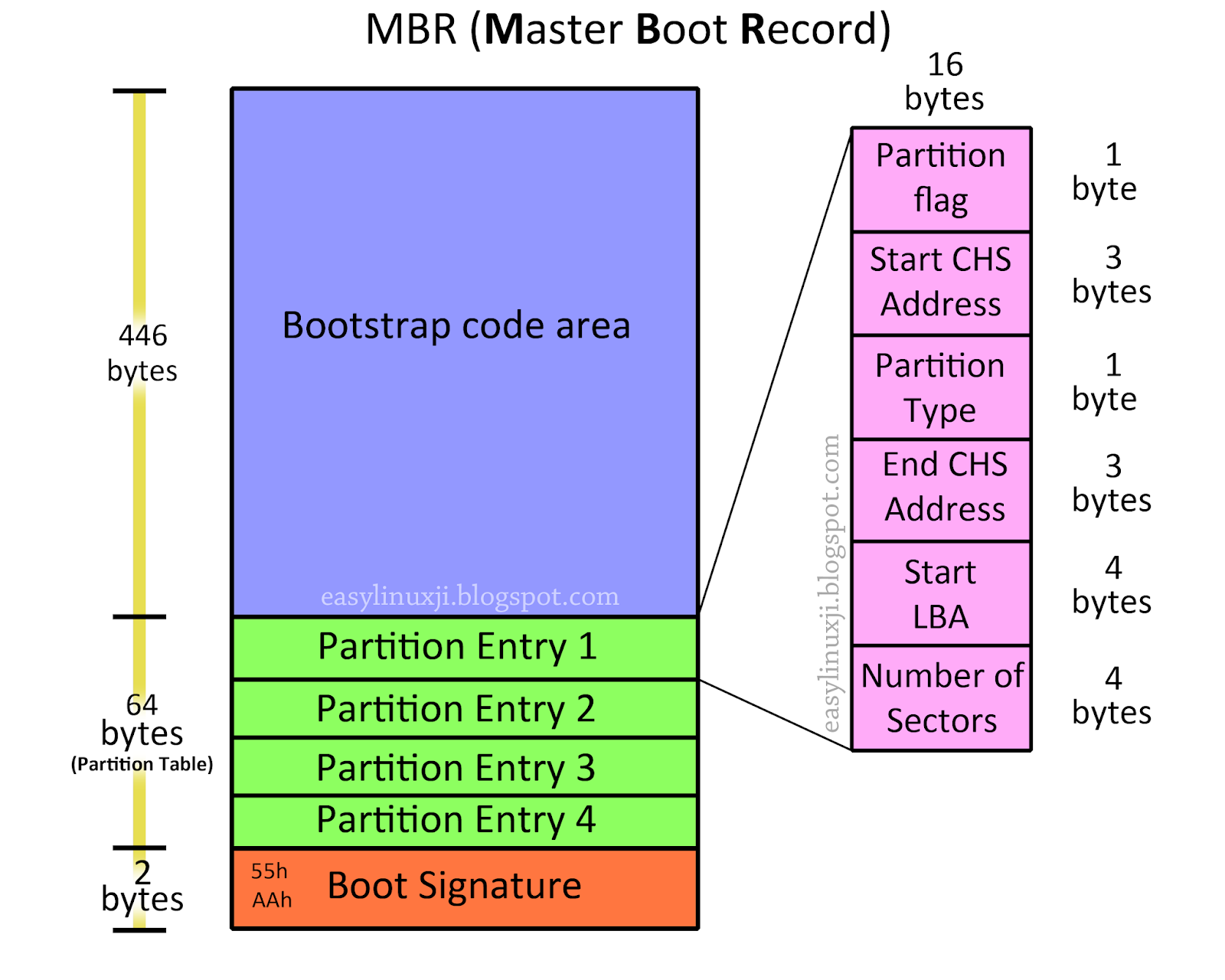
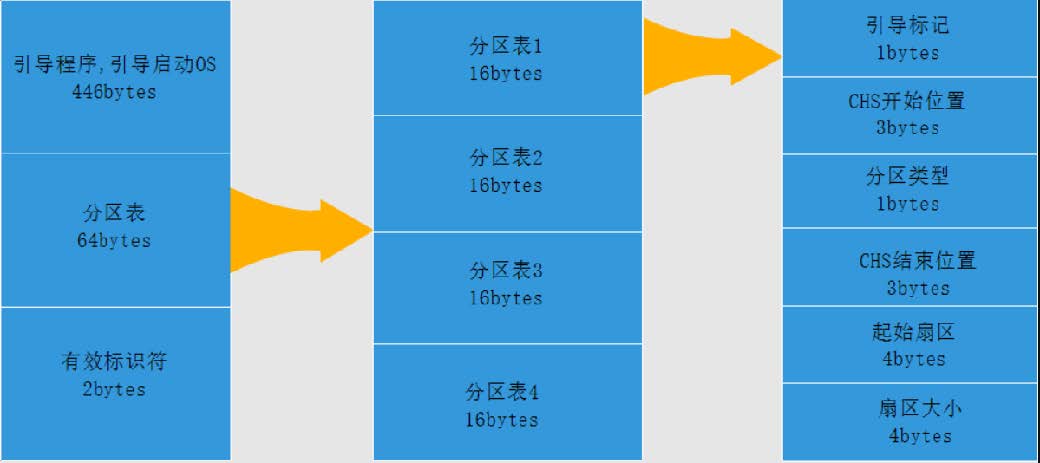
该方案支持最多4个主分区。
在 Linux系统上,管理员可以使用扩展分区和逻辑分区来创建最多 15个分区。
主分区、逻辑分区可以格式化(format),扩展分区只存储逻辑分区的索引信息不可以格式化。
MBR 记录用4个字节(1byte=8bit)存储分区的总扇区数,最大能表示2的32次方的扇区个数,按每扇区512字节计算,每个分区最大不能超过 2 TiB。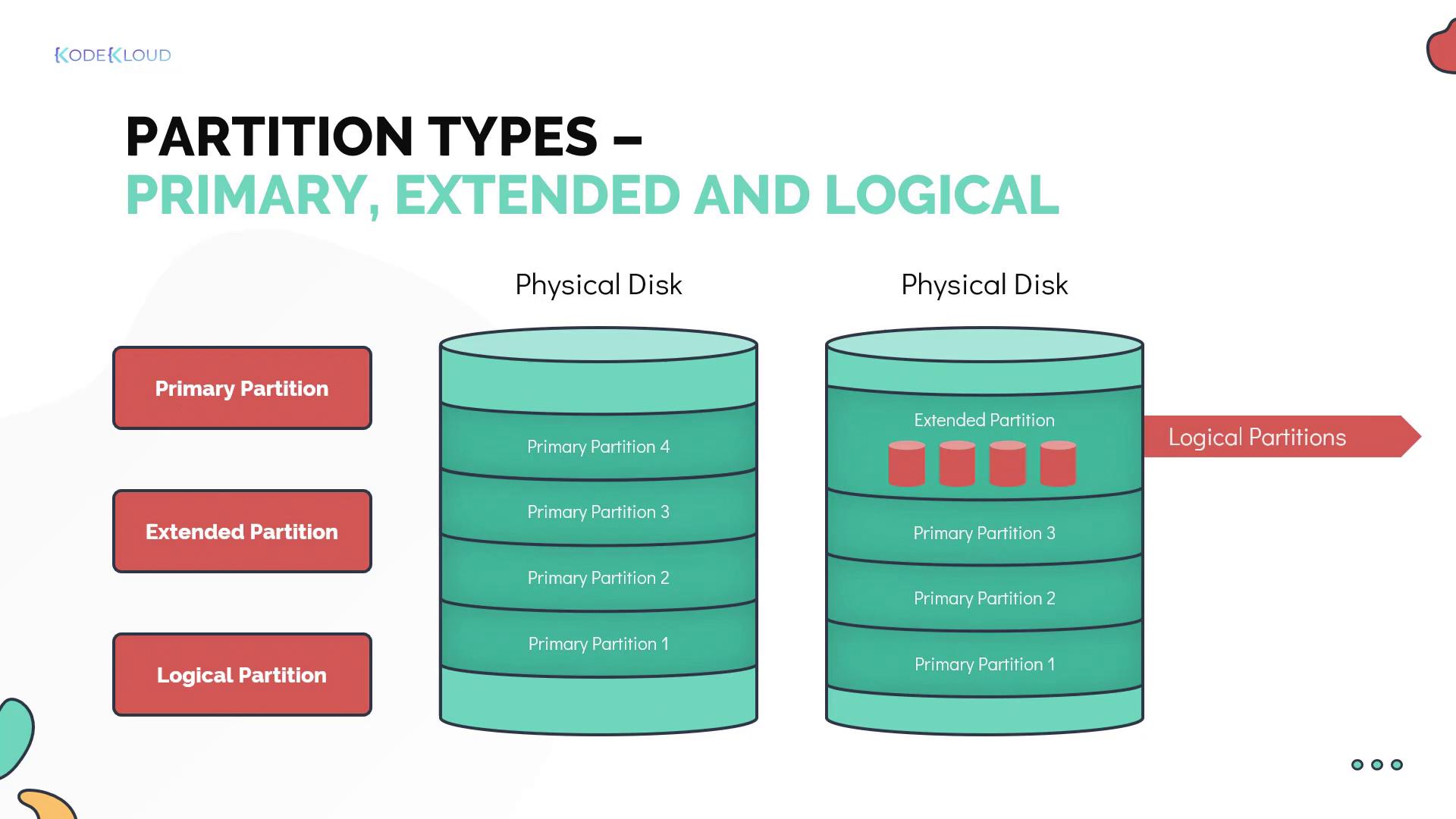
fdisk 工具
fdisk 工具可用于管理采用 MBR 分区方案的磁盘,用户可以根据实际情况进行划分分区。
[root@centos7 ~]# fdisk -h
Usage:
fdisk [options] <disk> change partition table
fdisk [options] -l <disk> list partition table(s)
fdisk -s <partition> give partition size(s) in blocks
Options:
-b <size> sector size (512, 1024, 2048 or 4096)
-c[=<mode>] compatible mode: 'dos' or 'nondos' (default)
-h print this help text
-u[=<unit>] display units: 'cylinders' or 'sectors'
(default)
-v print program version
-C <number> specify the number of cylinders
-H <number> specify the number of heads
-S <number> specify the number of sectors per track
a—设置活动分区标志
d—删除分区
l—显示可用的分区类型
m—显示命令选项
p—显示当前分区表
q—不保存修改
t—修改分区的系统ID
u—改变使用的存储单位
w—将分区表写入磁盘
x—高级功能
看上去恐怖,实际上日常中用到的只有几个命令
查看分区
fdisk工具大部分操作通过交互式完成,除了查看分区表。
# 方法1:
[root@centos7 ~]# fdisk -l /dev/sdb
Disk /dev/sdb: 21.5 GB, 21474836480 bytes, 41943040 sectors
Units = sectors of 1 * 512 = 512 bytes
Sector size (logical/physical): 512 bytes / 512 bytes
I/O size (minimum/optimal): 512 bytes / 512 bytes
Disk label type: dos
Disk identifier: 0x78ceaffe
Device Boot Start End Blocks Id System
/dev/sdb1 2048 41943039 20970496 83 Linux
# 方法2:
[root@centos7 ~]# fdisk /dev/sdb
Welcome to fdisk (util-linux 2.23.2).
Changes will remain in memory only, until you decide to write them.
Be careful before using the write command.
创建分区
# 输入n,创建一个新分区
Command (m for help): `n`
# 选择分区类型
Partition type:
p primary (0 primary, 0 extended, 4 free)
e extended
# 直接回车,选择默认分区类型:primary
Select (default p): `回车`
Using default response p
# 直接回车,分区号,使用默认值1
Partition number (1-4, default 1):
# 直接回车,设置分区起始位置为:默认值2048扇区,也就是1M位置。
First sector (2048-41943039, default 2048):
Using default value 2048
# 设置分区结束位置,输入+2G,也就是起始位置之后2
Last sector, +sectors or +size{K,M,G} (2048-41943039, default
41943039): +2G
Partition 1 of type Linux and of size 2 GiB is set
Command (m for help): p
Disk /dev/sdb: 21.5 GB, 21474836480 bytes, 41943040 sectors
Units = sectors of 1 * 512 = 512 bytes
Sector size (logical/physical): 512 bytes / 512 bytes
I/O size (minimum/optimal): 512 bytes / 512 bytes
Disk label type: dos
Disk identifier: 0x78ceaffe
Device Boot Start End Blocks Id System
/dev/sdb1 2048 4196351 2097152 83 Linux
# 输入w,保存更改并退出
# 输入q,不保存更改并退出
Command (m for help): w
The partition table has been altered!
Calling ioctl() to re-read partition table.
Syncing disks.
# 再次验证分区表变化
[root@centos7 ~]# lsblk /dev/sdb
NAME MAJ:MIN RM SIZE RO TYPE MOUNTPOINT
sdb 8:16 0 20G 0 disk
`-sdb1 8:17 0 2G 0 part
有些发行版在生成新分区之后并不会自动提醒Linux系统,此时分区表未生成,要么执行以 partprobe 命令,要么重启系统才会生成最新分区表。
[root@centos7 ~]# fdisk /dev/sdb
Welcome to fdisk (util-linux 2.23.2).
Changes will remain in memory only, until you decide to write them.
Be careful before using the write command.
# 输入p,打印分区表
Command (m for help): p
Disk /dev/sdb: 21.5 GB, 21474836480 bytes, 41943040 sectors
Units = sectors of 1 * 512 = 512 bytes
Sector size (logical/physical): 512 bytes / 512 bytes
I/O size (minimum/optimal): 512 bytes / 512 bytes
Disk label type: dos
Disk identifier: 0x78ceaffe
Device Boot Start End Blocks Id System
/dev/sdb1 2048 41943039 20970496 83 Linux
# 输入d,删除分区,因为只有1个分区,所以自动删除了第一个分区
Command (m for help): `d`
Selected partition 1
Partition 1 is deleted
Command (m for help): p
Disk /dev/sdb: 21.5 GB, 21474836480 bytes, 41943040 sectors
Units = sectors of 1 * 512 = 512 bytes
Sector size (logical/physical): 512 bytes / 512 bytes
I/O size (minimum/optimal): 512 bytes / 512 bytes
Disk label type: dos
Disk identifier: 0x78ceaffe
Device Boot Start End Blocks Id System
如果硬盘空间比较大,需要的文件系统数量超过4个,需要借助扩展分区创建逻辑分区
如下示例,创建第4个分区的时候,类型选择扩展分区;创建第5个分区的时类型选择逻辑分区
[root@centos7 ~]# fdisk /dev/sdb
Welcome to fdisk (util-linux 2.23.2).
Changes will remain in memory only, until you decide to write them.
Be careful before using the write command.
# 再次创建一个容量为3G的分区
Command (m for help): n
Partition type:
p primary (1 primary, 0 extended, 3 free)
e extended
Select (default p):
Using default response p
Partition number (2-4, default 2):
First sector (4196352-41943039, default 4196352):
Using default value 4196352
Last sector, +sectors or +size{K,M,G} (4196352-41943039, default
41943039): +3G
Partition 2 of type Linux and of size 3 GiB is set
# 再次创建一个容量为4G的分区
Command (m for help): n
Partition type:
p primary (2 primary, 0 extended, 2 free)
e extended
Select (default p):
Using default response p
Partition number (3,4, default 3):
First sector (10487808-41943039, default 10487808):
Using default value 10487808
Last sector, +sectors or +size{K,M,G} (10487808-41943039, default
41943039): +4G
Partition 3 of type Linux and of size 4 GiB is set
# 创建第4个分区的时候,选择扩展分区,并且使用剩余所有容量
Command (m for help): n
Partition type:
p primary (3 primary, 0 extended, 1 free)
e extended
Select (default e):
Using default response e
Selected partition 4
First sector (18876416-41943039, default 18876416):
Using default value 18876416
Last sector, +sectors or +size{K,M,G} (18876416-41943039, default
41943039):
Using default value 41943039
Partition 4 of type Extended and of size 11 GiB is set
# 创建第5个分区:在扩展分区中,创建逻辑分区,分配5G容量
Command (m for help): n
All primary partitions are in use
Adding logical partition 5
First sector (18878464-41943039, default 18878464):
Using default value 18878464
Last sector, +sectors or +size{K,M,G} (18878464-41943039, default
41943039): +5G
Partition 5 of type Linux and of size 5 GiB is set
Command (m for help): p
Disk /dev/sdb: 21.5 GB, 21474836480 bytes, 41943040 sectors
Units = sectors of 1 * 512 = 512 bytes
Sector size (logical/physical): 512 bytes / 512 bytes
I/O size (minimum/optimal): 512 bytes / 512 bytes
Disk label type: dos
Disk identifier: 0x78ceaffe
Device Boot Start End Blocks Id System
/dev/sdb1 2048 4196351 2097152 83 Linux
/dev/sdb2 4196352 10487807 3145728 83 Linux
/dev/sdb3 10487808 18876415 4194304 83 Linux
/dev/sdb4 18876416 41943039 11533312 5 Extended
/dev/sdb5 18878464 29364223 5242880 83 Linux
Command (m for help): w
The partition table has been altered!
Calling ioctl() to re-read partition table.
Syncing disks.
# 查看分区表
[root@centos7 ~]# lsblk /dev/sdb
NAME MAJ:MIN RM SIZE RO TYPE MOUNTPOINT
sdb 8:16 0 20G 0 disk
|-sdb1 8:17 0 2G 0 part
|-sdb2 8:18 0 3G 0 part
|-sdb3 8:19 0 4G 0 part
|-sdb4 8:20 0 1K 0 part
|-sdb5 8:21 0 5G 0 part
非交互方式管理
# 将要执行的fdisk命令行写入到一个文本文件并执行
[root@centos7 ~]# vim fdisk-create.txt
n
p
1
2048
+2G
p
w

[root@centos7 ~]# fdisk /dev/sdb < fdisk-create.txt
[root@centos7 ~]# lsblk /dev/sdb
NAME MAJ:MIN RM SIZE RO TYPE MOUNTPOINT
sdb 8:16 0 20G 0 disk
|-sdb1 8:17 0 2G 0 part

#删除一个分区
[root@centos7 ~]# vim fdisk-delete.txt
d
p
w
#执行
[root@centos7 ~]# fdisk /dev/sdb < fdisk-delete.txt
[root@centos7 ~]# lsblk /dev/sdb
NAME MAJ:MIN RM SIZE RO TYPE MOUNTPOINT
sdb 8:16 0 20G 0 disk
GPT分区方案
GPT是运行统一可扩展固件接口(UEFI)固件系统上硬盘分区表的标准
MBR分区方案只能管理最大2TiB分区和磁盘。全局唯一标识分区表(GPT,GUID PartitionTable)使用8个字节(1byte=8bit)存储分区的总扇区数,可支持最多18 ZiB(=264*512Byte),即18亿太字节的分区和磁盘
MBR分区方案支持最多15个分区。GPT分区方案最多可提供128个分区并提供分区表信息的冗余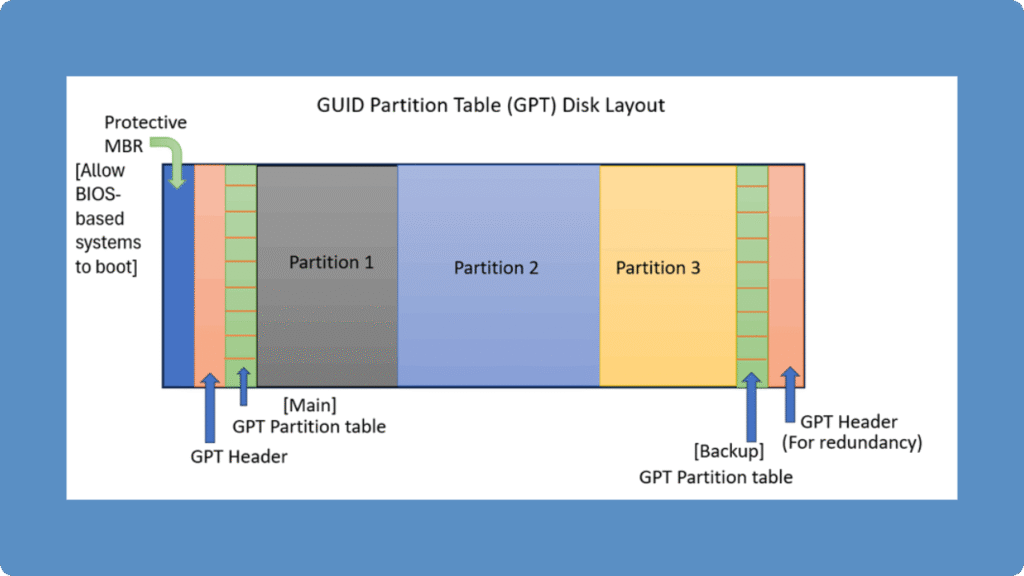
- LBA0(保护性MBR),分为两个部分:
- 第一部分是与MBR中446字节相似的区块,用于存放第一阶段的启动引导程序。
- 第二部分是与MBR分区表记录区对应,该区域存储一个特殊标识符0xEE,用于表示该
磁盘为GPT格式。若磁盘管理程序(比较老的软件)无法识别该磁盘,不能修改这个分
区信息,进一步保护磁盘。
- LBA1(GPT表头记录),记录了分区表自身的位置和大小,同时也记录了前面提到备份用的
GPT分区所在位置(最后34个LBA),还放置了分区表的校验码(CRC32),校验码的作用
是让操作系统判断GPT的正确与否,倘若发现错误则可以从备份的GPT中恢复正常运行。 - LBA2-33,记录分区信息,每个LBA可以提供4组的分区记录,默认情况下可以有4×32=128
组分区记录。因为每个LBA都有512字节,所以每组分区记录所占128字节,除去每组记录需
要的标识符和相关记录信息外,GPT在每组记录中提供了64位记载分区的扇区总数。 - 虽然GPT最大支持128个分区,但是实际使用过程中分区超过第120个会出现无法格式化使用
的情况。
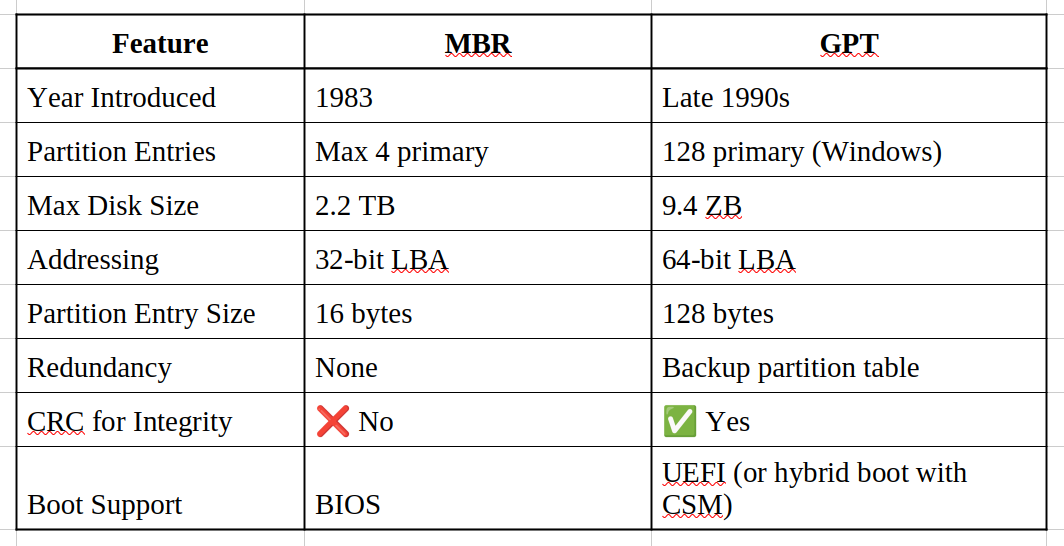
GPT 相比 MBR 的核心优势:
容量:MBR 最多 2.2TB,GPT 支持 9.4ZB+
分区数量:MBR 最多 4 个主分区(或 3 主 + 1 扩展),GPT 默认 128 个
安全性:GPT 有 CRC32 校验 + 末尾备份表,MBR 一旦损坏整个磁盘分区信息全丢
启动方式:GPT 必须配合 UEFI 使用(EFI System Partition),支持 Secure Boot;MBR 只支持传统 BIOS
兼容性:GPT 磁盘第一个扇区仍有 Protective MBR,旧 BIOS 系统能看到但无法启动
gdisk 工具
gdisk工具用于管理采用GPT分区方案的磁盘分区,主要用于管理磁盘容量超过2T的磁盘。
查看分区表
[root@centos7 ~]# gdisk -l /dev/sdb
GPT fdisk (gdisk) version 0.8.10

# 这里显示识别到了MBR分区方案
Partition table scan:
  MBR: MBR only
  BSD: not present
  APM: not present
  GPT: not present

Found invalid GPT and valid MBR; converting MBR to GPT format in
memory.

Command (? for help): p
Disk /dev/sdb: 41943040 sectors, 20.0 GiB
Logical sector size: 512 bytes
Disk identifier (GUID): 1038836E-C6BD-48D3-A490-8FFF2133146B
Partition table holds up to 128 entries
First usable sector is 34, last usable sector is 41943006
Partitions will be aligned on 2048-sector boundaries
Total free space is 41942973 sectors (20.0 GiB)
Number Start (sector) End (sector) Size Code Name
转换分区表方案
gdisk工具用于管理gpt分区,所以需要将磁盘的分区管理方案由MBR转换成GPT
[root@centos7 ~]# gdisk /dev/sdb
GPT fdisk (gdisk) version 0.8.10
Partition table scan:
MBR: MBR only
BSD: not present
APM: not present
GPT: not present

# gdisk发现了这是 MBR 格式,并自动在内存中转换为 GPT 格式,会看到类似这样的提示:
***************************************************************
Found invalid GPT and valid MBR; converting MBR to GPT format
in memory. THIS OPERATION IS POTENTIALLY DESTRUCTIVE! Exit by
typing 'q' if you don't want to convert your MBR partitions
to GPT format!
***************************************************************


# 输入 ?,查看帮助信息,与 fdisk 很相似。
Command (? for help): ?
b back up GPT data to a file
c change a partition's name
d delete a partition
i show detailed information on a partition
l list known partition types
n add a new partition
o create a new empty GUID partition table (GPT)
p print the partition table
q quit without saving changes
r recovery and transformation options (experts only)
s sort partitions
t change a partition's type code
v verify disk
w write table to disk and exit
x extra functionality (experts only)
? print this menu

# 使用 o 选项将直接抹掉现有的分区表,创建一个完全空白的 GPT 结构
Command (? for help): o
This option deletes all partitions and creates a new protective MBR.
Proceed? (Y/N): Y
# 输入p,查看分区表
Command (? for help): p
Disk /dev/sdb: 41943040 sectors, 20.0 GiB
Logical sector size: 512 bytes
Disk identifier (GUID): 99FE6E5F-8316-428D-BA81-D824C786CC43
Partition table holds up to 128 entries
First usable sector is 34, last usable sector is 41943006
Partitions will be aligned on 2048-sector boundaries
Total free space is 41942973 sectors (20.0 GiB)
Number Start (sector) End (sector) Size Code Name

# 输入w,保存更改并退出
# 输入q,不保存更改并退出

Command (? for help): w
Final checks complete. About to write GPT data. THIS WILL OVERWRITE
EXISTING
PARTITIONS!!
Do you want to proceed? (Y/N): Y
OK; writing new GUID partition table (GPT) to /dev/sdb.
The operation has completed successfully.
创建分区
[root@centos7 ~]# gdisk /dev/sdb
GPT fdisk (gdisk) version 0.8.10
# 这里识别到了GPT分区方案
Partition table scan:
MBR: protective
BSD: not present
APM: not present
GPT: present
Found valid GPT with protective MBR; using GPT.
# 输入n,创建新分区
Command (? for help): `n`
# 设置分区ID
Partition number (1-128, default 1): `回车`
# 设置分区起始位置
First sector (34-41943006, default = 2048) or {+-}size{KMGTP}: `回车`
# 设置分区结束位置
Last sector (2048-41943006, default = 41943006) or {+-}size{KMGTP}:
`+2G`
Current type is 'Linux filesystem'
# 回车,选择默认分区类型
Hex code or GUID (L to show codes, Enter = 8300):
Changed type of partition to 'Linux filesystem'
# 查看分区表
Command (? for help): p
Disk /dev/sdb: 41943040 sectors, 20.0 GiB
Logical sector size: 512 bytes
Disk identifier (GUID): D8D20592-A3E6-482A-AA35-98D5651ACE80
Partition table holds up to 128 entries
First usable sector is 34, last usable sector is 41943006
Partitions will be aligned on 2048-sector boundaries
Total free space is 37748669 sectors (18.0 GiB)

Number  Start (sector)    End (sector)  Size       Code  Name
   1            2048         4196351   2.0 GiB     8300  Linux filesystem
更改分区名称
# 输入c,修改分区ID为1的分区名
Command (? for help): c
Using 1
# 输入新名称
Enter name: data01
# 查看分区表
Command (? for help): p
Disk /dev/sdb: 41943040 sectors, 20.0 GiB
Logical sector size: 512 bytes
Disk identifier (GUID): 1A3D170A-56FC-4655-8B9C-01E1B89294FE
Partition table holds up to 128 entries
First usable sector is 34, last usable sector is 41943006
Partitions will be aligned on 2048-sector boundaries
Total free space is 37748669 sectors (18.0 GiB)
Number Start (sector) End (sector) Size Code Name
1 2048 4196351 2.0 GiB 8300 data01
# 查看分区详细信息
Command (? for help): i
Using 1
Partition GUID code: 0FC63DAF-8483-4772-8E79-3D69D8477DE4 (Linux
filesystem)
Partition unique GUID: 19AE5CDC-1AB2-4EBA-B9E2-AE9E7BF42653
First sector: 2048 (at 1024.0 KiB)
Last sector: 4196351 (at 2.0 GiB)
Partition size: 4194304 sectors (2.0 GiB)
Attribute flags: 0000000000000000
Partition name: 'data01'

# 输入d,删除分区ID为1的分区
Command (? for help): d
Using 1
Command (? for help): p
Disk /dev/sdb: 41943040 sectors, 20.0 GiB
Logical sector size: 512 bytes
Disk identifier (GUID): 1A3D170A-56FC-4655-8B9C-01E1B89294FE
Partition table holds up to 128 entries
First usable sector is 34, last usable sector is 41943006
Partitions will be aligned on 2048-sector boundaries
Total free space is 41942973 sectors (20.0 GiB)
Number Start (sector) End (sector) Size Code Name
Command (? for help): w
Final checks complete. About to write GPT data. THIS WILL OVERWRITE
EXISTING
PARTITIONS!!
Do you want to proceed? (Y/N): Y
OK; writing new GUID partition table (GPT) to /dev/sdb.
The operation has completed successfully.
parted 工具
parted 工具既可以管理采用MBR分区方案的磁盘,又可以管理采用GPT分区方案的磁盘。
parted 命令同时支持交互式操作和非交互式操作(编写脚本)先来看看交互式操作。
操作流程:
- 查看分区表。如果是未初始化硬盘,创建分区。
- 设置单位(MiB)
- 创建分区
- 调整分区大小
- 调整分区类型
- 删除分区
[root@centos7 ~]# parted /dev/sdb
# 输入 help 查看帮助
GNU Parted 3.2
Using /dev/sdb
Welcome to GNU Parted! Type 'help' to view a list of commands.
(parted) help
  align-check TYPE N                        check partition N for TYPE(min|opt) alignment
  help [COMMAND]                           print general help, or help on COMMAND
  mklabel,mktable LABEL-TYPE               create a new disklabel (partition table)
  mkpart PART-TYPE [FS-TYPE] START END     make a partition
  name NUMBER NAME                         name partition NUMBER as NAME
  print [devices|free|list,all|NUMBER]     display the partition table, available devices, free space, all
        found partitions, or a particular partition
  quit                                     exit program
  rescue START END                         rescue a lost partition near START and END
  resizepart NUMBER END                    resize partition NUMBER
  rm NUMBER                                delete partition NUMBER
  select DEVICE                            choose the device to edit
  disk_set FLAG STATE                      change the FLAG on selected device
  disk_toggle [FLAG]                       toggle the state of FLAG on selected device
  set NUMBER FLAG STATE                    change the FLAG on partition NUMBER
  toggle [NUMBER [FLAG]]                   toggle the state of FLAG on partition NUMBER
  unit UNIT                                set the default unit to UNIT
  version                                  display the version number and copyright information of GNU Parted
(parted)

# 输入 print 查看分区表
(parted) `print`
Model: VMware, VMware Virtual S (scsi)
Disk /dev/sdb: 21.5GB
Sector size (logical/physical): 512B/512B
Partition Table: gpt
Disk Flags:

Number Start End Size File system Name Flags

# 设置单位
# parted工具默认单位是MB(103K),设置为MiB(210KiB)

(parted) unit MiB
管理 MBR 磁盘
设置磁盘分区管理方案
# 输入mklabel或mktable设置磁盘分区管理方案
# 设置分区方案为msdos,也就是MBR,输入mklabel msdos
(parted) `mklabel msdos`
Warning: The existing disk label on /dev/sdb will be destroyed and all data on this disk will be lost. Do you want to continue?
# 确认更改,输入y
Yes/No? `y`
# 虽然磁盘上的二进制数据还没被完全擦除,但系统已经失去了寻找这些分区的“地图”,逻辑上这块盘现在是空的
(parted) print
Model: VMware, VMware Virtual S (scsi)
Disk /dev/sdb: 10240MiB
Sector size (logical/physical): 512B/512B
Partition Table: msdos #分区表已修改为 msdos
Disk Flags:

Number  Start  End  Size  Type  File system  Flags
注意:parted命令做出的更改立刻生效
创建分区
(parted) mkpart
Partition type?  primary/extended? primary
File system type?  [ext2]? xfs
Start? 1
End? 2049
(parted) print
Model: VMware, VMware Virtual S (scsi)
Disk /dev/sdb: 10240MiB
Sector size (logical/physical): 512B/512B
Partition Table: msdos
Disk Flags:

Number  Start    End      Size     Type     File system  Flags
 1      1.00MiB  1954MiB  1953MiB  primary  xfs          lba
扩展分区
# 1 代表分区号,4097代表分区结束位置
GNU Parted 3.2
Using /dev/sdb
Welcome to GNU Parted! Type 'help' to view a list of commands.
(parted) resizepart 1 4097
(parted) print
Model: VMware, VMware Virtual S (scsi)
Disk /dev/sdb: 10240MiB
Sector size (logical/physical): 512B/512B
Partition Table: msdos
Disk Flags:

Number  Start   End     Size    Type     File system  Flags
 1      1049kB  4097MB  4096MB  primary
删除分区
(parted) rm 1
(parted) print
Model: VMware, VMware Virtual S (scsi)
Disk /dev/sdb: 10240MiB
Sector size (logical/physical): 512B/512B
Partition Table: msdos
Disk Flags:

Number  Start  End  Size  Type  File system  Flags
免交互式操作
# 设置磁盘分区管理方案
[root@centos7 ~]# parted /dev/sdb mklabel msdos
Warning: The existing disk label on /dev/sdb will be destroyed and all data on this disk will be lost. Do you want to continue?
Yes/No? y
Information: You may need to update /etc/fstab.
# 查看分区
[root@centos7 ~]# parted /dev/sdb unit MiB print
Model: VMware, VMware Virtual S (scsi)
Disk /dev/sdb: 10240MiB
Sector size (logical/physical): 512B/512B
Partition Table: msdos
Disk Flags:
Number Start End Size Type File system Flags
# 创建分区
[root@centos7 ~]# parted /dev/sdb unit MiB mkpart primary 1 2049
Information: You may need to update /etc/fstab.
[root@centos7 ~]# parted /dev/sdb unit MiB print
Model: VMware, VMware Virtual S (scsi)
Disk /dev/sdb: 10240MiB
Sector size (logical/physical): 512B/512B
Partition Table: msdos
Disk Flags:
Number Start End Size Type File system Flags
1 1.00MiB 2049MiB 2048MiB primary xfs
# 扩展分区
[root@centos7 ~]# parted /dev/sdb unit MiB resizepart 1 5121
Information: You may need to update /etc/fstab.
[root@centos7 ~]# parted /dev/sdb unit MiB print
Model: VMware, VMware Virtual S (scsi)
Disk /dev/sdb: 20480MiB
Sector size (logical/physical): 512B/512B
Partition Table: msdos
Disk Flags:
Number Start End Size Type File system Flags
1 1.00MiB 5121MiB 5120MiB primary xfs
# 删除分区
[root@centos7 ~]# parted /dev/sdb rm 1
Information: You may need to update /etc/fstab.
[root@centos7 ~]# parted /dev/sdb unit MiB print
Model: VMware, VMware Virtual S (scsi)
Disk /dev/sdb: 20480MiB
Sector size (logical/physical): 512B/512B
Partition Table: msdos
Disk Flags:
Number Start End Size Type File system Flags
管理 GPT 磁盘
除了创建分区,管理GPT磁盘基本上与管理MBR磁盘一致
设置磁盘分区管理方案
# 设置分区方案为gpt,输入mklabel gpt
(parted) mklabel gpt
Warning: The existing disk label on /dev/sdb will be destroyed and all data on this disk will be lost. Do you
want to continue?
Yes/No? yes
(parted) print
Model: VMware, VMware Virtual S (scsi)
Disk /dev/sdb: 10240MiB
Sector size (logical/physical): 512B/512B
Partition Table: gpt
Disk Flags:

Number  Start  End  Size  File system  Name  Flags
创建分区
(parted) mkpart
Partition name?  []? data01
File system type?  [ext2]? xfs
Start? 1
End? 2049
(parted) print
Model: VMware, VMware Virtual S (scsi)
Disk /dev/sdb: 10240MiB
Sector size (logical/physical): 512B/512B
Partition Table: gpt
Disk Flags:

Number  Start    End      Size     File system  Name    Flags
 1      1.00MiB  2049MiB  2048MiB  xfs          data01
扩展分区
(parted) resizepart 1 5121
(parted) print
Model: VMware, VMware Virtual S (scsi)
Disk /dev/sdb: 10240MiB
Sector size (logical/physical): 512B/512B
Partition Table: gpt
Disk Flags:

Number  Start    End      Size     File system  Name    Flags
 1      1.00MiB  5121MiB  5120MiB  xfs          data01
删除分区
(parted) rm 1
(parted) print
Model: VMware, VMware Virtual S (scsi)
Disk /dev/sdb: 10240MiB
Sector size (logical/physical): 512B/512B
Partition Table: gpt
Disk Flags:

Number  Start  End  Size  File system  Name  Flags
免交互操作
# 设置磁盘分区管理方案
[root@centos7 ~]# parted /dev/sdb mklabel gpt
Warning: The existing disk label on /dev/sdb will be destroyed and all data on this disk will be lost. Do you want to continue?
Yes/No? y
Information: You may need to update /etc/fstab.
# 查看分区
[root@centos7 ~]# parted /dev/sdb print
Model: VMware, VMware Virtual S (scsi)
Disk /dev/sdb: 10.7GB
Sector size (logical/physical): 512B/512B
Partition Table: gpt
Disk Flags:
Number Start End Size File system Name Flags
# 创建分区
[root@centos7 ~]# parted /dev/sdb unit MiB mkpart data01 xfs 1 2049
Information: You may need to update /etc/fstab.
[root@centos7 ~]# parted /dev/sdb unit MiB print
Model: VMware, VMware Virtual S (scsi)
Disk /dev/sdb: 10240MiB
Sector size (logical/physical): 512B/512B
Partition Table: gpt
Disk Flags:
Number Start End Size File system Name Flags
1 1.00MiB 2049MiB 2048MiB xfs data01
# 扩展分区
[root@centos7 ~]# parted /dev/sdb unit MiB resizepart 1 5121
Information: You may need to update /etc/fstab.
[root@centos7 ~]# parted /dev/sdb unit MiB print
Model: VMware, VMware Virtual S (scsi)
Disk /dev/sdb: 10240MiB
Sector size (logical/physical): 512B/512B
Partition Table: gpt
Disk Flags:
Number Start End Size File system Name Flags
1 1.00MiB 5121MiB 5120MiB xfs data01
# 删除分区
[root@centos7 ~]# parted /dev/sdb rm 1
Information: You may need to update /etc/fstab.
[root@centos7 ~]# parted /dev/sdb unit MiB print
Model: VMware, VMware Virtual S (scsi)
Disk /dev/sdb: 10240MiB
Sector size (logical/physical): 512B/512B
Partition Table: gpt
Disk Flags:

Number  Start  End  Size  File system  Name  Flags
文件系统持久化挂载
利用 parted 创建一个分区,并格式化为xfs文件系统
[root@centos7 ~]# parted /dev/sdb mklabel gpt
Warning: The existing disk label on /dev/sdb will be destroyed and all data on this disk will be lost. Do you want to continue?
Yes/No? y
Information: You may need to update /etc/fstab.
[root@centos7 ~]# parted /dev/sdb unit MiB mkpart data01 xfs 1 2049
Information: You may need to update /etc/fstab.
[root@centos7 ~]# mkfs.xfs /dev/sdb1
meta-data=/dev/sdb1 isize=512 agcount=4, agsize=131072 blks
= sectsz=512 attr=2, projid32bit=1
= crc=1 finobt=0, sparse=0
data = bsize=4096 blocks=524288, imaxpct=25
= sunit=0 swidth=0 blks
naming =version 2 bsize=4096 ascii-ci=0 ftype=1
log =internal log bsize=4096 blocks=2560, version=2
= sectsz=512 sunit=0 blks, lazy-count=1
realtime =none extsz=4096 blocks=0, rtextents=0
# 如果格式化时候,提示存在文件系统,则需要-f选项强制格式化
[root@centos7 ~]# mkfs.xfs /dev/sdb1
mkfs.xfs: /dev/sdb1 appears to contain an existing filesystem (xfs).
mkfs.xfs: Use the -f option to force overwrite.
[root@centos7 ~]# mkfs.xfs -f /dev/sdb1
持久化挂载
当服务器重启时,系统不会再次将文件系统自动挂载到目录树上,用户无法访问。为了确保系统在启动时自动挂载文件系统, 需要在 /etc/fstab文件中添加一个条目
/etc/fstab 是以空格分隔的文件,每行具有六个字段
第1字段----第2字段----第3字段----第4字段----第5字段----第6字段
<文件系统> <挂载点> <文件系统类型> <挂载选项> <转储> <fsck顺序>
- 第1字段:文件系统 / 设备(File System / Device)指定要挂载的设备或分区
- UUID(最稳妥):UUID=xxxxxxxx-xxxx-xxxx-xxxx-xxxxxxxxxxxx
- 设备路径:/dev/sda1、/dev/nvme0n1p2
- LVM 逻辑卷:/dev/mapper/cs-root、/dev/ceph-xxx-osd-block-xxx
- 网络文件系统:192.168.1.100:/data(NFS)
- 第2字段:挂载点(Mount Point)这个设备要挂载到系统的哪个目录下
- 第3字段:文件系统类型(File System Type)告诉系统使用哪种文件系统来解析这个设备
- xfs
- ext4
- swap
- nfs
- 第4字段:挂载选项(Mount Options)挂载时使用的各种参数,用逗号分隔
- defaults:等于 rw,suid,dev,exec,auto,nouser,async
- noauto:开机不自动挂载
- ro:只读挂载
- rw:读写挂载
- nofail:挂载失败也不报错
- 第5字段:转储(Dump)是否使用 dump 命令备份这个文件系统
- 0:不备份(绝大多数情况)
- 1:需要备份
- 第6字段:fsck 检查顺序(File System Check Order)系统启动时 fsck(文件系统检查)工具的检查顺序
- 0:不检查(交换分区、NFS 等必须写 0)
- 1:根分区(/)写 1(第一个检查)
- 2:其他数据分区写 2
例:
[root@centos7 ~]# blkid /dev/sdb1
/dev/sdb1: UUID="f5c35f10-0274-45af-b044-73694989fe01" TYPE="xfs"
PARTLABEL="data01" PARTUUID="432d7d79-1a08-4429-bf38-7ab1444a0ab9"
[root@centos7 ~]# mkdir /data01
[root@centos7 ~]# vim /etc/fstab
# 最后一行增加一个条目
UUID="f5c35f10-0274-45af-b044-73694989fe01" /data01 xfs defaults 0 0
# 使用如下命令立刻挂载
[root@centos7 ~]# mount /data01
# 或者
[root@centos7 ~]# mount /dev/sdb1
# 验证
[root@centos7 ~]# df -h /data01
Filesystem Size Used Avail Use% Mounted on
/dev/sdb1 2.0G 33M 2.0G 2% /data01
# 重启系统验证
[root@centos7 ~]# reboot
[root@centos7 ~]# df -h /data01
Filesystem Size Used Avail Use% Mounted on
/dev/sdb1 2.0G 33M 2.0G 2% /data01

汇聚全球AI编程工具,助力开发者即刻编程。
更多推荐



 8
8 0
0- 0


 已为社区贡献4条内容

所有评论(0)