
无任何报错-最详细的harbor企业级私有镜像仓库部署教程
·
1、环境准备
一台服务器:
- 公网:ip:220.90.26.103
- 公网域名:hub.xiaopeng.com(可以没有)
2、服务部署
下载软件安装包:
wget https://github.com/goharbor/harbor/releases/download/v2.9.1/harbor-offline-installer-v2.9.1.tgz
解压缩安装包:
tar -xvf harbor-offline-installer-v2.9.1.tgz -C /usr/local/
创建harbor配置文件:
cd /usr/local/harbor
cp harbor.yml.tmpl harbor.yml
修改harbor配置文件:
vi harbor.yml
hostname: hub.xiaopeng.com    			#ip或者域名

http:
  # port for http, default is 80. If https enabled, this port will redirect to https port
  port: 8888               				#自定义端口


#注释掉https部分,若要使用https协议需要签发证书
# https related config
#https:
  # https port for harbor, default is 443
  #  port: 443
  # The path of cert and key files for nginx
  #  certificate: /your/certificate/path
  #  private_key: /your/private/key/path

harbor_admin_password: 1qaz!QAZ     	#设置admin的登陆密码

data_volume: /data/harbor   		   #设置harbor的数据存放目录
创建数据存放目录:
mkdir -p /data/harbor
chmod -R 755 /data/harbor
配置docker仓库认证:
vim /etc/docker/daemon.json    #添加仓库地址
{
    "registry-mirrors": [
        "hub.xiaopeng.com:8888",
    ],
    "insecure-registries": ["hub.xiaopeng.com:8888"]
}
重启dockers服务:
systemctl restart docker.service
启动harbor服务:
cd /usr/local/harbor/
./install.sh    #脚本运行结束后输出如下信息说明服务已启动
.....
[+] Running 10/10
 ✔ Network harbor_harbor        Created                                                                                                                                                                                                                0.2s
 ✔ Container harbor-log         Started                                                                                                                                                                                                                5.8s
 ✔ Container registry           Started                                                                                                                                                                                                                7.0s
 ✔ Container harbor-db          Started                                                                                                                                                                                                                6.3s
 ✔ Container registryctl        Started                                                                                                                                                                                                                7.6s
 ✔ Container redis              Started                                                                                                                                                                                                                7.7s
 ✔ Container harbor-portal      Started                                                                                                                                                                                                                7.4s
 ✔ Container harbor-core        Started                                                                                                                                                                                                                6.9s
 ✔ Container harbor-jobservice  Started                                                                                                                                                                                                                7.8s
 ✔ Container nginx              Started                                                                                                                                                                                                                7.9s
✔ ----Harbor has been installed and started successfully.----
验证服务:
docker images        #查看镜像发现有如下一系列镜像被下载
REPOSITORY                      TAG       IMAGE ID       CREATED         SIZE
goharbor/harbor-exporter        v2.9.1    37bfd4fa26bc   12 months ago   105MB
goharbor/redis-photon           v2.9.1    67827413c0fd   12 months ago   209MB
goharbor/trivy-adapter-photon   v2.9.1    a02695b8f8ea   12 months ago   469MB
goharbor/harbor-registryctl     v2.9.1    a076218bb631   12 months ago   148MB
goharbor/registry-photon        v2.9.1    2f01ea8b1853   12 months ago   82.7MB
goharbor/nginx-photon           v2.9.1    5200203dd7ef   12 months ago   153MB
goharbor/harbor-log             v2.9.1    ac1cdcc94a5f   12 months ago   162MB
goharbor/harbor-jobservice      v2.9.1    d9ff6fc98cc8   12 months ago   139MB
goharbor/harbor-core            v2.9.1    0a3a7953409c   12 months ago   166MB
goharbor/harbor-portal          v2.9.1    345284db8ca1   12 months ago   161MB
goharbor/harbor-db              v2.9.1    69606d285be1   12 months ago   358MB
goharbor/prepare                v2.9.1    adb2d804c458   12 months ago   253MB

root@ifengyu:/usr/local/harbor# docker ps -a    #查看容器,发现有如下一系列容器都处于up运行状态
CONTAINER ID   IMAGE                                COMMAND                  CREATED          STATUS                             PORTS                                           NAMES
76e656d7d5aa   goharbor/nginx-photon:v2.9.1         "nginx -g 'daemon of…"   8 seconds ago    Up 4 seconds (health: starting)    0.0.0.0:8888->8080/tcp, [::]:8888->8080/tcp   nginx
737224e7bd70   goharbor/harbor-jobservice:v2.9.1    "/harbor/entrypoint.…"   8 seconds ago    Up 4 seconds (health: starting)                                                    harbor-jobservice
e8b63bf83e4c   goharbor/harbor-core:v2.9.1          "/harbor/entrypoint.…"   10 seconds ago   Up 7 seconds (health: starting)                                                    harbor-core
68fe11834228   goharbor/harbor-db:v2.9.1            "/docker-entrypoint.…"   16 seconds ago   Up 11 seconds (health: starting)                                                   harbor-db
cd082af72a2d   goharbor/registry-photon:v2.9.1      "/home/harbor/entryp…"   16 seconds ago   Up 11 seconds (health: starting)                                                   registry
8736dc4a8252   goharbor/redis-photon:v2.9.1         "redis-server /etc/r…"   16 seconds ago   Up 10 seconds (health: starting)                                                   redis
375fe146494d   goharbor/harbor-registryctl:v2.9.1   "/home/harbor/start.…"   16 seconds ago   Up 10 seconds (health: starting)                                                   registryctl
6379026e94e5   goharbor/harbor-portal:v2.9.1        "nginx -g 'daemon of…"   16 seconds ago   Up 10 seconds (health: starting)                                                   harbor-portal
634ff95c2b98   goharbor/harbor-log:v2.9.1           "/bin/sh -c /usr/loc…"   17 seconds ago   Up 15 seconds (health: starting)   127.0.0.1:1514->10514/tcp                       harbor-log
3、harbor仓库配置
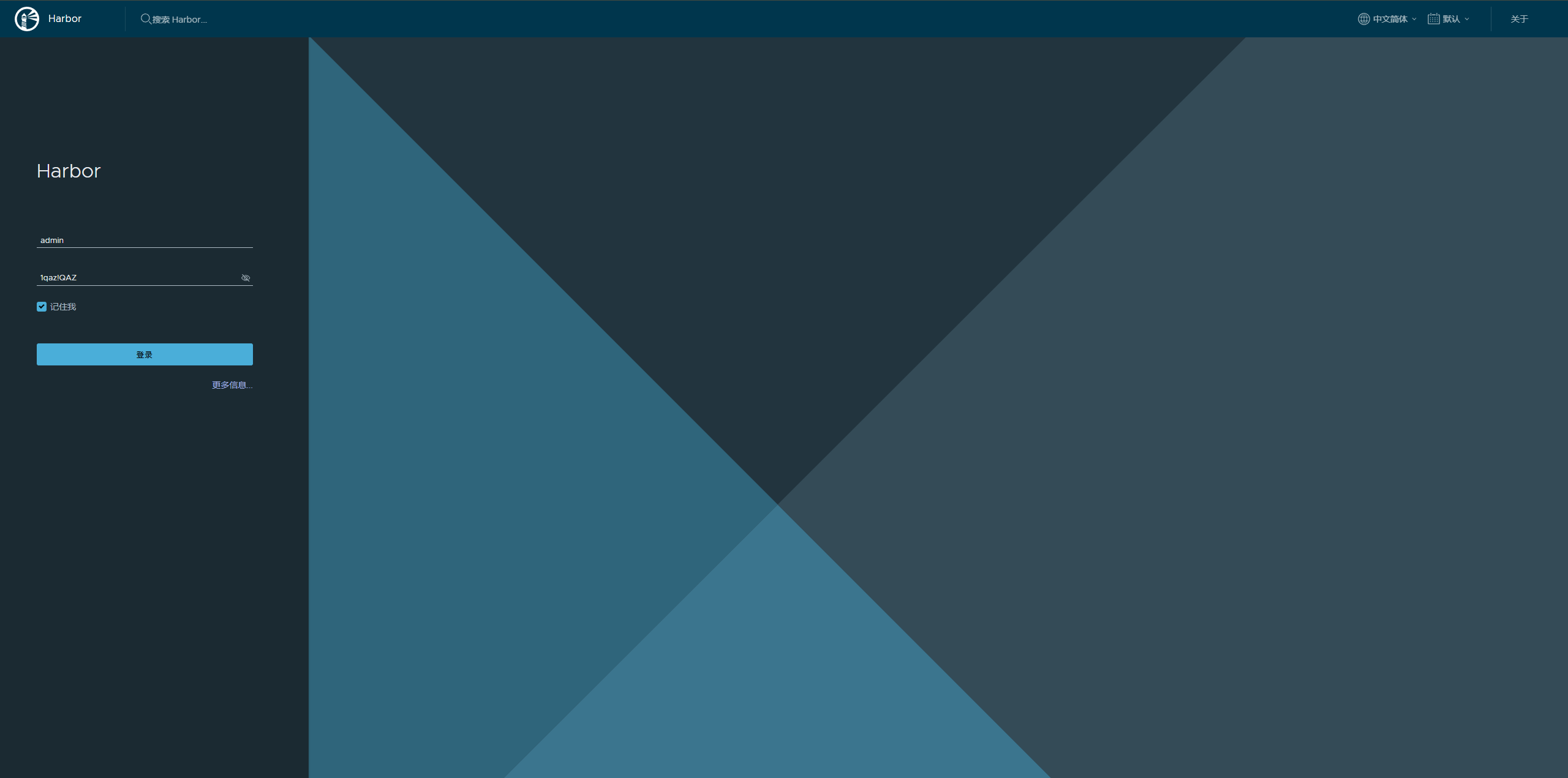
浏览器输入http://hub.xiaopeng.com:8888登录harbor
输入账号admin,密码1qaz!QAZ
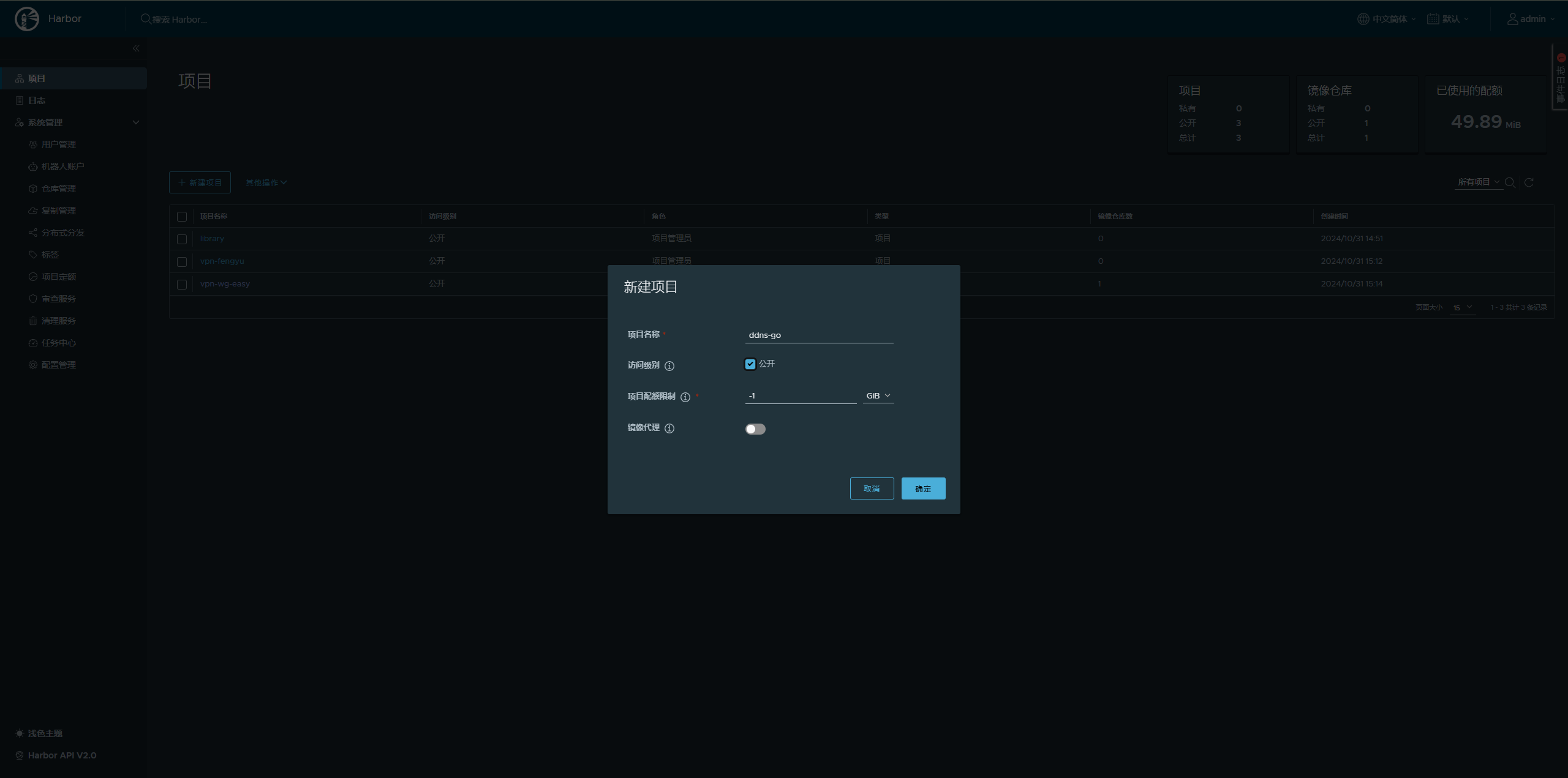
新建项目ddns-go
客户端登录仓库
docker login http://hub.xiaopeng.com:8888    #输入账号名admin和密码1qaz!QAZ登陆仓库

#若报错http协议无法连接仓库则修改/etc/docker/daemon.json文件内容进行docker认证
vim /etc/docker/daemon.json   #添加
{
    "registry-mirrors": [
        "http://hub.xiaopeng.com:8888",
    ],
    "insecure-registries": ["http://hub.xiaopeng.com:8888"]
}

systemctl restart docker.service #重启docker服务然后再次登录就可以登陆成功了
打镜像标签
docker images         #查看原镜像
REPOSITORY                      TAG       IMAGE ID       CREATED         SIZE
jeessy/ddns-go                  latest    8cfe2f551d20   2 weeks ago     24.5MB

docker tag jeessy/ddns-go:latest hub.xiaopeng.com:8888/ddns-go/ddns-go:latest    #打镜像标签
# jeessy/ddns-go:latest                        现有镜像的REPOSITORY:TAG
# http://local-pub.beebest.tech:50080          仓库地址,固定的
# ddns-go/ddns-go:V1.0                         在浏览器创建的仓库名称/你的镜像名称:镜像的版本
docker images        #查看到新标签的镜像
REPOSITORY                                         TAG       IMAGE ID       CREATED         SIZE
jeessy/ddns-go                                     latest    8cfe2f551d20   2 weeks ago     24.5MB
hub.xiaopeng.com:8888/ddns-go/ddns-go       	   latest    8cfe2f551d20   2 weeks ago     24.5MB
推送镜像
docker push hub.xiaopeng.com:8888/ddns-go/ddns-go:latest     #镜像推送
docker logout											 #退出仓库
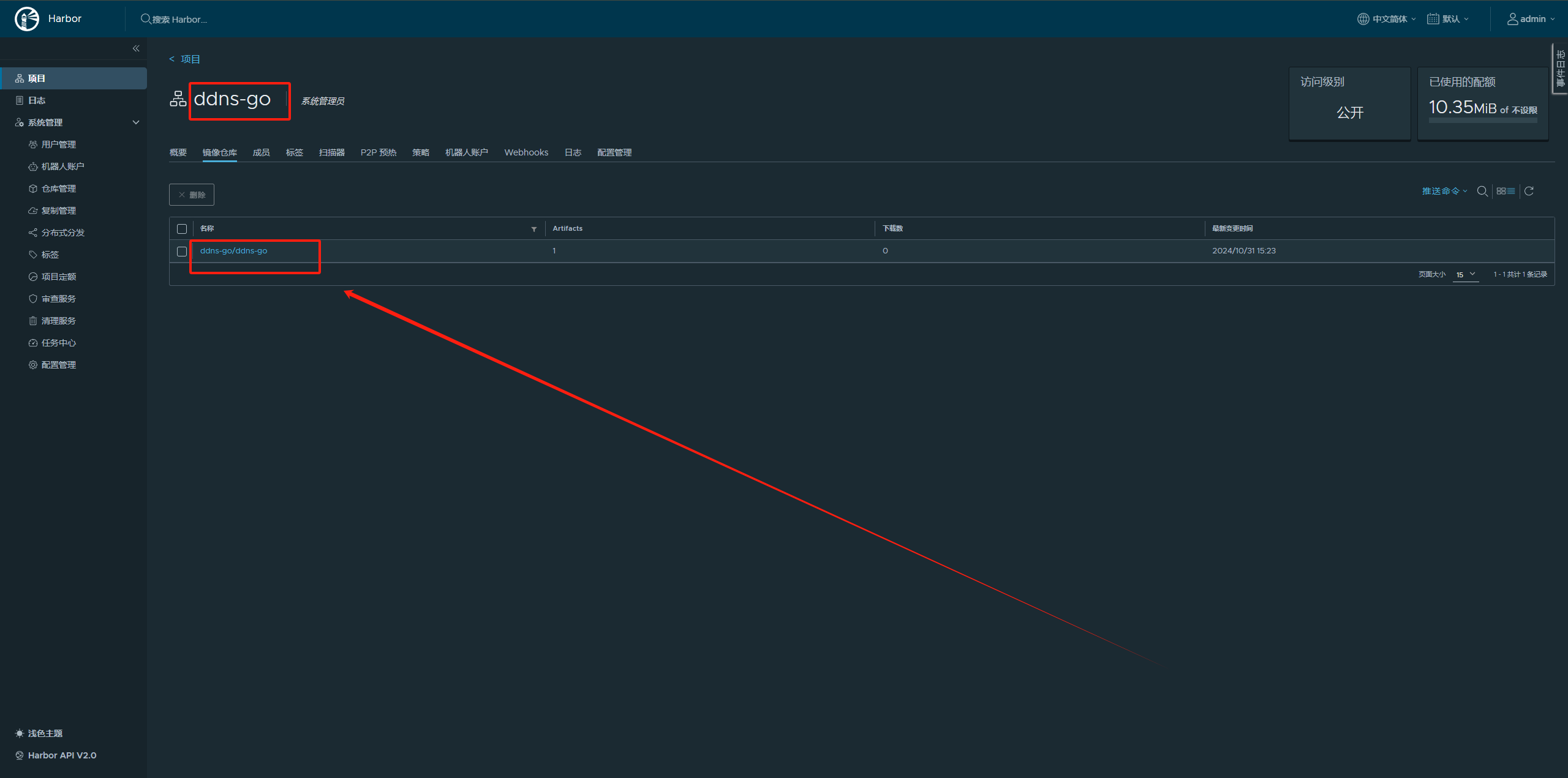
查看仓库,镜像推送完成
拉取镜像
docker pull hub.xiaopeng.com:8888/ddns-go/ddns-go:latest    #拉取镜像

docker images        									#查看镜像
REPOSITORY                                     TAG           IMAGE ID       CREATED         SIZE
hub.xiaopeng.com:8888/ddns-go/ddns-go   	   latest        8cfe2f551d20   2 weeks ago     24.5MB
docker logout											#退出仓库


汇聚全球AI编程工具,助力开发者即刻编程。
更多推荐

 3
3 0
0- 0


 已为社区贡献6条内容

所有评论(0)